Explore the best iPad external storage options for artists and note-takers. Compare USB drives, SSDs, SD cards, and choose the right setup for your creative workflow.
As your iPad becomes more powerful, your files become heavier too. High-resolution illustrations, layered Procreate files, scanned documents, long handwritten notes, exported PDFs,… can quickly eat up internal storage. That’s why understanding iPad external storage options for artists and note-takers matters more than ever.
External storage gives you freedom. More space to create. Less anxiety about deleting old work. A safer way to back up ideas, sketches, and notes that actually matter.

In this article, we’ll explore the best external storage options for iPad users who draw, design, study, or write daily. No complicated tech talk. Just practical choices that fit real workflows.
CONTENTS:
- Why artists and note-takers need external storage on iPad
- What to know before choosing external storage for iPad
- Comparison Table: iPad External Storage Options for Artists and Note-Takers
- How artists use external storage in real workflows
- How note-takers benefit from external storage
- Best file formats for external storage on iPad
- Tips for using external storage smoothly on iPad
- Q&A: iPad external storage options for artists and note-takers
- Final thoughts
Why artists and note-takers need external storage on iPad
Internal iPad storage fills up faster than most people expect. Creative files are the main reason.
Artists often work with large canvases and multiple layers. Note-takers save years of notebooks, lecture recordings, and scanned documents. Over time, this adds up.
External storage helps you:
-
Keep your iPad fast and responsive
-
Store finished projects without deleting them
-
Back up important notes and artwork
-
Move files between devices more easily
-
Work without relying on cloud storage all the time
For many creatives, external storage is not optional anymore. It’s part of the workflow.
What to know before choosing external storage for iPad
Not all storage devices work the same way with iPad. Before buying anything, there are a few basics worth understanding.
-
Your iPad needs a USB-C port or a Lightning port with an adapter
-
iPadOS supports external drives through the Files app
-
Some apps access external storage better than others
-
Power requirements matter for certain drives
Once you know these limits, choosing becomes much easier.
USB flash drives made for iPad
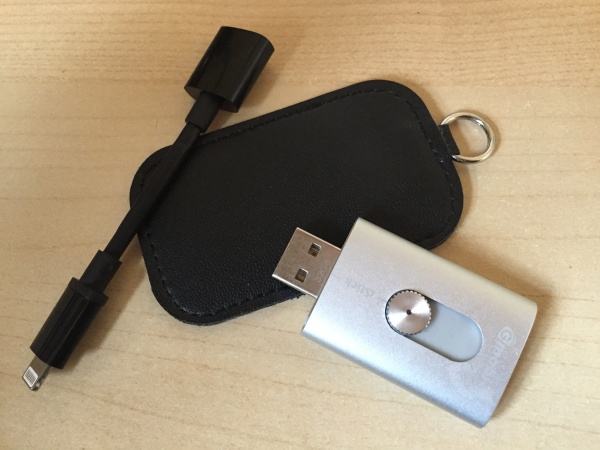
USB flash drives designed for iPad are one of the simplest external storage options.
These drives often come with:
-
USB-C for newer iPads
-
Lightning connectors for older models
-
Dual connectors for flexibility
They plug directly into your iPad and show up in the Files app almost instantly.
Why artists like them:
-
Easy to carry.
-
No cables required.
-
Great for exporting finished artwork.
-
Perfect for sharing files with clients or classmates.
Why note-takers use them:
-
Quick backup for PDFs and notebooks.
-
Simple file organization.
-
Offline access anytime.
Flash drives work best for file transfer and backups rather than live editing large projects.
External SSDs for heavy creative work
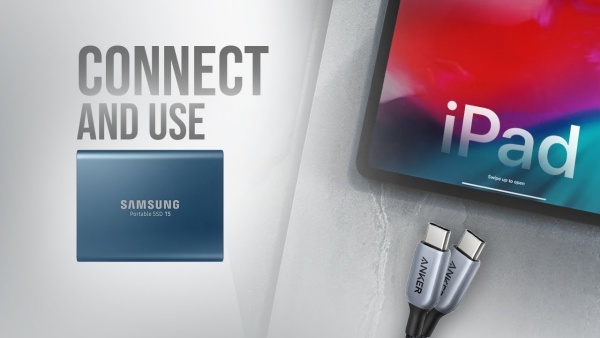
If you work with large files daily, external SSDs are a game changer.
SSDs offer faster speeds and more storage than flash drives. Many artists rely on them for long-term storage and project management.
Benefits for artists:
-
Handles large Procreate files smoothly.
-
Ideal for exporting time-lapse videos.
-
Better performance with layered artwork.
-
Reliable for archiving finished projects.
Benefits for note-takers:
-
Store years of notes in one place.
-
Back up scanned documents safely.
-
Manage large PDF libraries.
-
Faster access than cloud storage.
SSDs work best with USB-C iPads and usually require a short cable connection.
SD card readers for flexible storage
SD card readers are a quiet favorite among creatives.
They let you swap storage instead of carrying multiple drives. One reader, many cards.
Why this works well:
-
Affordable storage expansion
-
Easy to organize by project or year
-
Great for photographers and illustrators
-
Works smoothly with the Files app
For artists who also use cameras or drawing tablets, SD cards fit naturally into their workflow.
Read More:
Cloud storage vs external storage on iPad
Cloud storage is convenient, but it’s not always ideal.
External storage gives you more control, so you’re not tied to subscriptions or dependent on the internet.
External storage advantages:
-
Works offline.
-
One-time purchase.
-
Faster access for large files.
-
Full ownership of your data.
Cloud storage advantages:
-
Automatic syncing.
-
Easy sharing.
-
No physical devices to carry.

Many artists and note-takers use both. External storage for backups and archives. Cloud storage for collaboration and quick access.
Comparison Table: iPad External Storage Options for Artists and Note-Takers
| Storage Type | Best for | Pros | Cons | Recommended Use |
|---|---|---|---|---|
| USB Flash Drive | Casual artists, students, light note-takers | Small, portable, plug-and-play, affordable | Slower speed, limited capacity | Quick backups, sharing files, exporting finished work |
| External SSD | Professional artists, heavy Procreate users | Very fast, large storage, reliable | Higher cost, needs cable | Archiving artwork, large projects, long-term backups |
| SD Card + Reader | Artists using cameras or multiple projects | Flexible, affordable, easy to swap cards | Requires reader, smaller cards | Organizing projects by year or subject |
| Cloud Storage | Collaboration, syncing | Auto-sync, easy sharing | Needs internet, subscription fees | Sharing files, cross-device access |
| External HDD | Budget users with large archives | Cheap per GB, large capacity | Slower, less portable | Long-term storage, rarely accessed files |
How to read this table (quick tip):
If you move files often and value speed, SSDs are the safest choice.
If you want something lightweight for everyday use, flash drives are enough.
If you love organizing projects manually, SD cards feel surprisingly satisfying.
Most artists and note-takers end up mixing one physical drive + one cloud service for balance.
How artists use external storage in real workflows
External storage is not just about saving space. It shapes how you work.
Common workflows include:
-
Exporting finished artwork to an SSD.
-
Archiving old Procreate projects by year.
-
Backing up brushes and assets.
-
Moving files between iPad and Mac.
-
Keeping client files separated.
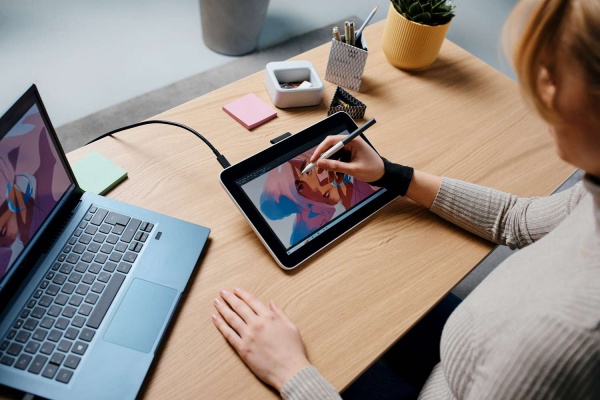
Once storage pressure disappears, creative focus improves noticeably.
How note-takers benefit from external storage
Note-takers often underestimate how much data they create.
External storage helps with:
-
Yearly notebook backups.
-
Long-term document storage.
-
Scanned notes and handwritten PDFs.
-
Organizing files by subject or semester.
It also adds peace of mind. Losing notes hurts more than losing files.
Best file formats for external storage on iPad
Certain file types work especially well with external drives.
Common examples include:
-
PDF for notes and planners.
-
Procreate files for artwork.
-
PNG or JPEG for exports.
-
ZIP for backups.
Keeping files organized by format makes storage easier to manage over time.
Tips for using external storage smoothly on iPad
A few small habits make a big difference.
-
Always eject drives properly in the Files app
-
Use clear folder names
-
Keep a simple backup routine
-
Avoid unplugging during file transfer
-
Test drives before relying on them fully
External storage works best when treated like part of your creative system, not an afterthought.

Q&A: iPad external storage options for artists and note-takers
Can iPad use external storage directly?
Yes. iPadOS supports external storage through the Files app, as long as the drive is compatible.
Which external storage is best for Procreate users?
External SSDs work best for large Procreate files, while flash drives are ideal for exporting finished artwork.
Is external storage safe for long-term backups?
Yes, especially SSDs and quality flash drives. Keeping multiple backups is always recommended.

Can I edit files directly from external storage?
Some apps allow this, but many work better when files are copied to internal storage first.
Do note-taking apps support external drives?
Most note-taking apps allow importing and exporting files through the Files app, which includes external storage.
Final thoughts
Choosing the right iPad external storage options for artists and note-takers depends on how you work, not just how much space you need. Flash drives offer convenience. SSDs deliver power. SD cards bring flexibility.
Once storage stops being a limitation, your iPad becomes what it’s meant to be: a creative tool that keeps up with your ideas, not one that holds them back