
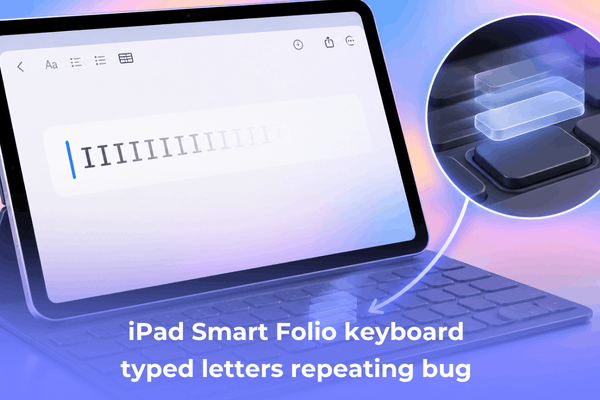

Discover practical steps to solve the iPad Smart Folio keyboard typed letters repeating bug, clean smart connectors, and adjust system settings.
Typing a quick email or taking notes on your iPad should be seamless. However, encountering an unexpected character glitch where keys auto-repeat multiple times can quickly disrupt your workflow and create unnecessary frustration.
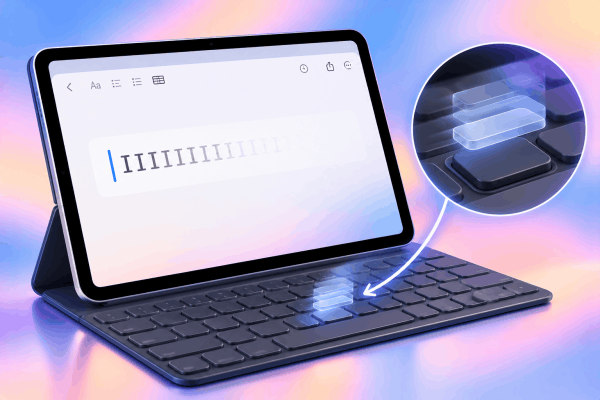
When characters duplicate rapidly across the screen, it often stems from subtle physical connection issues or background software quirks between iPadOS and your physical keyboard.
CONTENTS:
How to fix the iPad Smart Folio keyboard typed letters repeating bug
Addressing this frustrating typing glitch involves checking a combination of software settings, hardware cleanlines, and connection points. Follow these step-by-step solutions to restore smooth, accurate typing performance.
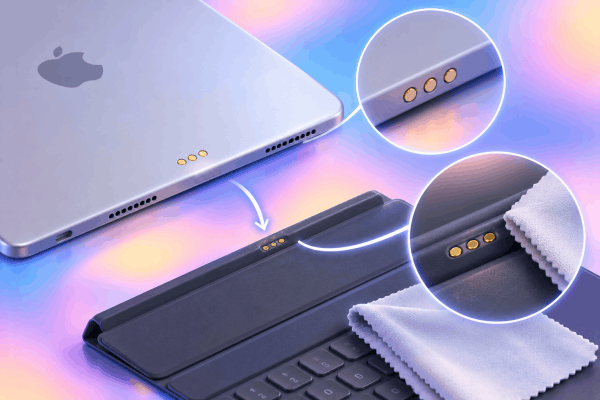
Check smart connector pins and contacts
Dust, micro-lint, or subtle oils on the metal contact points frequently cause signal interruptions between your tablet and accessory.
To clear potential connection interference:
-
Detach your iPad from the Smart Folio completely.
-
Inspect the three gold Smart Connector pins on the back or edge of your iPad and the corresponding contacts on the folio.
-
Clean the gold contacts gently using a dry, lint-free microfiber cloth. For stubborn debris, lightly dampen the corner of the cloth with a tiny drop of isopropyl alcohol and wipe clean.
-
Allow the surface to dry completely before reattaching your keyboard firmly.
Adjust accessibility key repeat settings
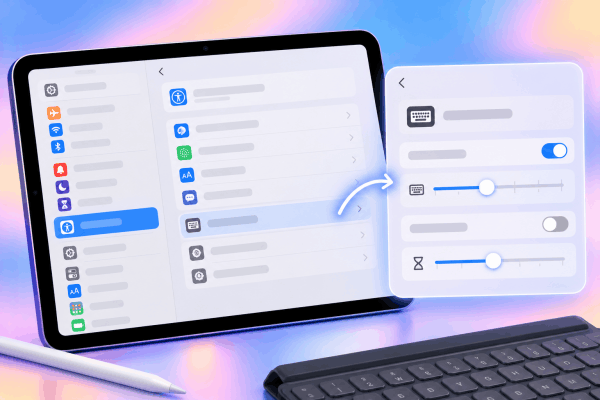
iPadOS includes built-in accessibility controls designed to adjust how physical keys register continuous keypresses. Modifying these timings often eliminates ghost typing or duplicate letter input instantly.
-
Open Settings on your iPad.
-
Tap Accessibility and scroll down to select Keyboards.
-
Select Full Keyboard Access or locate the physical keyboard options.
-
Toggle Key Repeat off, or adjust the Key Repeat Interval slider to a longer duration.
-
Enable Slow Keys if accidental double-taps persist, adjusting the acceptance delay slightly so brief unintended taps are ignored.
Clean key switches and mechanical debris
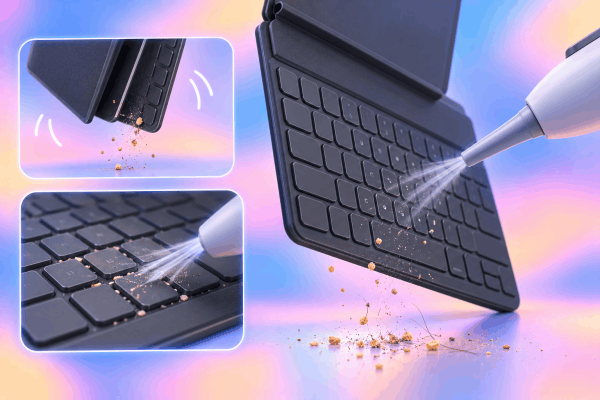
Tiny crumbs, hair, or dust particles trapped beneath the low-profile chiclet keycaps can cause physical switches to stick momentarily, sending repeating signals to your screen.
-
Hold your folio vertically or upside down over a clean surface.
-
Tap the back of the keyboard lightly to loosen trapped particles.
-
Use short, controlled bursts of compressed air held at a slight angle across the keys to clear underlying debris. Avoid inserting sharp objects beneath the keycaps, as the delicate scissor-switch mechanisms can tear easily.
Perform a standard iPad restart
Temporary background system glitches within iPadOS peripheral drivers can disrupt signal processing. Performing a standard restart clears temporary cached memory without affecting your personal data.
-
Press and hold the Top button alongside either volume button until the power-off slider appears on the screen.
-
Drag the slider to turn off your iPad completely.
-
Wait roughly thirty seconds until the display shuts off entirely.
-
Press and hold the Top button again until the Apple logo appears to power the tablet back on.

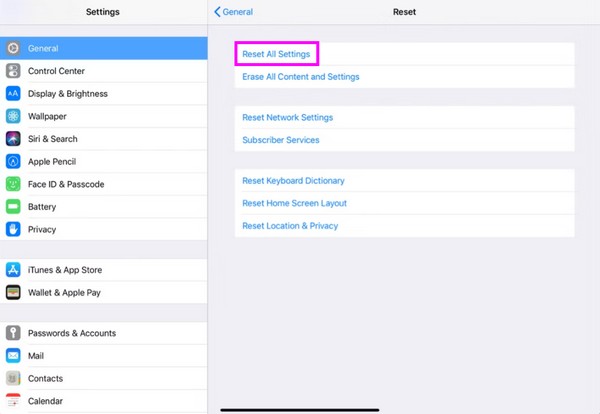
Reset all settings in iPadOS
If software misconfigurations persist, resetting system settings restores peripheral configurations back to factory defaults without erasing your photos, documents, or apps.
-
Open Settings and select General.
-
Scroll down to select Transfer or Reset iPad.
-
Tap Reset, then choose Reset All Settings.
-
Enter your device passcode when prompted to confirm the process.
Practical tips to prevent future keyboard duplication glitches
Maintaining consistent hardware care ensures your typing setup remains reliable during daily use.
-
Keep magnetic connectors dry and free from metallic dust or debris.
-
Avoid resting heavy objects on top of the closed folio, which can compress key switches for extended periods.
-
Ensure your iPad runs the latest version of iPadOS, as Apple frequently issues background fixes for accessory communication bugs.
Keep Reading:
- How to Use iPad Stage Manager with Mouse Keyboard: Ultimate Guide
- iPad Magic Keyboard not typing in Split View? Easy fixes that work
Frequently asked questions
Why does my iPad keyboard keep repeating letters automatically?
This issue usually occurs due to dirty Smart Connector contacts, trapped debris under physical keycaps, or misconfigured key repeat settings in iPadOS.
Can a worn Smart Folio cause keys to stick or duplicate?
Yes, physical wear on internal ribbon cables or worn scissor mechanisms can cause erratic key signals over time.
Does turning off Key Repeat affect shortcut keys?
Turning off Key Repeat prevents single keys from duplicating when held down, but key combinations and keyboard shortcuts continue functioning normally.
Final thought
Resolving the iPad Smart Folio keyboard typed letters repeating bug is usually straightforward once you clean the Smart Connector pins, adjust key repeat options, or clear out trapped debris beneath the keys.
Following these practical maintenance and troubleshooting steps will help restore smooth, effortless typing performance so you can get back to using your device without interruption.






