

Troubleshooting Apple Pencil tilt sensitivity not working in Procreate? Discover practical fixes, brush settings adjustments, and hardware checks.
Digital artists relying on Procreate often run into frustrating technical hitlocks right when inspiration strikes.
Working on complex digital illustrations requires precise inputs, so encountering an unresponsive stylus can instantly halt your creative flow. Among these hurdles, noticing that angle responses have completely stopped can throw off shading, hatching, and blending techniques.
Fixing Apple Pencil tilt sensitivity not working in Procreate involves examining everything from software preferences down to physical hardware components.
CONTENTS:
How to check brush studio tilt parameters
Sometimes the issue is not a system error at all, but rather a specific property embedded inside an individual brush. Procreate gives creators deep customization options, meaning certain brushes have angle dynamics disabled or tweaked by default.
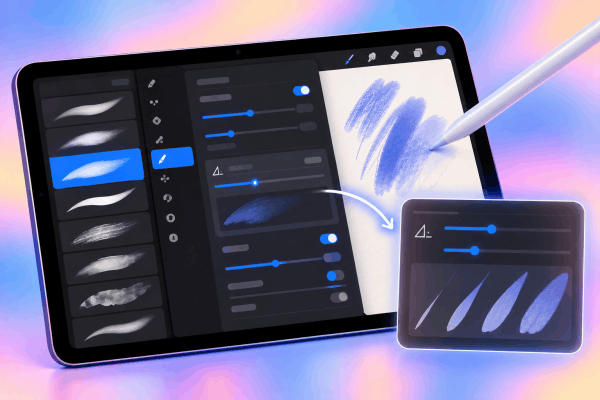
Opening up the specific brush settings lets you verify how angle data is interpreted.
-
Tap twice on any brush in your library to open the advanced Brush Studio.
-
Locate the Apple Pencil menu option on the left sidebar panel.
-
Scroll down to the tilt section and check if the angle sliders are pushed to zero or if strange parameters like size compression are active.
-
Adjust the angle response sliders upward to restore normal shading breadth.
Tweaking these configurations ensures that your favorite sketching and painting tools respond correctly the moment you angle the stylus.
Practical steps to reset gesture and pressure data
Software glitches can occasionally corrupt temporary preference files within the app environment. Clearing these out forces the software to re-establish a clean communication link with your iPad display.
Navigating through the application preferences helps clear out minor cache conflicts that interfere with stylus tracking.
-
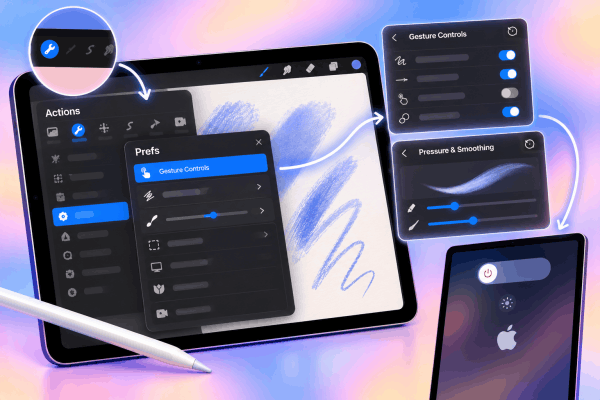
Head into the Actions menu, tap Prefs, and select Gesture Controls to reset general configurations.
-
Look for the pressure and smoothing submenu inside those same preferences to reset tracking curves.
-
Perform a hard reboot on your tablet to clear background RAM processes that might be lagging touch inputs.
Testing your strokes in a clean canvas afterward usually reveals whether the software environment has recovered its responsiveness.
Hardware checks for tip wear and connection
Physical components experience daily wear and tear that can silently disrupt internal sensor accuracy. Even microscopic gaps or loose components can block the precise angle data from transferring smoothly.
Inspecting the physical build of your stylus prevents hours of unnecessary troubleshooting inside digital menus.
-
Unscrew the pen tip completely and check for dust buildup, then twist it back on firmly until it sits flush.
-
Inspect the metallic threads for any microscopic debris that might prevent a stable internal connection.
-
Unpair the stylus from your tablet’s Bluetooth settings menu, then magnetically reattach it to trigger a fresh pairing sequence.
If a loose tip was the underlying culprit, securing it immediately brings back smooth angle detection.
Don’t miss this:
- How to enable hover preview Apple Pencil Pro: Complete setup
- Fix Apple Pencil Handwriting to Text Wrong Language
Frequently asked questions
Why does my stylus tilt work in Apple Notes but fail in Procreate?
When angle tracking functions normally in native apps like Notes but fails inside creative suites, the issue usually stems from individual brush properties. Checking the Brush Studio settings typically resolves this discrepancy.
Can a screen protector interfere with angle recognition?
Thicker tempered glass or worn matte screen protectors can occasionally disrupt minor sensor communication layers, especially if fingers rest too close to the nib during shading.
How do I know if my stylus hardware is permanently damaged?
If resetting preferences, changing nibs, and testing across multiple drawing applications yields no change, the internal gyroscope sensors inside the stylus may have suffered physical failure from an accidental drop.
Final thought
Troubleshooting technical hiccups takes patience, but systematically ruling out software preferences, brush settings, and physical wear will quickly get you back to creating. Keeping your gear clean and your application updated ensures a reliable canvas every time you sit down to draw.





