


Export high resolution Procreate artwork without losing quality. Learn the right canvas setup, export settings, and how to fix blurry or low-quality Procreate exports.
Exporting artwork from Procreate sounds simple at first, but in reality, many people end up frustrated when their drawings look sharp on the iPad and suddenly blurry or low quality after exporting.
If you’re wondering how to export high resolution Procreate files without losing quality, this article is for you. Let’s walk through the process step by step and fix the most common mistakes along the way.
CONTENTS:
- Why Procreate export sometimes loses quality
- Start with the canvas, not the export button
- Best way to export high resolution Procreate files
- Procreate export looks blurry after sharing
- Procreate glitching when zooming or drawing affects export?
- Export settings that actually matter
- How to export Procreate without losing quality for print
- Quick checklist before exporting
- Q&A: export high resolution Procreate
- Final thoughts
Why Procreate export sometimes loses quality
Before jumping into settings, it helps to understand one thing. Procreate does not “ruin” your artwork by itself.
Most quality issues come from three places:
-
Canvas setup.
-
Export format.
-
Where and how you share the file.
Once you control these, exporting high quality artwork becomes much easier.
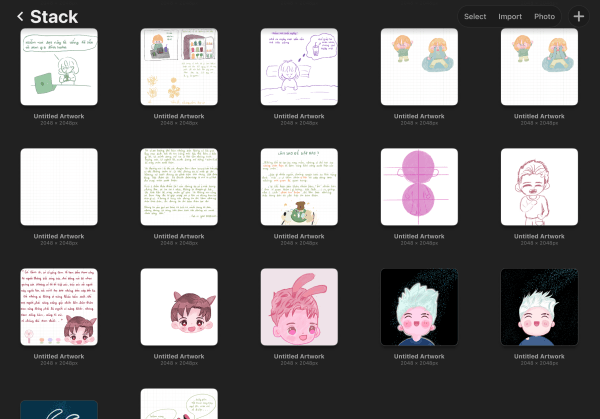
If your canvas is small, no export setting can magically fix it.
Check your canvas size and resolution:
Open your artwork in Procreate.
Tap Actions (wrench icon) => Canvas => Canvas Information.

Pay attention to:
-
Pixel dimensions.
-
DPI value.
For digital use, a large pixel size matters more than DPI. For print, DPI becomes important.
If you plan to print, aim for 300 DPI from the start. If you only post online, focus on having enough pixels.
Once a canvas is created, you cannot increase real resolution later. That’s why many artists feel their Procreate export looks blurry.
Best way to export high resolution Procreate files
Now let’s talk about exporting.
Tap Actions => Share, then choose your format carefully.
PNG for clean and sharp images
PNG keeps details very well. It works great for illustrations, stickers, and line art.
If your Procreate export looks low quality, switching to PNG often fixes it.

JPEG only when you need smaller files
JPEG compresses the image. Compression means quality loss.
If you must use JPEG, move the quality slider to the highest level. Avoid low compression unless file size is your top priority.
PDF and TIFF for print work
For printing, PDF or TIFF usually performs better. They preserve detail and color more reliably.
Many people notice Procreate export losing quality when printing because they choose the wrong format.
Procreate export looks blurry after sharing
This is a very common complaint. Your image may be high quality, but the app you share it to compresses it.
Social platforms and messaging apps often reduce image quality automatically. That’s why Procreate export looks fine on iPad but blurry on other devices.
What you can do instead
Save the file to:
-
Files app.
-
Cloud storage without compression,
Then upload it manually from there. This simple change can prevent Procreate quality reduced after export.

Procreate glitching when zooming or drawing affects export?
Sometimes users notice Procreate glitching when drawing or zooming. They worry the export will be affected.
Good news first. Visual glitches during drawing usually do not lower export resolution. However, if glitches come from memory limits or canvas overload, your strokes may not be as clean as expected. That can show up in the final file.
If Procreate glitching when zooming happens often, consider:
-
Reducing canvas size.
-
Closing background apps.
-
Restarting iPad.
A stable canvas leads to cleaner exports.
Read More:
- Procreate glitching on iPad: What you can do right now?
- How to import fonts into Procreate on iPad: Easy step-by-step
Export settings that actually matter
Here’s what truly affects quality when exporting high resolution Procreate files.
Color profile: Stick with standard RGB for digital use. Switch to CMYK only if your printer asks for it.
File destination: Avoid direct sharing to social apps if quality matters.
Original canvas setup: This matters more than export settings.
How to export Procreate without losing quality for print
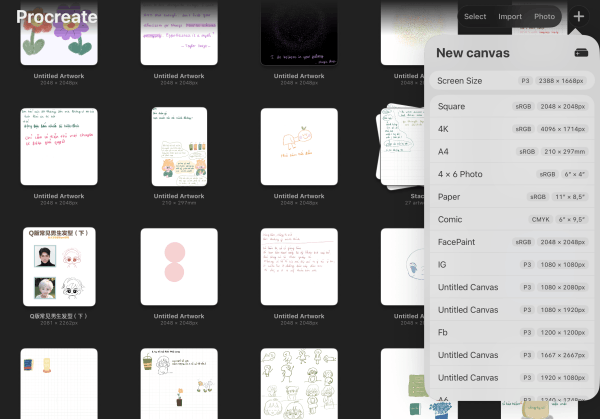
Printing is where most quality complaints happen. To avoid Procreate export low quality for print:
-
Create canvas at print size from the beginning.
-
Use 300 DPI.
-
Export as PDF or TIFF.
-
Avoid resizing after export.
Never upscale a small canvas for print. It will always look soft.
Quick checklist before exporting
Before tapping “Share”, ask yourself:
-
Is my canvas big enough?
-
Am I using the right format?
-
Am I sharing through a compressed platform?
Fixing these three things solves most issues.
Q&A: export high resolution Procreate
Why does Procreate lose quality when exporting?
Procreate usually doesn’t. Quality loss often comes from small canvas size, JPEG compression, or apps that compress images after export.
What is the best export format in Procreate?
PNG works best for most digital artwork. PDF or TIFF works better for print. JPEG should be used carefully.
Why does my Procreate export look blurry on Instagram?
Instagram compresses images heavily. Your file is likely fine before upload.
Export at higher resolution, then upload from the Files app for better results.
Does DPI matter for digital art?
Not much. Pixel dimensions matter more for screens. DPI becomes important when printing.

Can Procreate glitches affect export quality?
Glitches during zooming or drawing usually don’t reduce resolution. But heavy lag may affect stroke smoothness. Keeping your canvas and iPad optimized helps.
Final thoughts
Exporting high resolution Procreate artwork is not complicated. It just requires a bit of planning: start with the right canvas, then choose the correct format and don’t forget to be careful where you share your files.
Once you get used to this workflow, exporting clean and sharp artwork becomes second nature. And your Procreate files will finally look as good everywhere as they do on your iPad.






