


Learn how to organize iPad Home Screen with App Library. Hide extra pages, clean app clutter, and build a productive layout easily.
A cluttered home screen filled with scattered app icons makes finding everyday tools surprisingly frustrating. As your app collection grows, flipping through multiple pages to locate a single productivity app slows down your workflow and creates unnecessary visual clutter.
Integrating the App Library into your daily layout offers an effortless way to keep your tablet clean while maintaining quick access to every installed application.
CONTENTS:
How to organize iPad Home Screen with App Library
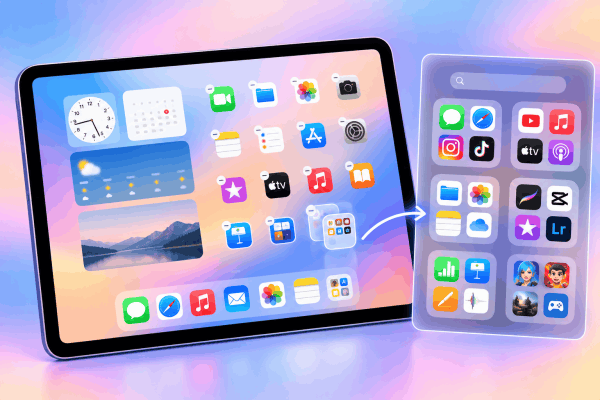
The App Library acts as a central repository that automatically categorizes all your applications into smart folders. Utilizing this built-in feature allows you to eliminate unnecessary app icons from your main display without uninstalling a single program.
Step 1: Remove clutter from the main screen
Moving individual apps off your primary display creates immediate visual space while keeping the software intact on your device:
-
Touch and hold any empty area on your home screen until icons begin to jiggle.
-
Tap the minus (-) button on the top-left corner of the app icon you want to hide.
-
Select Remove from Home Screen.
The app disappears from your visible pages, moving safely into the App Library.

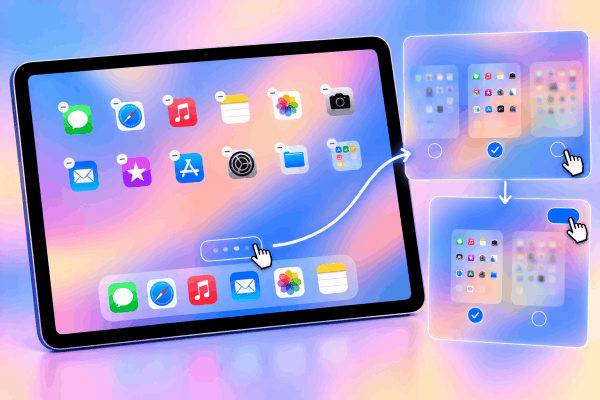
Step 2: Hide entire home screen pages at once
If you have accumulated dozens of pages over time, cleaning them up one app at a time takes far too long. Hiding complete pages speeds up the decluttering process significantly:
-
Touch and hold an empty space on the home screen to enter jiggle mode.
-
Tap the page dots located near the bottom of your screen above the Dock.
-
Uncheck the circle under any page you wish to hide from view.
-
Tap Done in the top-right corner.
Your hidden pages vanish instantly, streamlining your daily navigation to just one or two essential screens.
Step 3: Accessing and searching the App Library
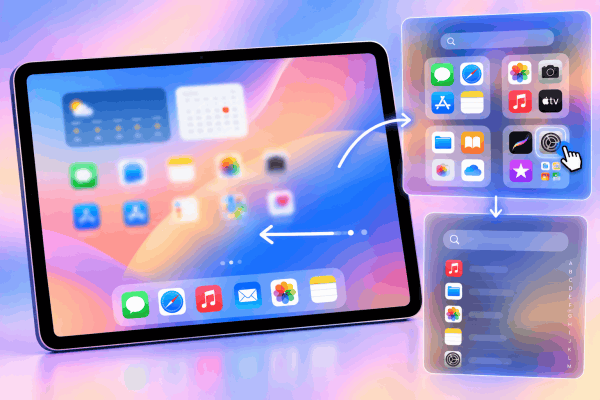
Navigating to your cataloged software requires only a quick swipe or click:
-
Swipe left past your last home screen page to open the App Library.
-
Tap any auto-sorted category box to launch an app directly.
-
Swipe down on the App Library screen or tap the top search bar to view an alphabetical list of all installed applications.
Practical tips for a minimalist iPad setup
Maintaining a tidy home screen requires setting clear boundaries for new downloads and building functional visual layouts.
Change default app download behavior
By default, iPadOS places every newly downloaded app directly onto your home screen, re-creating visual clutter over time. Navigate to Settings > Home Screen & App Library, then select App Library Only under the New App Downloads section. Future app installations will go straight to your App Library, leaving your curated home layout intact.
Combine widgets with single-row app lines
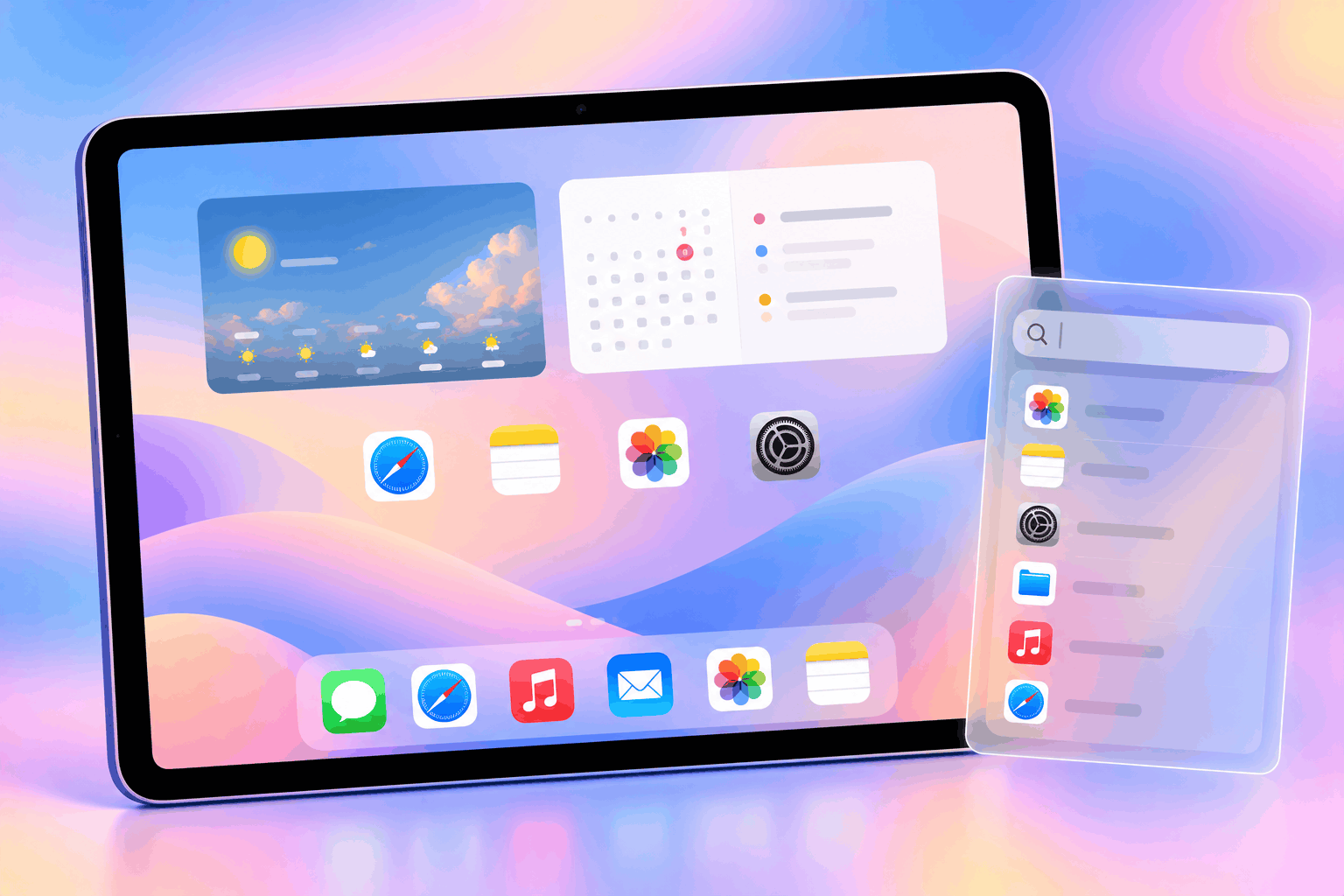
Widgets display vital information at a glance, like calendar schedules, battery levels, or weather forecasts. Pairing two large widgets with a single row of your top four daily apps creates a distraction-free primary screen.
Place remaining secondary tools inside the Dock or retrieve them through Spotlight search (Command + Space or swiping down from the screen center).
Utilize Smart Stacks to save physical space
Instead of scattering multiple widgets across your display, stack them on top of one another. Drag one widget directly over another of the same size to form a Smart Stack. Swiping vertically on the stack lets you rotate through multiple sources of information while occupying the footprint of a single icon block.
Managing App Library settings for maximum efficiency
Optimizing system preferences ensures your cataloged tools remain easily accessible whenever you need them.
In Settings > Home Screen & App Library, toggling on Show in App Library under Notification Badges helps you track unread messages across hidden applications without cluttering your main display.
Furthermore, enabling Show App Library in Dock puts a dedicated shortcut icon right at the bottom of your screen, granting instant access to your entire app catalog from inside any active application during multitasking sessions.
Keep Reading:
- How to Record iPad Screen with Internal Audio: Complete Guide
- How to Use iPad Stage Manager with Mouse Keyboard: Ultimate Guide
Frequently asked questions
Can I rename or reorder the folders inside App Library?
No, iPadOS automatically organizes App Library categories based on App Store metadata. However, using the top search bar inside the App Library provides an instant alphabetical list for fast manual searching.
Does hiding an app from the home screen delete its data?
No. Selecting “Remove from Home Screen” only removes the visual icon from your layout. The app remains fully installed, updated, and accessible via the App Library or system search.
How do I bring an app back to my home screen from App Library?
Swipe to the App Library, find the application, then touch and hold its icon. Drag the icon to the left edge of the screen to drop it back onto your desired home screen page.
Final thought
Organizing your iPad Home Screen with the App Library provides the perfect balance between visual clarity and effortless functionality. Hiding unused pages, routing new downloads off your main display, and leveraging Smart Stacks will transform your tablet into a focused workspace.
Dedicating a few minutes to clean up your layout today leads to a much faster, smoother user experience every time you unlock your device.






