
Wondering if you should update to iPadOS 26? Discover new features, pros, cons, community feedback, and my iPad Pro 2020 experience.
Every year, Apple drops a new iPadOS and sparks the same debate: Should I update right away, or wait until things settle? With iPadOS 26, the question feels even more important. This version introduces a mix of shiny new features and small but noticeable changes – some of which I like, and some that Reddit users are already complaining about.

If you’re wondering “Should I update to iPadOS 26?”, here’s a breakdown of what’s new, the pros and cons, and my experience using it on an iPad Pro 2020.
CONTENTS:
What’s new in iPadOS 26
Apple didn’t reinvent the iPad, but it did polish up the multitasking experience and added a few fresh tools:
Design refresh: Liquid Glass
-
The new design language is called Liquid Glass: translucent/glass-like UI elements that reflect or refraction light and surroundings, giving more visual depth and dynamism.
-
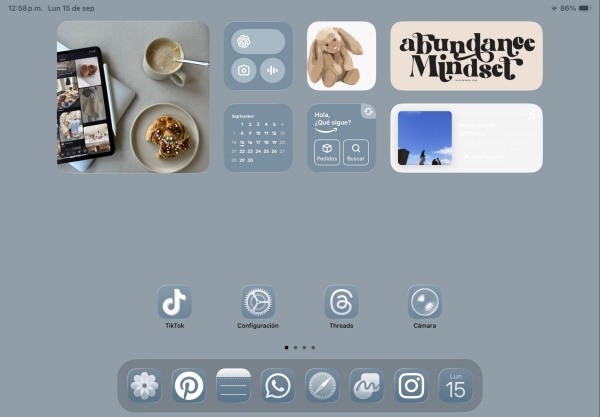
App icons, controls, navigation bars, sliders, toolbars, and widgets have been updated. Icons can have light, dark, or “clear” (transparent) appearances; Home screen and Lock Screen get new effects.
-
The Lock Screen dynamically adapts its look based on wallpaper, with motion / subtle 3D effects when you move the iPad. The time display also adjusts to keep the subject in view.
New windowing/Multitasking system
-
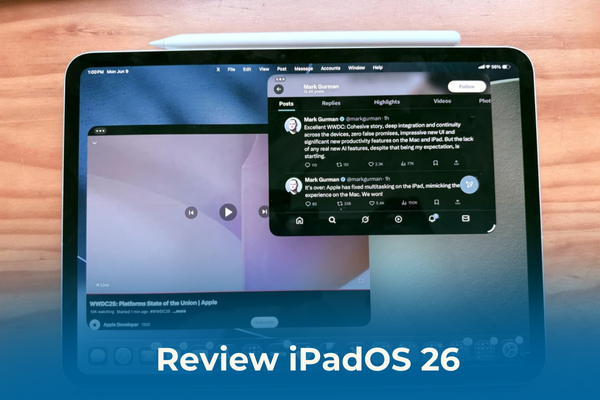
iPadOS 26 introduces an entirely new windowing system. Apps can be resized, moved around freely, tiled, minimized/closed/made full screen with controls more like a desktop OS.
-
Features include window tiling (placing windows side-by-side or in custom layouts), being able to open more windows at once, and remembering window positions.
-
The classic Split View and Slide Over multitasking features have been removed. They’re replaced by the new windowing/editor-style approach.
New apps and productivity tools
-
New apps: Preview (for viewing/editing PDFs, with Apple Pencil support), Journal (journaling with media + handwriting/sketching), Games (centralized game library + discovery), Phone (features like Call Screening, Hold Assist on iPad) are now included.
-
Files app improvements: better organization, customization of folders, and Folders in the Dock for quicker access.
-
Enhanced audio/video features: better local capture/recording of audio and video streams, improved editing tools. Useful for creators, podcasts, etc.
Apple Intelligence and other enhancements
-
More integration of Apple Intelligence: things like Live Translation, intelligent actions in Shortcuts, Genmoji and Image Playground for creative expression.
-
UI/UX polish: Translucent tab bars, animated controls, alerts and context menus that feel more dynamic, new navigation options.
-
Compatibility and hardware: Some advanced features depend on newer chips; also, support dropped for the iPad (7th generation).

Liquid Glass Design
One of the biggest visual changes in iPadOS 26 is the new Liquid Glass design language. Apple has refreshed the entire interface with a glossy, glass-like look that adds depth and transparency to system elements. Toolbars, sidebars, search fields, app icons, and even the Control Center now feature subtle translucent effects, making the UI feel more modern and premium.
Not everyone loves it, though. While some users say it gives the iPad a futuristic feel, others on tech forums and social media find the design too rounded, especially in the Control Center sliders for brightness and volume. Still, Liquid Glass is the most noticeable design shift in years, and it definitely changes how the iPad feels day to day.
Pros of updating to iPadOS 26
There are quite a few reasons why updating to iPadOS 26 might be worth it—especially if you use your iPad daily for work, study, or creative projects.
1. Access to the latest features
Updating gives you immediate access to Apple’s newest design language, Liquid Glass, as well as multitasking improvements and Control Center redesign. These aren’t just cosmetic—features like smoother Stage Manager can actually save you time if you juggle multiple apps.

3. Fresh built-in apps
Apple introduced new apps like Preview (a full PDF viewer/editor with Apple Pencil support), Journal (for recording thoughts, sketches, and media), and Games (a central hub for all App Store and Apple Arcade titles). These add new layers of functionality without needing third-party downloads.
4. Apple Intelligence integration
iPadOS 26 continues Apple’s push into AI-powered tools. Features like Live Translation, Genmoji, and Image Playground bring more creativity and productivity to everyday use.
For someone like me who often switches between work and personal projects, these built-in tools feel surprisingly handy.
4. Smoother performance (for supported models)
On newer iPads, iPadOS 26 feels optimized. Animations look sharper, app switching is faster, and responsiveness improves. Even on my iPad Pro 2020, which is a few years old, performance is still solid and doesn’t feel bogged down.
5. A fresher user experience
Even if you don’t care much about productivity tweaks, the Liquid Glass design gives the iPad a more polished, modern look. For some, that visual refresh alone makes the device feel “new” again—without spending money on hardware.
Cons of updating to iPadOS 26
Of course, it’s not all perfect. Some downsides are already sparking discussions online:
1. Potential bugs and stability issues
Like any brand-new release, iPadOS 26 isn’t bug-free. Early adopters on forums have reported random app crashes, occasional freezes, and even battery drain after the update. If you rely on your iPad for work or study, these hiccups can be disruptive.
2. Rounded control center design
Apple’s new Liquid Glass look isn’t universally loved. The Control Center sliders for brightness and sound are now overly rounded, which some users feel looks cartoonish rather than sleek. The design feels more like style over function.

3. Icons and interface criticism
Another common complaint is the icon redesign. Some app icons now look flatter or less detailed, which gives the UI a simplified – but less polished – appearance. Many users on social media have described the icons as “ugly” or “unfinished.”
4. UI that feels too flashy
The Liquid Glass transparency and glossy effects are eye-catching at first, but not everyone appreciates them. Some users find the interface too shiny or distracting, especially with busy wallpapers. Instead of feeling premium, the design can feel overwhelming.
5. Multitasking more complicated
One of the biggest disappointments is multitasking. While iPadOS 26 promises smoother Split View and Slide Over, many users argue that these features are actually harder to use now. T
he gestures feel less intuitive, and arranging apps side by side takes more effort than it did in earlier versions. A lot of users point out that iPadOS 18 handled multitasking much better, and iPadOS 26 feels like a step backward.
You may need this:
- iPad Multitasking Tips: How I Work Smarter on My iPad Pro
- How to Split Screen on iPad: My Simple Guide
6. Older apps may break
Some developers need time to update their apps to support the new system. This means a few of your favorite apps might behave oddly – or refuse to launch – until they’re updated.
For me, the Control Center redesign was the first thing I noticed – and not in a good way. It feels like form over function.
Should you update iPadOS 26 right away or wait?
The answer depends on what you expect from your iPad.
Update now, if you want the latest design refresh, enjoy experimenting with new features like Liquid Glass, or care most about security and staying current. If you like your iPad feeling more MacBook-like, iPadOS 26 delivers that vibe.
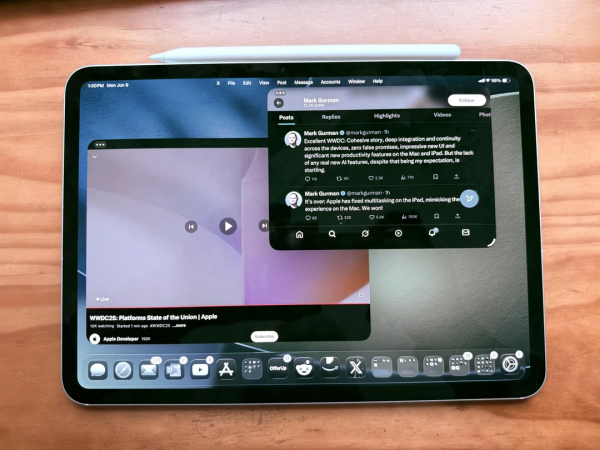
Wait, if multitasking is essential to your workflow. Many users agree that Split View and Slide Over are less intuitive than before, and the experience feels like a downgrade compared to older versions such as iPadOS 18. If stability and efficiency matter more than shiny new visuals, it might be smarter to hold off until iPadOS 26.1 or 26.2 arrives.
In short: iPadOS 26 is tempting for the fresh design and security updates, but not necessarily the best move if multitasking is your top priority.
My experience with iPadOS 26 (iPad Pro 2020)
After updating my iPad Pro 2020, my first impression was that it felt more like a MacBook. The new Liquid Glass design and Control Center changes make the interface look modern, and app switching feels smooth overall.
But when it comes to multitasking, I was disappointed. Split View and Slide Over are harder to manage than before, and I honestly felt iPadOS 18 did a better job in this area. The gestures take more effort, and the flow isn’t as natural.

I’m also not a fan of the new icons. They look oversimplified and less stylish compared to earlier versions. Combined with the overly rounded sliders in Control Center, the whole UI sometimes feels flashy rather than functional.
That said, the experience is still fine. Day-to-day performance feels stable overall. Safari runs more smoothly than before, while the iPad continues to handle my work and study needs without any major issues. It’s not a perfect update, but it hasn’t made my iPad unusable either.
FAQs about iPadOS 26
Q: Is iPadOS 26 stable?
A: Mostly, but some users report bugs and glitches. Expect small issues until updates roll out.
Q: Will my iPad get slower after updating?
A: On newer models, performance is fine. On older models, you might see lag.
Q: Can I downgrade if I don’t like iPadOS 26?
A: Usually yes, but only for a short window after release. Apple stops signing old versions quickly.
Q: Which iPads support iPadOS 26?
A: Most recent models, including iPad Pro 2018 and newer, iPad Air 3 and up, and the latest standard iPads.
Q: Is iPadOS 26 worth it for iPad Pro 2020?
A: On my iPad Pro 2020, iPadOS 26 feels smoother overall and Safari definitely benefits from the update. But the redesigned Control Center and icons may not appeal to everyone.

What other users say about iPadOS 26?
As always with a big iPadOS release, opinions are all over the place. Some people are loving the fresh design and say their iPad feels almost like a MacBook now. A few even mentioned their device runs more stable than they expected after updating.
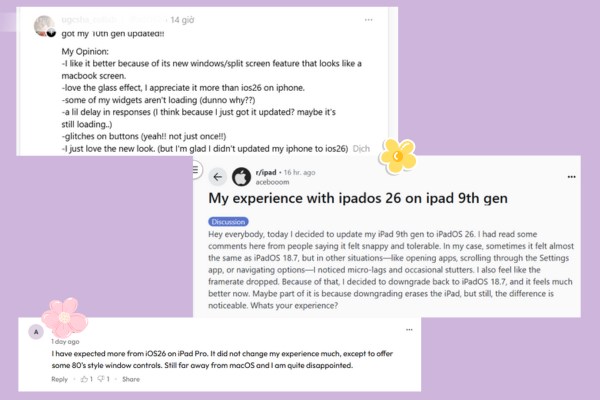
But of course, not everyone’s happy. Some users were so frustrated they reached out to Apple Support just to roll back to an older version. And the multitasking changes? Most people feel let down. Then again, it might just take time to get used to the new flow.
Curious about how iPadOS 26 runs on your specific model? Just type “iPadOS 26” into Reddit, X, Threads, or any other social platform, you’ll find plenty of firsthand reviews.
Conclusion: Should you update to iPadOS 26?
So, should you update to iPadOS 26?
-
If you want the latest features and don’t mind a few design quirks, go for it.
-
If you rely on your iPad for critical work or just hate change, wait until iPadOS 26.1 or 26.2 rolls out.
Personally, I’m glad I updated, but I completely get why some people are holding off. At the end of the day, it depends on how adventurous you are with your tech.