


Learn how to lock screen during video playback on iPad using Guided Access, Shortcuts, and touch controls to prevent accidental taps while watching movies.
High-resolution iPad displays offer one of the most immersive portable media experiences available. Whether streaming movies on Netflix, following tutorial videos on YouTube, or handing a tablet to a toddler during a long travel day, the responsive touch interface makes navigation fluidd.
However, that high sensitivity becomes a drawback the moment an accidental palm rest or stray finger pauses playback, skips ahead twenty minutes, or closes the app entirely.
While native video apps provide basic playback controls, iPadOS lacks a universal physical switch to disable touch inputs across all media players.
Luckily, Apple includes built-in accessibility features that effectively freeze touch response during video sessions. Setting up these software boundaries takes under two minutes and ensures uninterrupted viewing across every video app.
CONTENTS:
Why freezing touch inputs improves tablet viewing sessions
Handholding a large tablet for extended streaming blocks requires frequent grip adjustments. Deactivating touch recognition transforms the display into a dedicated monitor, eliminating the frustration of accidental UI interactions.
-
Prevents accidental scrubbing: Resting your thumb near screen edges stops the playback timeline from jumping unpredictably during crucial scenes.
-
Simplifies viewing for kids: Locking the touch interface prevents children from inadvertently exiting videos, changing volume levels, or navigating into other applications.
-
Maintains continuous playback: Keeping touch recognition turned off prevents accidental taps from interrupting background downloads or live video streams.
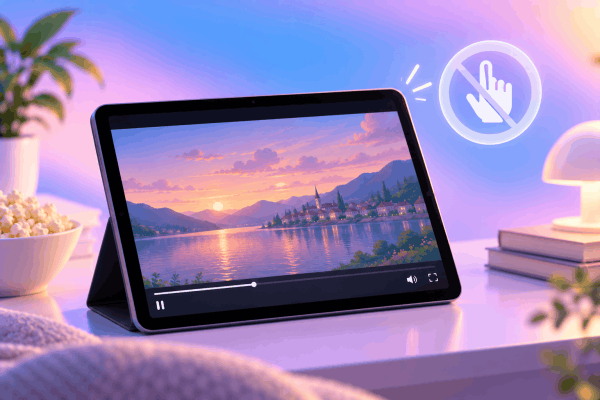
How to lock screen during video playback on iPad using Guided Access
Guided Access represents Apple’s official method for locking iPad touch inputs. Designed primarily as an accessibility tool, it allows users to restrict iPadOS to a single application and selectively disable touch interactions across specific screen zones or the entire display.
The underlying configuration stays saved in system memory, making subsequent activations fast and seamless.
Step 1: Enable Guided Access in iPadOS Settings
Before locking a video session, activate the feature inside the system accessibility menu.
-
Open Settings on your iPad.
-
Scroll down the left sidebar and tap Accessibility.
-
Scroll to the General section near the bottom and tap Guided Access.
-
Toggle the Guided Access switch to On.
-
Tap Passcode Settings, then tap Set Guided Access Passcode to enter a dedicated 6-digit PIN.
-
Toggle on Face ID or Touch ID for faster biometric unlocking later.
Toggle on Accessibility Shortcut at the bottom of the Guided Access setting menu. This links activation directly to your hardware buttons.

Step 2: Lock the touch display during video playback
Once enabled, triggering touch lock during movie streaming requires only a quick hardware button combination.
-
Launch your preferred streaming video app (e.g., Apple TV, Netflix, or YouTube) and start playing your video.
-
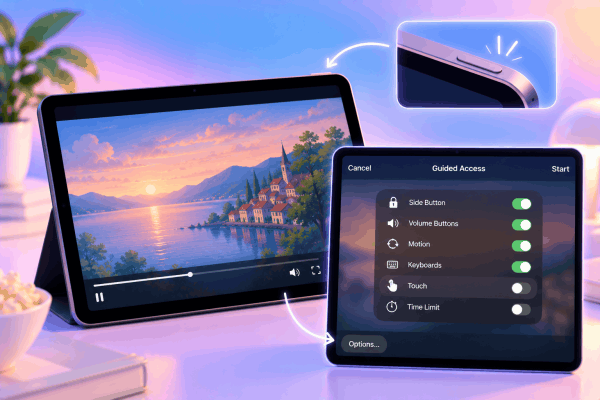
Triple-click the Top button (on iPads without a Home button) or triple-click the Home button (on older iPad models).
-
Tap Options in the bottom-left corner of the Guided Access overlay menu.
-
Toggle the Touch switch to Off (the icon turns gray).
-
Tap Done, then tap Start in the top-right corner of the screen.
The screen immediately ignores all taps, swipes, and multi-touch gestures. The video continues running smoothly without risk of accidental interruption.
Unlocking screen controls when video playback finishes
Disabling touch lock restores full iPadOS navigation once your movie or show completes. Returning to regular tablet operation requires the exact same hardware shortcut used during setup.
-
Using biometrics: Double-click the Top button (or Home button) and allow Face ID or Touch ID to scan your face or fingerprint.
-
Using passcode: Triple-click the Top button (or Home button), enter your 6-digit Guided Access PIN, and tap End in the top-left corner.
Once ended, standard multi-touch responsiveness returns instantly across the entire interface.
Read More:
- How to set up custom app icons on iPad: Complete guide
- How to password protect notes app on iPad: Quick step-by-step
Practical tips for seamless media playback lock sessions
Integrating a few operational habits into your streaming routine prevents accidental locks and maximizes viewing convenience.
1. Adjust volume and brightness before enabling Guided Access
Disabling touch inputs through Guided Access also locks display brightness and physical volume buttons if those toggles are turned off in the Options menu. Set your preferred audio level and screen brightness before triple-clicking the hardware button to start your session.
2. Set up an AssistiveTouch shortcut for broken buttons
If your iPad’s top physical button feels stiff or unresponsive, triple-clicking can prove frustrating. Go to Settings > Accessibility > Touch > AssistiveTouch, enable the floating button, and assign Guided Access to the Double-Tap or Long Press custom action.

3. Create a custom Shortcuts automation for instant launch
Users who watch videos primarily while working out or cooking can automate screen locking. Open the Shortcuts app, create a new Automation triggered by opening specific media apps, and add the action Start Guided Access to bypass manual button triple-clicks entirely.
Frequently asked questions
Does locking the screen work on all video streaming apps?
Yes, Guided Access operates at the system level within iPadOS. It locks touch recognition universally across native Apple software, third-party streaming platforms, web browsers, and local file players.
Will phone calls or alarms interrupt a locked video screen?
Active Guided Access sessions suppress incoming app notifications, FaceTime rings, and system banners by default. Alarms set in the Clock app will still sound, but emergency alerts pause until the session ends.
What should I do if I forget my Guided Access passcode?
If biometric unlock is disabled and you forget the custom PIN, force-restarting the iPad resets Guided Access. Hold the volume button closest to the top button alongside the top button until the power-off slider appears, then restart the device.

Final thought
Configuring your iPad to ignore touch inputs during movie streams eliminates one of the most common everyday media consumption headaches.
Leveraging Guided Access turns a flexible tablet display into an uninterrupted viewing portal suitable for travel, workouts, or quiet evenings. Test out the triple-click shortcut during your next video session, save your custom passcode, and enjoy a completely touch-proof playback setup.






