As someone who uses their iPad almost every day for note-taking and occasional doodling, I kept hearing about Paperlike for iPad. People say it makes writing feel more natural, like using real paper. So I gave in, ordered one, and stuck it on my screen.
Here’s my honest review after using Paperlike on iPad for nearly two years, including what I liked, what I didn’t, and whether it’s really worth it.
CONTENTS:
My first impressions after using Paperlike on iPad
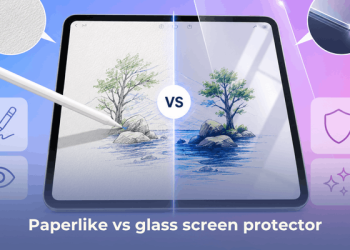
The first thing I noticed was the texture. As soon as I started writing with my Apple Pencil, it definitely felt different. There was a bit of friction – not rough, just enough to remind me of a paper surface. For someone used to the iPad’s smooth glass, it was a big change.
Visually, the screen also looked slightly less shiny. That matte finish was nice in bright lighting but also came with a trade-off (more on that below).

The pros of using Paperlike
I didn’t expect Paperlike to make a huge difference, but it actually improved a few things I didn’t realize I cared about – until now.
Feels more like writing on real paper
This is the number one reason people use Paperlike, and I get it now. Writing and drawing with the Apple Pencil feels more controlled, especially if you write a lot of notes or do digital sketches. It’s more natural than writing on a glass screen.
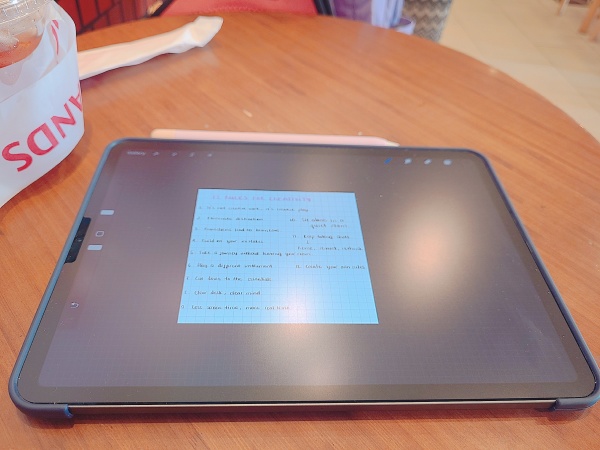
No fingerprints or smudges
One unexpected benefit: Paperlike doesn’t collect fingerprints or smudges as easily as the regular screen. If your hands get sweaty like mine sometimes do, this is a nice bonus.
Reduces glare
Another thing I liked was the anti-glare feature. When I use my iPad near windows or under bright lights, I don’t see harsh reflections anymore. It’s much easier on the eyes.
The downsides you should know
I like using Paperlike, but there are a couple of things that bothered me at first. They’re not deal-breakers, but they’re worth knowing.
Slightly duller display
Let’s be real. Paperlike affects display quality. Colors are a bit less vibrant, and the screen feels slightly dimmer overall. At first, I didn’t like it. But after a few days, I got used to it and stopped noticing. Still, if you’re into photo editing or watching a lot of videos, this might be a deal-breaker.
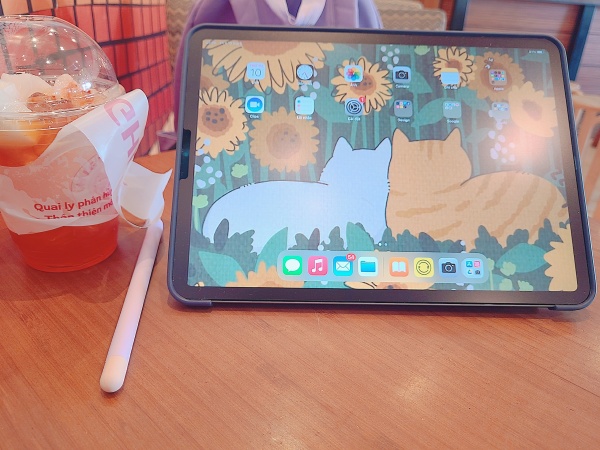
Does Paperlike ruin an Apple Pencil tip?
I’ve seen people online say that Paperlike wears out the Apple Pencil tip faster. That made me nervous at first. But I’ve had mine for 2 years, and my Pencil tip still looks fine. Even if it does wear out eventually, replacing the tip is cheap and easy. Not a huge issue in my opinion.

My personal Experience
To be completely honest, using Paperlike didn’t magically make me write or draw better. My handwriting still looks the same, and my sketches haven’t improved much. What it did do, though, was make the whole experience more comfortable, especially for long writing sessions.
At first, I found the darker screen annoying, but over time, my eyes adjusted and I stopped minding it. It’s now part of my iPad setup and I actually like it.
Quality Paperlike screen protector – I bought mine here and totally recommend it
What other say about using Paperlike on iPad?
Many users, especially students and digital artists, love Paperlike. They say it helps them stay focused, gives them more control, and makes iPad note-taking or drawing more enjoyable. On the flip side, some people feel the display downgrade isn’t worth it, especially if they don’t write or draw that often.
So, Should you use Paperlike on your iPad?
Here’s my take:
Yes, if you:
-
Write or draw a lot on your iPad.
-
Use the Apple Pencil regularly.
-
Want something that feels more “paper-like” and reduces glare.
Maybe not, if you:
-
Care a lot about screen brightness and vibrant display
-
Only use your iPad for watching videos or browsing
Just remember: I personally thinkg Paperlike doesn’t make you better at writing or drawing – it just makes the process feel nicer. Comfort over performance.

Final thoughts
Overall, I’m happy I gave Paperlike on iPad a try. It made using my Apple Pencil more enjoyable and helped keep my screen clean and glare-free. While there are some trade-offs (like slightly duller colors), they didn’t bother me in the long run.
If you’re someone who writes, draws, or studies a lot on your iPad, I’d say go for it. Just don’t expect it to turn you into an instant artist. Your skills still do most of the work.
Read more: