
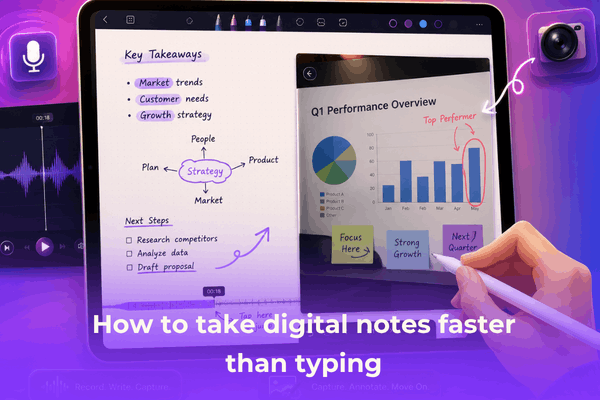

Think typing is always the quickest option? Learn how to take digital notes faster than typing using smart iPad tips, shortcuts, and frameworks.
We have all been conditioned to believe that the keyboard is the ultimate speed tool. We measure our productivity in words per minute and assume that the faster our fingers fly across a mechanical keyboard or an iPad Folio, the more information we are retaining.
But if you have ever tried to live-type a complex college lecture or an fast-paced corporate brainstorming session, you know the flaw in this system. Typing forces you to act like a literal court stenographer. You get caught up in fixing typos, formatting bullet points, and transcribing everything word-for-word without actually processing a single thought.
The truth is, typing can actually slow down your mental retention and your overall workflow. By shifting to a specialized digital setup, you can capture complex concepts, map out ideas, and organize your thoughts with much less friction. Here is exactly how to take digital notes faster than typing using strategies that high-performers, digital creators, and students use daily.
CONTENTS:
How to take digital notes faster than typing
To beat the speed of a keyboard, you cannot just write longhand on a glass screen exactly the way you did on paper. You have to leverage the unique software features built into modern tablets and note-taking applications.
Here is a practical, step-by-step framework to speed up your digital ink capture dramatically.
Step 1: Ditch the full sentences and build a personal shorthand
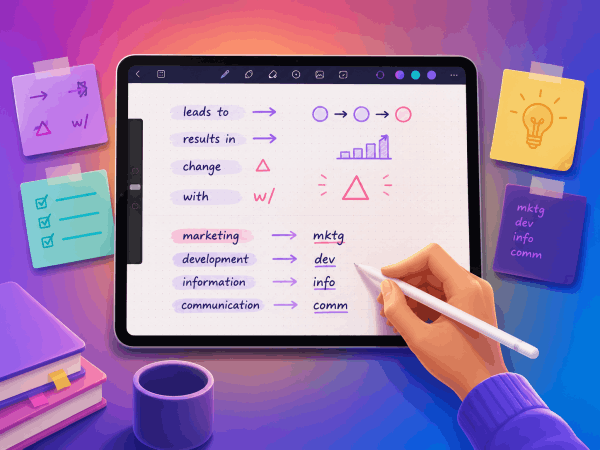
The biggest time-waster in note-taking is spelling out every single word. To move faster, you need a personalized system of symbols and abbreviations.
-
Replace common words with quick glyphs (e.g., use an arrow
->for “leads to” or “results in”, a triangleΔfor “change”, andw/for “with”). -
Drop vowels in long words when writing quickly. Your brain can easily read
mktgas marketing ordevas development when you review the text later.
Step 2: Use rapid hybrid capturing
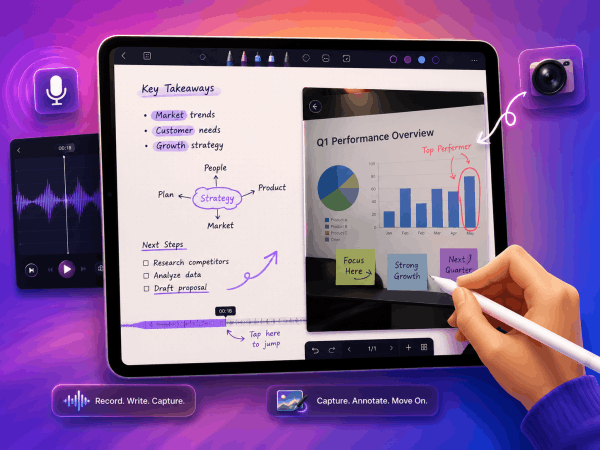
The absolute fastest digital note-takers do not choose between typing, writing, or recording—they do them all simultaneously.
-
Audio syncing: Use apps like Notability or Goodnotes to record ambient audio during a meeting or lecture. As you jot down a single keyword or draw a quick arrow, the app timestamps that exact stroke to the audio recording. Later, you can just tap the handwritten word to jump straight to what the speaker was saying at that moment.
-
Camera tracking: Do not spend three minutes redrawing a complex diagram or graph from a presentation slide. Snap a quick photo with your iPad or phone, drop the image directly into your note page, and use your stylus to circle or highlight the critical elements right on top of the image.
Step 3: Master gestures and tool switching
Fumbling with menus to change pen colors or switch to an eraser ruins your writing speed.
-
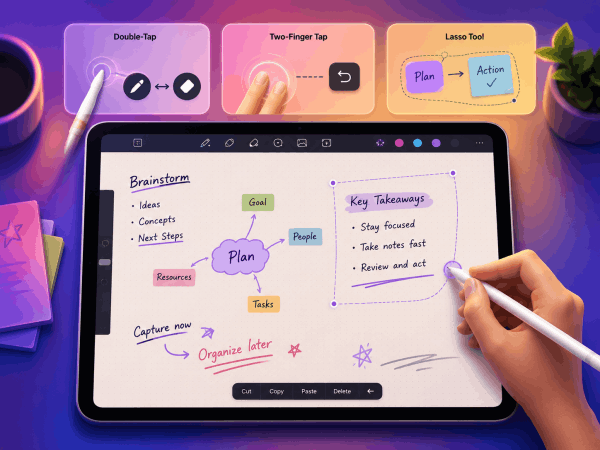
If you use an Apple Pencil, configure the double-tap gesture to switch between your current tool and the eraser.
-
Use two-finger taps to instantly undo a mistake rather than searching for the undo button at the top of the interface.
-
Rely heavily on the lasso tool. Instead of writing neatly, just write as fast as you can anywhere on the screen, then use the lasso tool to resize, move, and organize your text blocks after the speaker finishes.
The psychological advantage of going paperless
Beyond raw speed, there is a fundamental cognitive benefit to this approach. When you type, your brain works in a linear fashion, processing one character at a time. This mechanical process requires low cognitive engagement, which is why typed notes often feel disconnected from actual learning.
When you use a stylus or a hybrid structural layout, you unlock spatial note-taking. You can connect ideas with physical lines, stack concepts inside visual blocks, and change sizes based on importance. This visual hierarchy allows your brain to synthesize information instantly. You understand the relationships between ideas much faster than it takes to type out a traditional outline.
Practical tips from real digital power users
Experienced digital note-takers across online forums and communities often share hidden workflows that save hours of frustration. Here are the top practical tips gathered from everyday users:
-
Get a matte screen protector: Writing on bare glass feels slippery and makes your handwriting messy, which slows you down. A paper-like, matte screen protector adds slight friction, giving you better control and faster precision with your stylus.
-
Set up a canvas grid: Use a dotted or grid template instead of a completely blank white page. The visual alignment points help you keep your shorthand organized without having to think about straight lines.
-
Keep your folder structure minimal: Do not waste precious time creating dozens of deeply nested folders for your files. Rely on deep global search features. Modern note apps use optical character recognition (OCR) to index your messy handwriting, allowing you to find any past note instantly by searching for a keyword.
Frequently asked questions about digital notes
Does digital handwriting actually improve memory retention?
Yes, numerous scientific studies confirm that the physical act of handwriting requires more neural activity and cognitive processing than typing. Because you cannot write down every single word spoken, your brain is forced to summarize and filter information in real-time, leading to much stronger memory encoding.
Which note-taking app is best for pure speed?
For heavy handwritten notes and structural mapping, Goodnotes and Notability are highly efficient due to their instant audio-syncing and lasso tools. If you prefer structured, typed databases mixed with quick media inputs, apps like Apple Notes or Notion work incredibly well.
How do I handle messy handwriting when writing quickly?
Do not worry about neatness during the live session. Focus entirely on capturing the data core. Once the session is over, you can use the built-in “Scribble” or “Convert to Text” features inside your application to transform your messy handwriting into clean, searchable digital typography with a single tap.
Discover More:
- How to Create Custom Procreate Color Palettes Step by Step
- How to fix Goodnotes iCloud sync error: 7 practical solutions
Final thought
Transitioning to a highly efficient digital note-taking system takes a bit of practice, but the productivity payoff is massive. By moving away from text-heavy typing and embracing quick hybrid capturing, visual shorthand, and automated app features, you will save physical time while drastically improving how well you understand and retain your best ideas.






