


Staring at a spinning wheel or a Goodnotes iCloud sync error? Discover 7 proven fixes to get your digital notes syncing across devices again.
Few things interrupt a productive workflow faster than opening your iPad or Mac only to find your digital planner or lecture notes haven’t updated. Instead of a seamless transition, you are greeted by a spinning wheel or an annoying alert stating that your changes couldn’t save.
If you are dealing with a Goodnotes iCloud sync error, you are not alone. While the convenience of cloud storage is incredible when it works, intermittent network rate limits, version mismatches, or system data hangups can stall your note-taking ecosystem.
Fortunately, this is entirely fixable. By digging beyond standard support templates to find what actually works for real-world digital note-takers, we have compiled the ultimate guide to getting your notebooks back in alignment.
CONTENTS:
- Understanding why your Goodnotes iCloud sync error occurs
- Step-by-step solutions to fix the Goodnotes iCloud sync error
- 1. Enforce a strict manual update check across all devices
- 2. The duplicate file workaround (For specific stuck documents)
- 3. Cycle system-level iCloud permissions
- 4. Clear the system containers cache (For Mac users)
- 5. Temporarily turn off Background App Refresh
- 6. Verify automatic date and time alignment
- 7. The nuclear option: Resetting iCloud storage data
- Pro tips for a bulletproof digital note setup
- Frequently asked questions
- Final thought
Understanding why your Goodnotes iCloud sync error occurs
Before jumping into the solutions, it helps to understand what is happening under the hood. Goodnotes relies heavily on Apple’s backend database framework (CloudKit) to mirror text, strokes, and images between your iPad, iPhone, and Mac.
When a sync fails, it is rarely because your local data is gone. Your notes are safe on the active device. Instead, the communication bridge has dropped. This usually stems from a few specific culprits:
-
App version mismatch: Running different versions of Goodnotes across your devices.
-
CloudKit rate limits: Apple’s servers temporarily throttling the app due to intense server loads or massive PDF attachments.
-
Local cache corruption: Stalled temporary files creating a loop that keeps the app from pushing new edits.
-
iCloud configuration issues: System settings inadvertently turning off background execution.

Let’s walk through the exact steps required to isolate and fix the problem.
Step-by-step solutions to fix the Goodnotes iCloud sync error
If your cloud icons have exclamation marks or your Mac app isn’t displaying your latest iPad edits, work through these real-world troubleshooting steps.
1. Enforce a strict manual update check across all devices
The single most common reason sync breaks silently is an out-of-sync app version. Goodnotes frequently rolls out hotfixes, and if your iPad auto-updates while your Mac stays on an older build, the data schemas won’t align.
Do not rely on the App Store icon badges, as they often lag. Open the App Store on every device you use, search for Goodnotes directly, and see if the button says Update instead of Open. Bring all installations to the identical build number.
2. The duplicate file workaround (For specific stuck documents)
If the sync error is only affecting one or two specific notebooks, the issue isn’t your account—it’s likely a stuck asset queue inside that particular file.
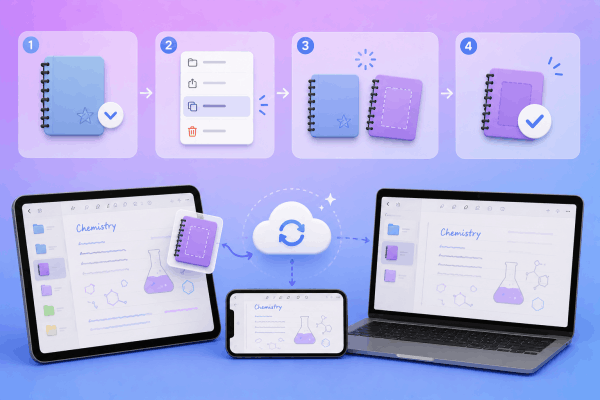
There is a remarkably simple workaround that note-takers rely on:
-
Go to your Goodnotes document library.
-
Tap the small arrow icon down next to the problematic folder or notebook.
-
Select Duplicate.
-
Wait a few moments. In many cases, the duplicate creates a fresh upload queue and syncs across devices almost immediately. Once confirmed, you can safely delete the original stuck document.
3. Cycle system-level iCloud permissions
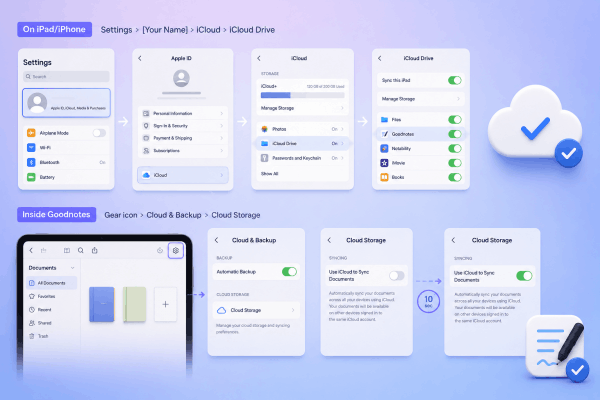
Sometimes, iOS or macOS misreports whether the cloud service is actually active for the app. Toggling it forces a handshake reset.
-
On iPad/iPhone: Head to Settings > [Your Name] > iCloud > iCloud Drive. Ensure that Sync this iPhone/iPad is switched on, and verify that Goodnotes is enabled under the app list.
-
Inside Goodnotes: Tap the gear icon > Cloud & Backup > Cloud Storage, toggle Use iCloud to Sync Documents off, wait 10 seconds, and switch it back on.
4. Clear the system containers cache (For Mac users)
If the sync failure occurs specifically on your MacBook, a corrupt temporary file may be blocking communication. Clearing the background container often forces the macOS app to download fresh copies from the cloud.
-
Completely quit Goodnotes on your Mac.
-
Open Finder, press
Command + Shift + Gto bring up the folder search. -
Paste the following path:
~/Library/Containers/com.goodnotesapp.x/Data/Library. -
Find the folder named Caches, move it to the Trash, and empty it.
-
Relaunch the app to let it pull clean data.

5. Temporarily turn off Background App Refresh
While it sounds counterintuitive, active network loops can keep Goodnotes spinning endlessly. Turning off background refresh forces the app to focus strictly on foreground syncing when it is open.
Go to your iPad Settings > General > Background App Refresh and flip the switch to off for Goodnotes. Keep the app active and visible on your screen for a few minutes to let the files process uninterrupted.
Discover More:
- Notability vs Goodnotes 6: The Ultimate iPad Note-Taking Showdown
- GoodNotes import PDF not working? Here’s how to fix it step by step
6. Verify automatic date and time alignment
Cloud security protocols require precise time logs to prevent data overwrites. If your device time differs from the iCloud server by even a minute, updates will be rejected outright.
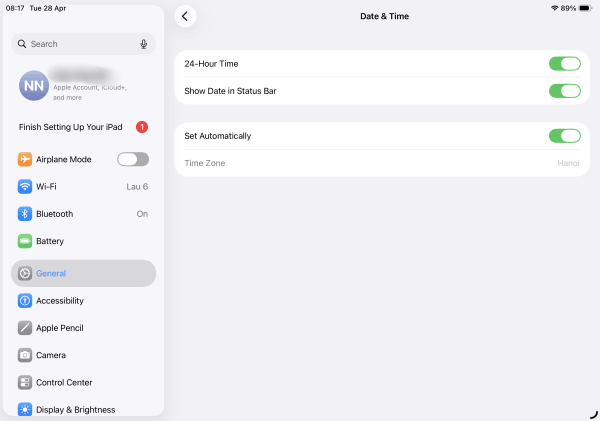
Navigate to Settings > General > Date & Time. Ensure that Set Automatically is turned on. If it is already on, toggle it off and on again to re-sync with local cell towers or Wi-Fi region data.
7. The nuclear option: Resetting iCloud storage data
If you keep getting alerts stating your app version is out of date when it isn’t, there is likely incompatible legacy data stuck on the cloud servers. You can safely wipe the cloud data without deleting the actual notes on your iPad.
-
Go to iPad Settings > [Your Name] > iCloud > Manage Account Storage.
-
Find Goodnotes in the list, tap it, and select Delete Data.
-
Return to the app on your primary iPad. It will notice the cloud is empty and ask to re-upload your local library.
Pro tips for a bulletproof digital note setup
Fixing an active error is great, but avoiding future sync blocks is even better. Implementing a few structural changes can keep your digital notebook lightning fast.
-
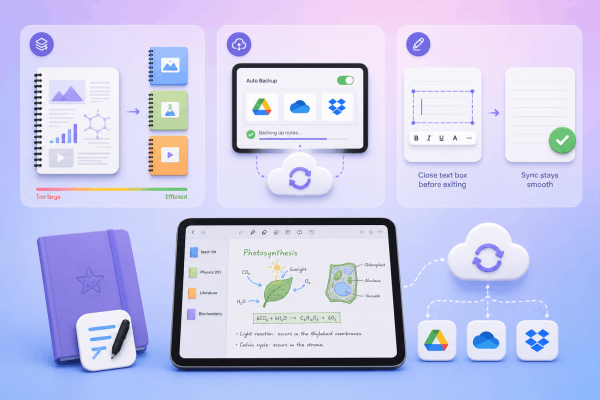
Split large media-heavy files: If you embed hundreds of high-res photos or 500-page textbooks into a single notebook, the file payload becomes massive. Break major modules into separate notebooks to minimize upload congestion.
-
Set up an automatic secondary backup: Do not let iCloud be your only safety net. Use the Auto Backup feature found under settings to automatically export PDF copies of your notes to Google Drive, OneDrive, or Dropbox. It runs quietly in the background and gives you instant access to your notes even if iCloud goes down entirely.
-
Close text boxes before exiting: When typing out text elements, always tap outside the text field to close the cursor before closing your iPad lid or switching apps. Leaving a text block actively editing can halt the sync cycle.
Frequently asked questions
Will deleting the Goodnotes app erase my notes?
If your notes are successfully synced to iCloud or you have a recent local backup, they will download again upon reinstallation. However, if you have a persistent sync error, the latest changes on that specific device are only saved locally. Always execute a manual backup before offloading or deleting the app.
Why do my note thumbnails show a cloud icon with an exclamation mark?
This means the app knows the document exists in your cloud directory but cannot verify the data or download the latest package. Running through the duplicate file method or performing an app update loop usually clears these warning icons.
Can I use Goodnotes cross-platform without iCloud?
Yes. While iCloud handles the native, instant syncing across Apple devices, you can utilize link-sharing tools or cloud backups to view notes on other environments, or manually sync files via web dashboard interfaces depending on your account structure.

Final thought
A reliable note-taking system is crucial for staying organized, managing your personal growth, and keeping your daily tasks on track. While dealing with a Goodnotes iCloud sync error can feel like a setback, most issues boil down to simple version discrepancies or cached network loops.
Taking five minutes to verify your update status, clear out system caches, or duplicate a stuck file will almost always get your workspace back in action. Set up that secondary auto-backup today, and you won’t have to worry about a cloud error slowing you down again!





