


Missing important appointments because your iPad alarm is quiet or not making sound? Here are the practical fixes to get your alerts back.
Your iPad alarm not making sound is like a recurring nightmare. This issue leaves many users wondering: Why is my iPad not making alert sounds? While it feels like a mysterious software glitch, the root cause is usually a combination of overlapping audio settings, hidden focus modes, or minor system bugs.
Instead of diving into generic troubleshooting manuals, let’s explore the practical, real-world solutions that everyday users have discovered to get those alerts blasting again.
CONTENTS:
The primary checklist: why is my iPad not making alert sounds?
Before diving into complex settings, it is important to understand that your iPad handles alarm audio differently than media playback. You might be able to stream videos perfectly fine, but your alarm on iPad quiet or entirely muted. Let’s look at the most common culprits behind the silence.
1. Separate volume sliders are confusing you
The single biggest trap for iPad users is the difference between media volume and ringer/alert volume. If you turn down the volume while watching a movie or playing a game, you might think you only lowered the media sound. However, depending on your configurations, you might have accidentally silenced your system alerts too.
Go to Settings > Sounds (or Sounds & Haptics). Look at the slider under Buttons and alerts. If this slider is dragged all the way to the left, your alarm will trigger visually but will not make a sound. To prevent this from happening in the future, toggle off Change with buttons. This locks your alert volume at a specific level, meaning your side buttons will only adjust media volume going forward.
2. The Bluetooth device trap
If you frequently use wireless headphones, portable speakers, or external monitors, your iPad might still be connected to them. When an alarm triggers, iPadOS sometimes routes the audio directly to the connected Bluetooth accessory rather than the built-in iPad speakers. If your headphones are sitting inside a bag or across the room, you will never hear the alert.

Swipe down from the top right corner of your screen to open the Control Center. Tap the Bluetooth icon to quickly disable it before going to sleep, or tap the AirPlay icon in the media box to ensure the audio output is set directly to “iPad.”
Advanced adjustments to rescue your morning routine
If the basic volume check does not solve the problem, the issue likely stems from conflicting software features or an overlapping schedule layout.
Check your Bedtime or Sleep Focus schedules
Apple has heavily integrated health tracking into iPadOS, creating sophisticated “Sleep” schedules that tie into the Health and Clock apps. If you have a Sleep Focus active, it can occasionally clash with standard, recurring alarms.
Open the Clock app and look at your active alarms. If you see an alarm attached to a “Change” button next to a sleep schedule, that alarm follows different rules than a standard custom alarm.
Many users report that changing their wake-up alarm to a standard, independent alarm completely bypasses the bugs associated with automated Sleep schedules. Turn off the Sleep schedule alarm and create a fresh, standard alarm a few minutes apart to see if it behaves properly.

The “Attention Aware” complication
If you own an iPad with Face ID, a feature called Attention Aware Features might be the reason your alarm on iPad quiet. This feature uses the front-facing camera system to detect if you are looking at the screen. If you wake up, glance at the iPad while the alarm is going off, the device assumes you are aware of it and immediately lowers the alert volume to a whisper.
If you tend to sleep facing your iPad or grab it to check the time while half-asleep, you can turn this off:
-
Open Settings.
-
Navigate to Face ID & Passcode.
-
Scroll down and turn off Attention aware features.
Read More:
- How to Take Digital Notes Faster Than Typing for Maximum Productivity
- How to Create Custom Procreate Color Palettes Step by Step
Quick fixes that solve sudden software bugs
Sometimes, code simply gets tangled up in the background. If your settings look flawless but the silence persists, try these quick system refreshments.
Change the alarm tone itself
It sounds almost too simple, but files can occasionally corrupt. If you are using a custom song downloaded from your music library or an old custom ringtone, the iPad might fail to play the audio file when the trigger time hits.
Open your specific alarm, tap Sound, and switch it to a default classic system tone like “Radar” or “Chimes.” Always check if the sound previews properly when you select it. If the preview is silent, the system audio engine needs a quick reset.
Force restart the audio system
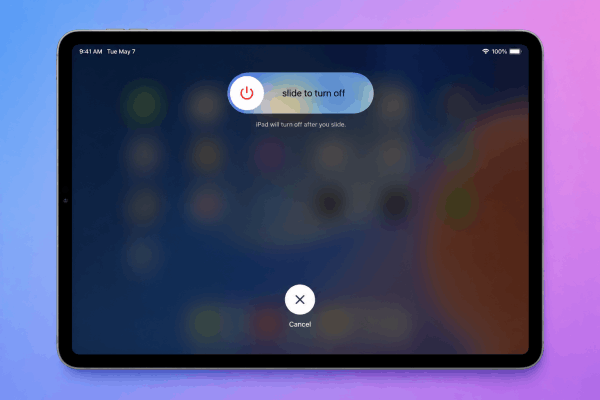
A standard restart clears out temporary data that might be blocking the audio engine.
-
For iPads without a Home Button: Press and quickly release the volume up button, press and quickly release the volume down button, then press and hold the top power button until the Apple logo appears.
-
For iPads with a Home Button: Hold down both the Home and top power buttons simultaneously until you see the logo.
Frequently asked questions about iPad alerts
Why is my iPad alarm not going off when it is on silent mode?
A standard alarm is designed to bypass the physical Mute/Silent switch and standard “Do Not Disturb” profiles. However, if the volume slider under Sounds & Haptics is set to zero, or if a highly restrictive custom Focus mode is explicitly blocking the Clock app, the alarm will still fail to produce sound.
Can custom third-party alarm apps cause conflicts?
Yes. Third-party alarm apps do not have the same system-level permissions as the native Apple Clock app. If you close the app background process or if your iPad enters a deep sleep state overnight, third-party apps may fail entirely. It is always safest to rely on the built-in system app for crucial alerts.
Does iPadOS updates fix these audio issues?
Frequently. Audio routing glitches are often recognized by developers and addressed in subsequent dot-releases (e.g., updating from iPadOS 26.1 to 26.2). Keeping your device updated ensures you have the latest stability patches for system audio.

Final thought
Missing an alarm is incredibly frustrating, but fixing an iPad alarm not making sound usually comes down to managing how your device handles background volume and external connections.
By separating your alert volume from your media volume buttons and keeping an eye on active Bluetooth devices, you can transform your iPad back into a reliable morning partner. Take five minutes tonight to adjust these settings, test a sample alarm one minute into the future, and rest easy knowing your morning routine is secure.





