


Running out of space? Learn how to free up ‘Other’ storage on iPad effectively with practical, tested tricks to clear System Data instantly.
If you have ever gone to your iPad settings to see what is eating up your storage, you have probably run into a mysterious, grey-colored monster. On older iPadOS versions, it is called Other. On newer versions, Apple renamed it System Data.
No matter what you call it, it is incredibly frustrating. You go to download a new game or update an app, and your iPad hits you with a “Storage Almost Full” warning. You look at your breakdown, and this digital ghost is occupying 20 GB, 40 GB, or even more of your precious space.
Unlike photos or apps, there is no simple “Delete” button for this category. Do not worry—you do not have to buy a new iPad or pay for a larger iCloud plan just yet. Let’s look at how to free up ‘Other’ storage on iPad effectively using real-world, highly practical tricks that actually work.
CONTENTS:
What exactly is ‘Other’ or ‘System Data’ storage?
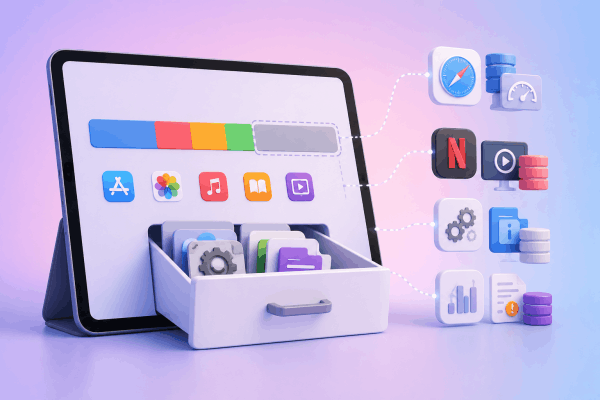
Before we start clearing things out, we need to know what we are dealing with. The “Other” or “System Data” category is essentially a digital junk drawer. It contains everything that does not fit neatly into standard categories like Apps, Photos, Media, or Books.
The main culprits behind this bloated storage include:
-
System caches: Temporary files created by Safari, streaming apps, and iPadOS so things load faster.
-
Streaming buffers: Pre-loaded chunks of video or audio from apps like Netflix, Spotify, or Disney+ when you watch or listen online.
-
Update fragments: Leftover files from previous iPadOS updates that did not delete themselves properly.
-
Analytical logs: Internal files your iPad creates to track app performance and errors.
While a few gigabytes of system data are normal to keep your device running smoothly, a sudden explosion in size usually means your iPad is failing to delete its temporary files automatically.
How to free up ‘Other’ storage on iPad effectively
If you want to reclaim your storage without losing important files, follow these tested, practical steps.
1. Clear your Safari cache and website data
Safari is a massive contributor to temporary data bloat. Every time you browse a website, your iPad saves heavy images and scripts locally so the page loads faster next time. Over months of browsing, this data builds up significantly.
-
Go to Settings > Apps > Safari.
-
Scroll down and tap Clear History and Website Data.
-
Select the time frame (preferable All history) and confirm.

2. Offload or deep-clean heavy streaming apps
Apps that handle heavy media—like video editors, music streaming platforms, or social apps—are notorious for hoarding cache files. For example, if you stream hours of video or podcasts, the app might store that data in the “Other” section rather than under its own app data profile.
You have two main strategies here:
-
Clear cache within the app: Open apps like Spotify or Telegram, head to their internal settings, and look for a “Clear Cache” button.
-
The Offload trick: Go to Settings > General > iPad Storage. Tap on a heavy app and select Offload App. This deletes the app software itself but keeps your documents and login details. Reinstalling it forces the app to strip away old, corrupted temporary files.

3. Change your message history settings
If you use iMessage or receive lots of photos and videos through the Messages app, your iPad stores these attachments forever by default. This content secretly inflates your system data.
-
Open Settings > Apps > Messages.
-
Scroll down to Message History and tap Keep Messages.
-
Change this from Forever to 1 Year or 30 Days. Your iPad will instantly sweep away old, forgotten attachments.
Read More:
- How to extend iPad battery lifespan: 9 practical tips that actually work
- How to use iPad as a second monitor for Windows without the lag
4. Force a cache purge with the computer sync trick
This is one of the most effective insider tricks used by tech enthusiasts. If your iPad has accumulated a mountain of system logs and temporary files, plugging it into a computer can trigger an automatic cleanup.
-
Connect your iPad to a Mac (via Finder) or a Windows PC (via the iTunes app) using a cable.
-
Unlock your iPad and trust the computer.
-
Leave it connected for 10 to 15 minutes.
-
Perform a manual Sync through the computer interface.
During this process, the operating system securely transfers analytical logs to the computer and clears out thousands of stale temporary files from your iPad. Check your storage right after—you will often see an immediate drop.
5. The ultimate fix: Backup, erase, and restore
If you have tried everything and your System Data is still taking up half of your drive, it means you have a deep-seated software bug or a third-party app that is constantly dumping corrupted files. The only permanent solution is to give your iPad a clean slate.
-
Go to Settings > [Your Name] > iCloud > iCloud Backup and tap Back Up Now to secure your latest data.
-
Once completed, go to Settings > General > Transfer or Reset iPad.
-
Tap Erase All Content and Settings.
-
When your iPad restarts and shows the “Hello” screen, follow the prompts and choose Restore from iCloud Backup.
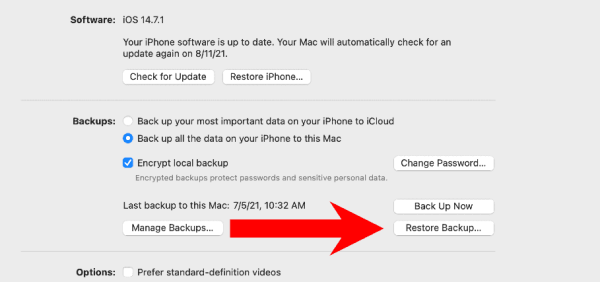
This process completely wipes the storage architecture, eliminating all phantom files and unindexed cache data, while safely downloading your actual apps, photos, and settings back onto the device.
Pro tips to prevent storage bloat in the future
Instead of fighting for storage every few months, implement these simple device-management habits:
-
Turn on Offload Unused Apps: Go to Settings > Apps > App Store and toggle on Offload Unused Apps. This lets your iPad automatically remove applications you haven’t opened in weeks while leaving your data intact.
-
Keep your iPadOS updated: Apple regularly includes background bug fixes in point-releases that specifically target and fix memory leaks or system data storage bugs.
-
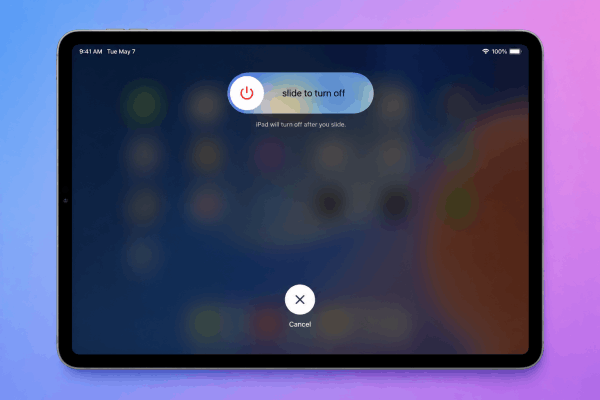
Restart weekly: A simple turn-off-and-on forces the operating system to clear active caches and close out stray background processes.
Frequently asked questions
Why does my iPad storage say ‘Other’ instead of ‘System Data’?
It purely depends on the software version your iPad is running. Older operating systems use the label “Other,” while newer versions group these identical temporary and cache files under “System Data.”
Will deleting ‘Other’ storage delete my personal photos?
No. Personal media like photos, videos, downloaded music, and files are protected. Clearing out this category only removes hidden temporary files, web history, and system logs.
Can I use third-party cleaner apps to clear System Data?
It is generally not recommended. The sandboxing security architecture of iPadOS prevents external apps from accessing system-level directories. Most third-party “cleaner” apps do nothing more than ask you to delete photos manually, and some can even introduce security risks. Stick to native iPadOS settings.

Final thought
Managing local storage on an iPad can feel like a game of digital Tetris, especially if you own a base 32GB or 64GB model. The key takeaway is that you do not have to live with a cluttered device. By regularly flushing your Safari data, utilizing the computer sync method, or executing a clean restore, you can easily reclaim gigabytes of space.
Take 10 minutes today to try out these steps, free up your device, and get back to enjoying your iPad at its peak performance!






