


Unlock the true power of your iPad. Learn how to master Stage Manager on iPadOS 26 with pro tricks and practical workflow tips.
The iPad has always been an incredible device for consumption, drawing, and casual tasks. However, for years, power users felt trapped by rigid mobile limitations when trying to treat it like a serious workstation. Enter iPadOS 26. With the latest software updates, Apple has refined its desktop-class multitasking engine to a point where it finally feels natural, fluid, and genuinely productive.
If you have struggled with overlapping windows or found the layout snapping frustrating in the past, you are not alone. Turning a mobile-first interface into a desktop-like environment takes some adjusting. This guide will walk you through everything you need to know to truly achieve mastering Stage Manager on iPadOS 26, moving past basic setups into highly optimized workflows.
CONTENTS:
- Mastering Stage Manager on iPadOS 26: The core configuration
- Designing efficient workspaces using app groups
- Advanced window management and navigation shortcuts
- External display optimization: Expanding your canvas
- Troubleshooting common friction points
- FAQs about Mastering Stage Manager on iPadOS 26
- Final thoughts
Mastering Stage Manager on iPadOS 26: The core configuration
To build a great workflow, you need to set up your digital canvas correctly. Stage Manager can be activated easily by sliding down from the top-right corner of your screen to open the Control Center and tapping the Stage Manager icon (a square with three small dots beside it).

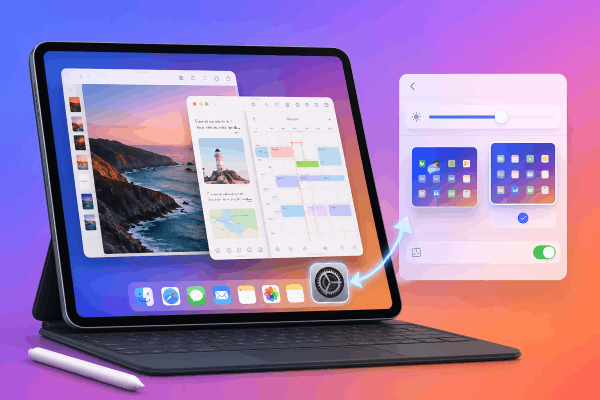
However, the default view often feels cluttered on smaller screens because it forces both the Dock and your recent app strip to stay visible. To maximize your screen real estate, long-press that same Control Center icon. A sub-menu will appear allowing you to toggle off the Dock and Recent Apps.
Don’t worry about losing access to them. When hidden, you can reveal your recent apps simply by moving your cursor or dragging your finger past the left edge of the screen. The Dock will slide up smoothly whenever you swipe up from the bottom edge. This simple tweak instantly reclaims up to 20% of your usable screen space, giving your windows breathing room.
Designing efficient workspaces using app groups
One of the most common mistakes users make is trying to treat Stage Manager like a messy Mac desktop. If you open eight random windows on a single screen, you will quickly end up with a confusing stack. Instead, the secret lies in building task-oriented workspaces called app groups.
Think of an app group as a dedicated physical desk for a single project. iPadOS 26 allows you to group up to four apps simultaneously on the iPad screen (and an additional four if you use an external monitor).
How to assemble a balanced workspace
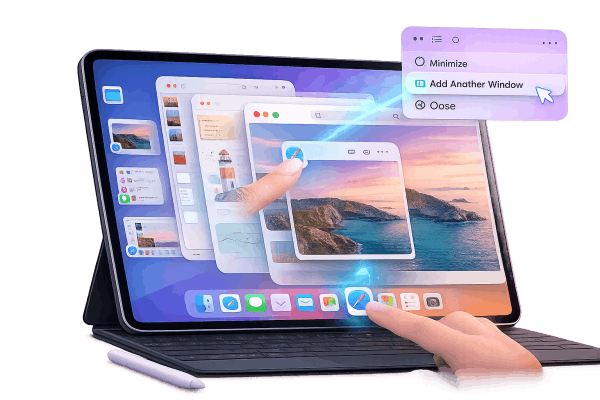
To create a clean group, open your primary app first. Then, drag a second app from your Dock, your Home Screen, or the left-side Recent Apps strip directly into the center of the screen.
If you need to pull an app from deep within your library, tap the three-dot menu button at the top of an open window and select Add Another Window. The current workspace will slide over slightly, allowing you to browse your system freely and select the next piece of your puzzle.
Highly effective layout combinations
-
The Content Creator: Safari (left side for research) + Ulysses or Notion (centered for drafting) + Files app (right side for asset management).
-
The Daily Deep-Work Station: Apple Notes (left side for rapid capture) + Reminders (minimized near the edge) + Outlook or Spark (right side for active communication).
-
The Learning Hub: Goodnotes or Freeform (covering the right two-thirds for handwriting) + Safari or YouTube (left side for video lectures).
Discover More:
- How to fix App Library lag on iPadOS 26 with simple steps
- iPadOS 26 battery drain and everything you need to know
While touch gestures work well for casual adjustments, using a Magic Keyboard or a dedicated trackpad unlocks the true speed of iPad multitasking. Windows in iPadOS 26 don’t move completely freeform; they snap to an invisible, organized underlying grid to keep text readable.
To resize a window manually, grab the curved corner handle at the bottom-left or bottom-right of the window. If you are using a mouse or trackpad, you can hover over any edge or corner to see the cursor change into a double-sided adjustment arrow.

To navigate between these windows like a professional, master these essential keyboard combinations:
-
`Command + “ (Tilde): Instantly cycle through the open windows within your current active stage without needing to click around.
-
Globe + Up Arrow: Bring up the App Switcher to quickly jump between completely different app groups. -
Command + Tab: Switch to your most recently used applications across the entire system. -
Globe + Left / Right Arrow: Move horizontally between your entire active stages, mimicking the feeling of flipping through virtual desktops.
External display optimization: Expanding your canvas
If you own an M-series iPad (M1, M2, M4, or later), plugging your tablet into a high-quality external monitor via USB-C transforms the device into a dual-screen powerhouse. Instead of merely mirroring your tablet’s screen, iPadOS extends your space, offering a native aspect ratio on monitors up to 6K resolution.
When connected, you can manage up to eight apps simultaneously—four on the iPad and four on the external monitor.
To move an active app from your tablet to the larger screen, click the three-dot icon at the top of its window and choose Move to Display. Even better, simply drag the window by its title bar across the boundary line of the screens using your trackpad cursor.
Pro Tip: Go to Settings > Display & Brightness > Arrangement to align your iPad and monitor spatially. This ensures your cursor flows logically across the screen borders without jarring jumps.
Troubleshooting common friction points
Even with major software improvements, you might still encounter occasional performance issues or weird window behaviors. Here is how to fix the most common complaints shared across user communities:
Managing background audio drops
If you are playing music or a video in one window and click into a heavy document or spreadsheet in another, the media may occasionally pause. This happens because the system aggressively manages memory. To prevent this, ensure your media player window is kept in a slightly wider layout format rather than a compressed, phone-sized window. This signals to the operating system that the app requires active resources.
Dealing with rigid layout snapping
If an app refuse to resize to the exact width you want, it is usually because that specific app doesn’t natively support a compact view layout. To get around this, try changing your display scaling. Go to Settings > Display & Brightness > Display Zoom and select More Space. This forces the system to scale down UI elements, giving you significantly more flexibility to resize windows into smaller, tighter footprints.
FAQs about Mastering Stage Manager on iPadOS 26
Which iPad models fully support Stage Manager on iPadOS 26?
Full Stage Manager support (including external display expansion) requires an iPad powered by Apple Silicon. This includes the iPad Air (M1 or later) and the iPad Pro (M1 or later). Standard iPad and iPad Mini models do not support external display expansion, though some newer base models can use limited on-device windowing.
Can I still use Split View or Slide Over while Stage Manager is turned on?
No. Stage Manager is an entirely independent multitasking system. When you turn it on, classic Split View and Slide Over are deactivated. If you prefer the old side-by-side split layout, you can turn Stage Manager off instantly through the Control Center.
Read more: How To Use Slide Over On iPadOS 26: What Changed?
How do I close a single app within an app group without closing the whole stage?
Tap or click the three-dot menu button at the very top center of the specific window you want to close, then select Close. The remaining apps in your group will instantly resize to fill the newly available space on your screen.

Final thoughts
Mastering Stage Manager on iPadOS 26 is all about working with the system’s grid structure rather than fighting against it. By hiding default screen clutter, organizing your apps into dedicated project groups, and committing a few key keyboard shortcuts to muscle memory, you can transform your iPad from an oversized media viewer into an incredibly agile, focused productivity machine. Set up your stages today and see how much faster your daily workflows become.






