


Want to know how to extend iPad battery lifespan? Discover practical, real-world tips and answers to common battery questions.
If you love your iPad as much as I do, it probably goes everywhere with you. From streaming your favorite shows and sketching with the Apple Pencil to handling daily work tasks, it is an absolute powerhouse. But nothing kills the vibe faster than watching that battery percentage plummet right when you are in the middle of something important.
Over time, all lithium-ion batteries degrade. It is just chemistry. However, you don’t have to sit back and watch your iPad’s health tick away. After scouring tech communities, testing real-world solutions, and looking at what actually works for everyday users, I’ve put together the ultimate guide to keeping your tablet running like new.
Here is exactly how to extend iPad battery lifespan without sacrificing your user experience.
CONTENTS:
- Why is my iPad losing battery life so quickly?
- How to extend iPad battery lifespan: 9 actionable tips
- 1. Master your charging habits (The 80% vs 100% debate)
- 2. Enable Optimized Battery Charging
- 3. Tame background app refresh
- 4. Manage your screen brightness and Auto-Lock
- 5. Keep it cool (Avoid extreme temperatures)
- 6. Adjust your location services
- 7. Switch to Fetch instead of Push for email
- 8. Use Wi-Fi instead of cellular
- 9. Keep your software updated
- Frequently asked questions
- Final thought
Why is my iPad losing battery life so quickly?
Before we dive into the fixes, we need to diagnose the problem. If you notice your iPad draining faster than usual, it usually comes down to a few silent battery killers:
-
Background App Refresh: Apps constantly updating data in the background.
-
High screen brightness: The gorgeous Liquid Retina display is a massive power hog.
-
Location services: Apps tracking your GPS location even when you aren’t using them.
-
Push notifications: Every chime wakes up your screen and processor.
-
Battery age: If your iPad is a few years old, the battery might simply be approaching the end of its natural lifecycle.
To see exactly what is draining your juice, go to Settings > Battery. Scroll down to see a breakdown of which apps are using the most power. You might be surprised by what you find!

How to extend iPad battery lifespan: 9 actionable tips
Forget the theoretical advice that requires you to turn your iPad into a useless brick. These are practical, everyday habits that balance battery health with actual usability.
1. Master your charging habits (The 80% vs 100% debate)
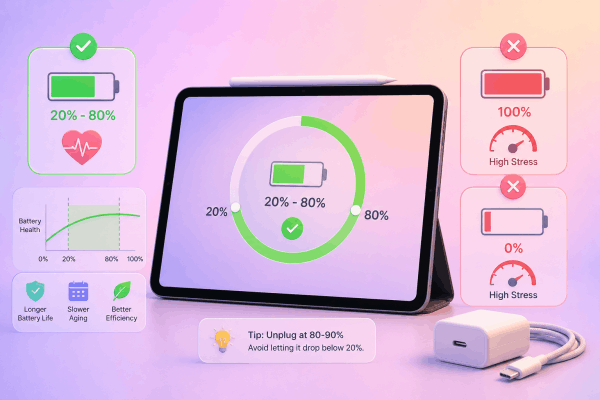
Is it better to charge your iPad to 80% or 100%? Ideally, keeping your battery between 20% and 80% is the sweet spot for long-term health.
Lithium-ion batteries experience the most stress when they are completely full (100%) or completely empty (0%). If you leave your iPad plugged in at your desk all day, it forces the battery to sit at maximum voltage, which speeds up chemical aging. Try unplugging it once it hits 80-90% if you are nearby, and avoid letting it drop below 20%.
2. Enable Optimized Battery Charging
If you have an iPad compatible with newer iPadOS updates (only the newest iPads get this feature), make sure to enable Optimized Battery Charging under Settings > Battery > Battery Health. This feature learns your daily charging routine and waits to finish charging past 80% until you need to use it, drastically reducing the time your battery spends under high voltage.
3. Tame background app refresh
Do you really need a shopping app or a mobile game updating its data when you aren’t using it? Probably not.
-
Go to Settings > General > Background App Refresh.
-
You can turn it off completely or, better yet, customize it so only essential apps (like email or cloud storage) can update in the background.

4. Manage your screen brightness and Auto-Lock
The screen is the single largest consumer of battery power.
-
Turn on Auto-Brightness: Go to Settings > Accessibility > Display & Text Size and toggle on Auto-Brightness. This ensures your screen isn’t blindingly bright in a dark room.
-
Adjust Auto-Lock: Set your iPad to lock after 2 or 5 minutes of inactivity (Settings > Display & Brightness > Auto-Lock). Leaving the screen on while you walk away is a major waste of energy.
5. Keep it cool (Avoid extreme temperatures)
Apple devices are designed to perform best between 62°F and 72°F (16°C to 22°C).
-
Never leave your iPad on a car dashboard on a hot summer day.
-
If your iPad feels hot while charging, take the case off. Heavy protective cases can trap heat, which degrades the battery health significantly faster than normal use.
6. Adjust your location services
Many apps constantly ping your location, draining battery in the background. Go to Settings > Privacy & Security > Location Services. Switch non-essential apps to “While Using the App” or “Never.”

7. Switch to Fetch instead of Push for email
If you receive dozens of emails a day, your iPad is constantly communicating with mail servers. Change your mail settings from Push (real-time delivery) to Fetch (checking every 15 or 30 minutes). You can do this in Settings > Mail > Accounts > Fetch New Data.
8. Use Wi-Fi instead of cellular
If you own a cellular iPad, use Wi-Fi whenever possible. Connecting to cellular networks, especially in areas with weak signals, forces the iPad’s internal antennas to work overtime, causing the battery to drain rapidly and the device to warm up.
Read More:
- 7 Proven Fixes to Stop Chrome From Draining the Battery on iPad
- iPad battery health check: 3 easy ways to see your cycle count
9. Keep your software updated
Apple frequently includes battery optimization tweaks in iPadOS updates. Always check Settings > General > Software Update to ensure your device is running the latest, most efficient code.

Frequently asked questions
Can I leave my iPad charging overnight?
Yes, modern iPads are smart enough to stop drawing current once they reach 100%. However, leaving it at 100% for 8 hours every night does keep the battery at maximum voltage, which can accelerate aging over a period of 2 to 3 years. If you do charge overnight, make sure Optimized Battery Charging is turned on (This capability is limited to the latest generation of iPads).
Does Dark Mode save battery on an iPad?
It depends on your iPad model. If you have an iPad Pro with an OLED display, Dark Mode can save a noticeable amount of battery because black pixels are completely turned off. If your iPad uses an LCD or mini-LED screen, Dark Mode won’t save significant battery, but it is still much easier on your eyes in low-light environments!
Should I force close my apps to save battery?
Surprisingly, no. Force closing apps by swiping them away actually uses more battery. When an app is in the background, iPadOS freezes it in a state of suspended animation, using virtually no power. If you close it entirely, your iPad has to use extra CPU power to reload the app from scratch the next time you open it. Only close an app if it is frozen or misbehaving.
Final thought
At the end of the day, your iPad is a tool meant to be enjoyed, not stressed over. You do not need to constantly micromanage every single percent. By simply turning on Optimized Battery Charging, keeping the tablet out of extreme heat, and adjusting a few background settings, you can easily add months, or even years, to your iPad’s lifespan.
Implement just two or three of these habits today, and you will notice a healthier, longer-lasting battery in no time.






