
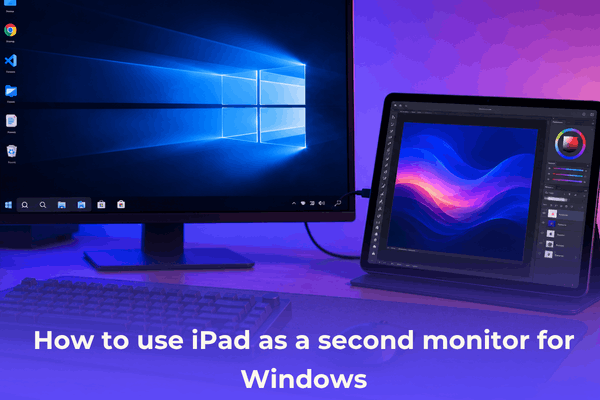

Want more screen space? Learn how to use iPad as a second monitor for Windows using the best wired and wireless apps for a seamless workflow.
If you love the Apple ecosystem but rely on a Windows PC for your heavy lifting or gaming, you have probably envied Mac users for their seamless “Sidecar” feature. There is nothing quite like spreading your timeline, Discord, or reference tabs across an extra display.
But here is the good news: you do not need a MacBook to extend your workspace. You can easily turn your tablet into a portable display. Whether you want to boost your remote work setup or need a portable monitor for travel, here is a practical guide on how to use iPad as a second monitor for Windows without the lag.
CONTENTS:
How to use ipad as a second monitor for windows: Top 3 tested methods
Because Microsoft and Apple do not natively share a “screen extend” button, we have to rely on third-party applications. Real-world testing shows that some apps perform significantly better than others when bridging the iOS-to-Windows gap.
Here are the three most reliable methods to get the job done.
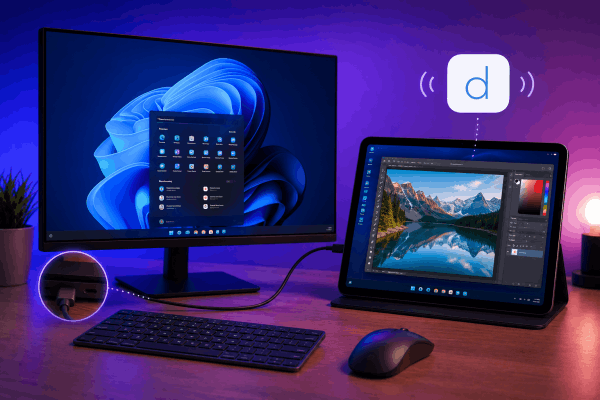
1. Duet Display (The gold standard for zero lag)
Created by former Apple engineers, Duet Display is widely considered the most stable cross-platform solution. It supports multi-touch gestures, custom resolutions, and offers a virtually lag-free experience.
-
Best for: Professionals, digital artists, and anyone who hates latency.
-
Connection type: Wired (USB-C or Lightning) and Wireless (Duet Air plan).
-
How to set it up:
-
Download the Duet Display client on your Windows PC and the companion app on your iPad.
-
Connect your iPad to your PC using a high-quality USB cable.
-
Launch the app on both devices. Your Windows desktop should instantly extend onto the iPad screen.
-
Go to Settings > System > Display on your PC to rearrange the screens so your mouse moves naturally between them.
-
2. Spacedesk (The best completely free wireless alternative)
If you do not want to commit to a paid subscription, Spacedesk is an incredible free tool. It operates over your local network to turn your iPad into a temporary wireless monitor.
-
Best for: Displaying static windows, such as Spotify, Slack, or reference PDFs.
-
Connection type: Wireless (Requires both devices to be on the same Wi-Fi network).
-
How to set it up:
-
Install the Spacedesk Driver Console on your Windows machine.
-
Download the Spacedesk app from the iOS App Store.
-
Open the app on your iPad; it will automatically scan your local network and display your PC’s name.
-
Tap your PC’s name to establish the wireless connection.
-
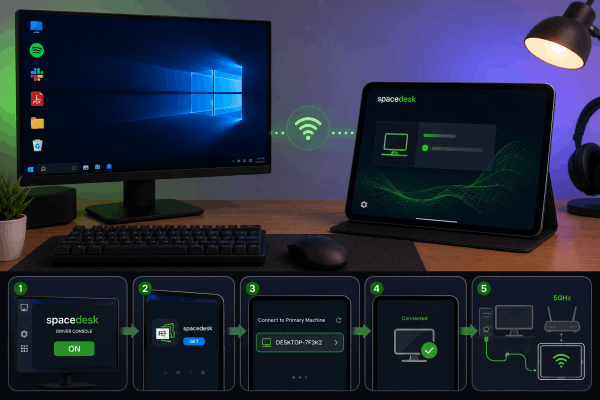
Pro-Tip from Power Users: For the smoothest experience with Spacedesk, ensure your PC is connected via an Ethernet cable and your iPad is on a 5GHz Wi-Fi band. This drastically minimizes frame drops.
3. Splashtop Wired XDisplay (The best budget wired option)
If you prefer a wired connection but want a cheaper alternative to Duet Display, Splashtop is a solid choice. By utilizing a physical cable, it avoids the typical latency bottlenecks of busy Wi-Fi networks.
-
Best for: Users looking for a reliable, plug-and-play wired setup on a budget.
-
Connection type: Wired (Lightning or USB-C).
-
How to set it up:
-
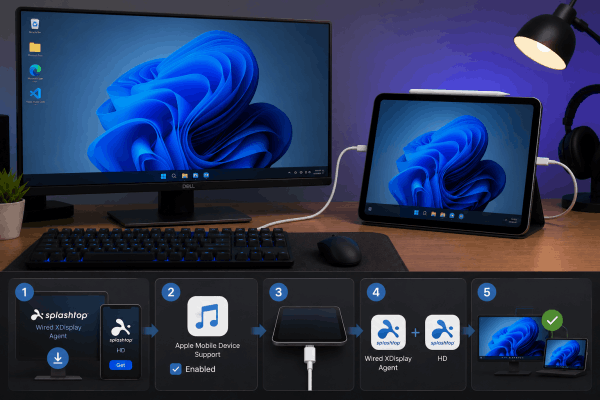
Download the Splashtop Wired XDisplay agent on your PC and the HD app on your iPad.
-
Enable iTunes or Apple Mobile Device Support on Windows (this helps your PC recognize the iPad connection).
-
Plug in your iPad, launch the app on both ends, and watch your screen expand.
-
Essential optimization tips for a smooth experience
Getting the screen to show up is only half the battle. To truly make your iPad feel like a native external monitor, try these optimization tweaks:
-
Adjust Windows Scaling: iPad screens have high pixel densities (Retina displays). When you first connect, text might look microscopic. Right-click your Windows desktop, go to Display Settings, select your iPad monitor, and adjust the Scale and layout (typically 125% or 150% works best).
-
Set Custom Resolutions: If your chosen app supports it, match the output resolution to the aspect ratio of your specific iPad model (e.g., 4:3) to eliminate ugly black bars on the top and bottom of the screen.
-
Lock the Refresh Rate: If you notice stuttering, jump into the advanced display settings on your PC and ensure the monitor refresh rate for the iPad is locked to a stable 30Hz or 60Hz.
Read More:
- How to use iPad Game Mode for better performance: The ultimate guide
- Ultimate Guide to iPad Focus Mode Setup for Deep Work
FAQs about how to use iPad as a second monitor for Windows
Can I use my iPad as a second monitor for Windows for free?
Yes! Apps like Spacedesk and GlideX offer excellent free tiers that allow you to extend your desktop wirelessly or via USB without paying a dime.
Why is my iPad screen lagging when connected to Windows?
Lag is usually caused by network congestion if you are using a wireless connection. To fix this, switch to a wired USB-C or Lightning connection, or upgrade your wireless setup to a 5GHz Wi-Fi router while keeping the devices close together.
Does Windows touch control work on the iPad monitor?
Yes, most premium apps (and some free ones like GlideX) translate iOS touch inputs into native Windows touch gestures. You can tap, scroll, and sometimes even use an Apple Pencil to draw directly into Windows applications.
Final thought
Turning your iPad into an extra screen for your Windows laptop is a fantastic way to maximize the hardware you already own. It saves you from buying a bulky portable monitor and gives your tablet a whole new lease on life when you are sitting at your desk.
If you need flawless performance for design work, invest in a wired premium app like Duet Display. If you just need a quick, free way to keep an eye on your emails or chat windows, Spacedesk will serve you incredibly well.
Give it a try today and enjoy the massive productivity boost of a dual-screen setup!






