


Apps crash immediately after opening on iPad? Try these simple, practical fixes used by real users to solve iPad app crashes fast!
Are you ready to dive into your favorite iPad app, only for it to close the second you tap it? Few things are more frustrating than an app that instantly crashes back to your home screen. Whether you’re in the middle of taking notes, editing a photo, or playing a game, having apps crash immediately after opening on your iPad completely disrupts your workflow.
As an iPad power user, I have run into this issue more times than I care to admit. The good news? You usually don’t need a trip to the Apple Store to fix it. Most of the time, this problem is caused by temporary system glitches, low memory, or corrupted app data.
In this practical, step-by-step guide, we will cover why this happens and explore real, battle-tested solutions to get your apps running smoothly again.
CONTENTS:
Why apps crash immediately after opening on iPad
Understanding why iPad apps freeze or force-close can help you prevent it from happening in the future. Here are the most common culprits behind this issue:
-
Insufficient RAM or system memory: iPadOS manages background tasks well, but resource-heavy apps can cause the system to kill an app as soon as it attempts to load.
-
Outdated app or iPadOS software: Compatibility issues frequently pop up when an app hasn’t been updated to support your current software version (or vice versa).
-
Corrupted cache data: Over time, temporary files can become corrupted, preventing the application from initializing properly.
-
Storage space running out: When your iPad’s internal storage is almost full, apps lack the cache room they need to launch.

Now, let’s walk through the exact steps you should take to fix your crashing apps.
Step-by-step guide to fix iPad apps that keep crashing
Instead of diving into complex hardware reset procedures, we will start with simple, safe, and effective solutions that resolve the vast majority of app launch failures.
1. Force quit the crashing app and reopen it
Sometimes an app gets stuck in a broken state in the background. Simply returning to your home screen does not close it.
-
Swipe up from the bottom of your screen and pause in the middle (or double-click the Home button if your iPad has one) to open the App Switcher.
-
Find the preview card of the app that is crashing.
-
Swipe up on the app preview to force-close it completely.
-
Wait a few seconds, then tap the app icon to open it again.

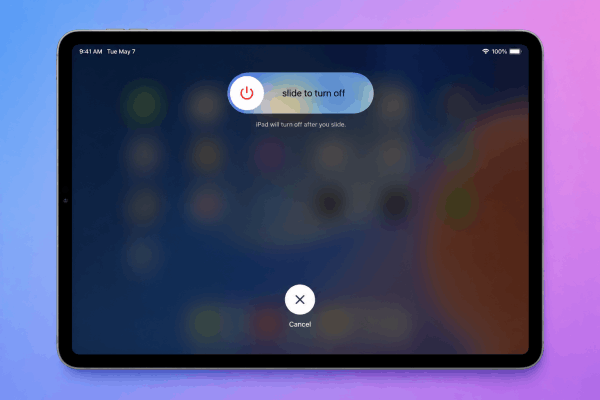
2. Restart your iPad the normal way
A basic device restart clears temporary system memory (RAM) and stops lingering background bugs without affecting your files or settings.
-
For iPads without a Home button: Press and hold the Top button and either Volume button until the power-off slider appears.
-
For iPads with a Home button: Press and hold the Top button until the power-off slider appears.
-
Drag the “slide to power off” slider to the right.
-
Wait about 30 seconds until your iPad screen turns completely black.
-
Press and hold the Top button again until the Apple logo appears to turn your iPad back on.
3. Check for app updates
Developers frequently release patches to fix bugs and memory leaks. If a bug is widespread, an update is likely already waiting for you in the App Store.
-
Open the App Store.
-
Tap your profile icon in the top-right corner.
-
Scroll down to see pending updates.
-
Tap Update next to the crashing app, or select Update All.
You may need this:
- Fix iPad Camera App Showing Black Screen With Proven Solutions
- Fix iPad Overheating and Turning Off While Playing Games
4. Free up iPad storage space
If your device has less than 2–3 GB of free space available, apps will struggle to open.
-
Go to Settings > General > iPad Storage.
-
Review your storage usage and delete unused apps, offload large media files, or clear download caches inside browser apps.

5. Reinstall the app (Offload vs. Delete)
If the app file itself is corrupted, reinstalling it usually solves the problem. You have two ways to do this:
-
Offload App (Preserves Data): Go to Settings > General > iPad Storage, tap the app, and select Offload App. This removes the app binary but keeps your personal documents and data safe. Tap Reinstall App afterward.
-
Delete and Redownload: Tap and hold the app icon on your home screen, tap Remove App, and confirm Delete App. Then download it fresh from the App Store.

6. Update iPadOS
Running an old version of iPadOS can lead to system-wide compatibility bugs with newer app updates.
-
Navigate to Settings > General > Software Update.
-
If an update is available, tap Download and Install.

Bonus productivity tips for a fast iPad experience
Keeping your iPad optimized not only prevents app crashes but also extends battery life and boosts daily workflow efficiency.
-
Enable Automatic Updates: Go to Settings > App Store and turn on App Updates so critical bug fixes download in the background automatically.
-
Periodically restart your device: Making a habit of restarting your iPad once a week keeps the system memory fresh and snappy.
-
Mind your background app refresh: Go to Settings > General > Background App Refresh and disable it for apps that don’t need real-time syncing. This frees up background resources for the apps you actually use.

Frequently asked questions
Why does only one specific app crash while others work fine?
When a single app crashes while everything else functions normally, the issue is almost always localized to that specific app’s cache or a bug introduced in its latest update. Offloading or reinstalling that particular app usually fixes it.
Will restarting my iPad delete any of my data?
No. A standard restart (sliding to power off and turning back on) simply reboots the system software and clears temporary background memory. All your photos, messages, apps, and personal settings will remain untouched.
What should I do if an app still crashes after reinstalling?
If the app continues to close instantly after a clean reinstall and iPadOS restart, the developer may have released a broken update. Check the app’s review section in the App Store to see if other users are reporting the same issue, or contact the developer’s support team directly.

Final thought
Dealing with apps that crash immediately after opening on your iPad can be annoying, but it is rarely a sign of serious hardware failure. By taking some practical above, you can resolve almost every crashing issue in a matter of minutes.
Keep your iPad storage lean, perform a soft restart every now and then, and enjoy a seamless, productive tablet experience!






