


Fix iPad AirDrop stuck on waiting or failing to transfer with real-world solutions that get your photos and files sharing again instantly!
Few features make the Apple ecosystem feel more like magic than AirDrop. When you need to send photos from your iPhone, a large PDF from your Mac, or share a quick design sketch with a colleague, a single tap usually gets the job done in seconds. But when you hit a wall and your iPad AirDrop is stuck on waiting or failing to transfer, that seamless experience turns into instant frustration.
If you’ve ever stared at a perpetual “Waiting…” status or watched a progress ring fill up only to throw an “AirDrop Failed” error at the last second, you’re not alone. This is one of the most common tech hiccups iPad users encounter in their daily workflows.
The good news? It’s rarely a sign of broken hardware. In this guide, we’ll cut through the fluff and look at practical, tested fixes that actually work to get your transfers flying again.
CONTENTS:
Why is your iPad AirDrop stuck on waiting or failing to transfer?
Before diving into the fixes, it helps to understand what AirDrop needs to work behind the scenes. AirDrop relies on Bluetooth to discover nearby devices and point-to-point Wi-Fi to transfer the data.
When your transfer stalls or fails, it usually boils down to a breakdown in one of these areas:
-
Wireless communication handshakes: Bluetooth fails to establish the initial connection, or Wi-Fi drops mid-transfer.
-
AirDrop visibility settings: The receiving iPad is set to “Receiving Off” or limited to “Contacts Only” when the sender isn’t in the contact list.
-
Personal Hotspot conflicts: Having Personal Hotspot active on either device interferes with AirDrop’s temporary direct Wi-Fi network.
-
Screen timeout or sleep state: The iPad locks or goes to sleep while waiting to accept a file.
-
Temporary system software glitches: Minor network stack bugs in iPadOS that accumulate over time.
 Let’s fix these issues step by step.
Practical fixes for iPad AirDrop transfer errors
Instead of jumping straight into complex network resets, let’s start with quick, non-destructive tweaks that solve the vast majority of real-world AirDrop failures.
1. Check basic AirDrop visibility and range
It sounds simple, but misconfigured receiving settings are the leading cause of the dreaded “Waiting…” status.
-
Keep devices close: Bring your iPad and the sending device within 30 feet (preferably right next to each other).
-
Switch to Everyone for 10 Minutes: Open the Control Center (swipe down from the top-right corner of your iPad), tap and hold the wireless network card (top-left block), tap AirDrop, and select Everyone for 10 Minutes.
-
Unlock your iPad: Ensure the receiving iPad screen is awake, unlocked, and sitting on the Home Screen before the sender hits send.

2. Turn off Personal Hotspot on both devices
Personal Hotspot and AirDrop use the same Wi-Fi chip setup to broadcast direct connections. If either device is currently sharing cellular data via Personal Hotspot, AirDrop will hang indefinitely.
-
Swipe down to open the Control Center.
-
Tap and hold the network controls tile.
-
If Personal Hotspot is green (active), tap it to turn it off completely.
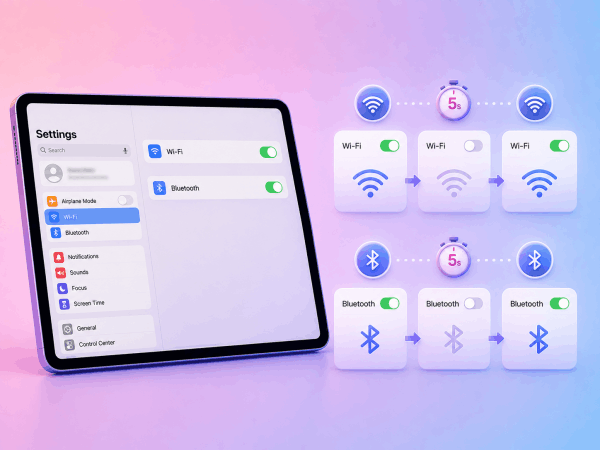
3. Toggle Wi-Fi and Bluetooth from Settings (not Control Center)
Tapping the Wi-Fi and Bluetooth icons in the Control Center doesn’t actually disconnect your wireless radios, it only disconnects active accessories. To fully reset the wireless stack:
-
Open Settings on your iPad.
-
Select Wi-Fi and toggle it Off, wait 5 seconds, then toggle it back On.
-
Select Bluetooth and do the same: toggle it Off and back On.
4. Restart your iPad
When wireless handshakes get stuck in a loop, a simple system reboot flushes out temporary cache errors and refreshes background services.
-
For iPads without a Home button: Press and hold the Top button and either Volume button until the power slider appears.
-
For iPads with a Home button: Press and hold the Top button until the power slider appears.
-
Drag the “slide to power off” slider to the right.
-
Wait about 30 seconds for your iPad to shut down completely.
-
Press and hold the Top button again until you see the Apple logo to turn it back on.
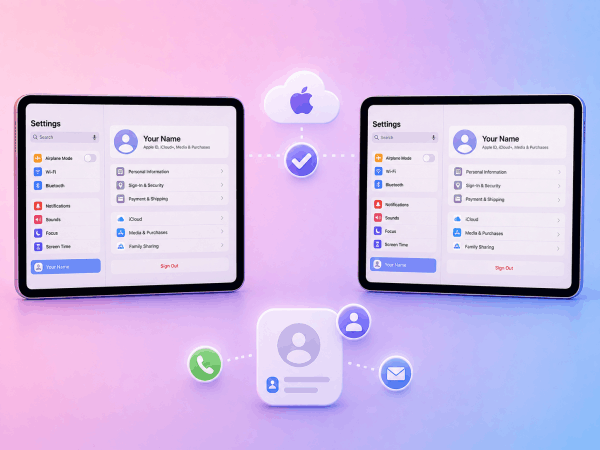
5. Check iCloud sign-in and Apple ID match
If you are trying to AirDrop between your own devices using “Contacts Only,” both devices must be signed into the same Apple ID, or have each other’s Apple ID email/phone number saved in the Contacts app.
-
Go to Settings > [Your Name] on both devices and confirm your Apple ID matches.
-
If sending to a friend, verify that their phone number or email address is saved in your contacts with their exact Apple ID credentials.
6. Reset Network Settings (as a last resort)
If AirDrop continues to fail across multiple files and devices, your iPad’s network configuration profile might be corrupted.
-
Go to Settings > General > Transfer or Reset iPad > Reset > Reset Network Settings.
-
Enter your passcode to confirm.
Pro tips for smooth iPad file transfers
A few small adjustments in how you handle file sharing can make AirDrop significantly more reliable for everyday tech work.
-
Send files in smaller batches: Trying to AirDrop 500 high-resolution photos at once often leads to timeout errors. Break large transfers into smaller groups of 50–100 items.
-
Avoid mixing file types: Sending a mix of videos, PDFs, and web links in a single transfer can confuse iPadOS about which app should open the received data. Group similar file types together before sending.
-
Disable Do Not Disturb/Focus modes: Certain strict Focus profiles prevent incoming transfer prompts from showing up on screen, making the sender think the request is stuck on “Waiting.”

Frequently asked questions
Why does my iPad show “Waiting…” but never prompts me to accept the transfer?
This usually happens when the receiving iPad’s screen locks during the request or when AirDrop is set to “Contacts Only” and the sender isn’t properly linked in your contacts. Switching AirDrop to “Everyone for 10 Minutes” and keeping the screen unlocked usually fixes this immediately.
Why does AirDrop fail right at the end of a long video transfer?
Large transfers fail near completion when the iPad runs out of temporary cache space or goes to sleep mid-process. Make sure your iPad has enough available storage and tap the screen occasionally during long transfers to prevent display auto-lock.
Does AirDrop require an active internet connection?
No! AirDrop does not require cellular data or an active internet connection. It creates its own secure, local peer-to-peer Wi-Fi network between devices. However, both Wi-Fi and Bluetooth radios must be turned on.

Final thought
AirDrop is an incredible productivity tool when it works, but occasional wireless glitches are bound to happen. Next time your iPad AirDrop is stuck on waiting or failing to transfer, don’t panic. Start with the basics: make sure your screen is awake, turn off Personal Hotspot, toggle your wireless radios in Settings, and give your iPad a clean, standard restart.
By following these practical steps, you’ll be back to sharing photos, documents, and creative projects seamlessly across your Apple devices!
Where would you like to take your iPad workflow next?






