

Is your iPad overheating and turning off while playing games? Here are practical tips to keep your tablet cool and performance smooth.
If you are a fan of high-graphics mobile gaming, there is nothing quite like playing on an iPad. The expansive liquid retina display, buttery-smooth frame rates, and powerful M-series or A-series chips make games like Genshin Impact, Call of Duty: Mobile, or Honkai: Star Rail feel like full console experiences.
However, few things are more frustrating than being in the middle of an intense ranked match or a boss fight, feeling your iPad turn blistering hot in your hands, and having the screen suddenly go black.
When your iPad gets too hot and shuts down automatically, it is easy to worry that your device is broken. The good news? Your iPad is actually doing exactly what it was designed to do: protecting its internal components from permanent hardware damage.
Let’s explore why your iPad overheating and turning off while playing games happens, along with real-world, practical fixes to keep your tablet cool and your gaming uninterrupted.
CONTENTS:
Why is your iPad overheating and turning off while playing games?
Unlike laptops or desktop PCs, iPads do not have internal cooling fans. They rely entirely on passive heat dissipation, using their aluminum chassis as a giant heatsink to spread and release heat into the surrounding air.
When you run demanding games, your iPad’s Graphics Processing Unit (GPU) and Central Processing Unit (CPU) run at maximum capacity. This process naturally generates a massive amount of internal heat. If that heat builds up faster than the aluminum body can release it, the internal temperature triggers built-in safety mechanisms:
-
Thermal throttling: The system automatically slows down CPU and GPU speeds to reduce heat. You will notice sudden drops in frame rates, lag, or automatic screen dimming.
-
Emergency thermal shutdown: If thermal throttling is not enough and the internal temperature reaches dangerous levels (typically above 35°C or 95°F ambient operational tolerance), iPadOS forces the device to turn off completely to protect the battery and logic board.

Understanding this makes it clear that preventing shutdowns isn’t about fixing a broken iPad, it’s about managing thermal load and airflow effectively.
How to stop your iPad from overheating during gaming
Many theoretical guides tell you to “use your device less,” which isn’t helpful when you just want to play your favorite game. Based on real-world gamer testing and hands-on usage, here are the most effective practical steps to stop heat buildup.
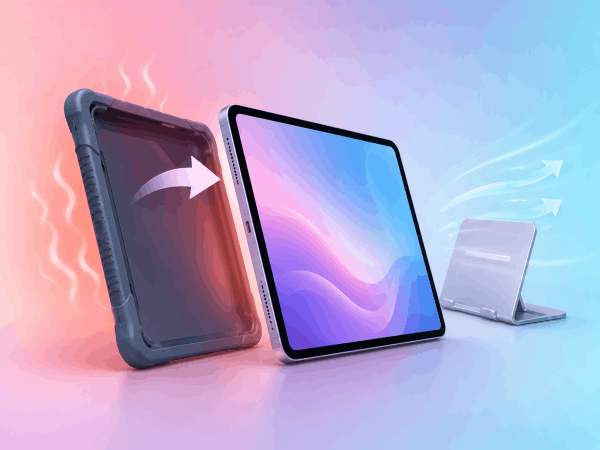
Remove chunky protective cases
Thick rubber, leather, or folio cases are great for drop protection, but they act like heavy winter coats for your iPad. They trap heat directly against the aluminum back plate, preventing air from cooling the metal chassis.
-
Practical fix: Before starting a heavy gaming session, pop your iPad out of its case. If you use a desk stand, make sure the back of the tablet is exposed to open room air.
Avoid playing heavy games while charging
Charging a lithium-ion battery naturally produces heat. Combining fast-charging heat with maxed-out GPU heat while gaming creates a “double heat” scenario that almost guarantees thermal throttling or shutdown.
-
Practical fix: Charge your iPad to at least 70-80% before opening graphics-heavy games, then play unplugged. If you must stay plugged in, avoid using high-wattage fast chargers during active gameplay.
Lower in-game graphics and frame rate settings
Running games at 120 FPS or maximum 4K-equivalent graphics pushes the chip to 100% capacity continuously. Lowering these settings slightly drops GPU workload drastically while keeping visual quality virtually indistinguishable during fast action.
-
Practical fix: Lower your in-game resolution from “Ultra” to “High,” and cap frame rates at 60 FPS instead of 120 FPS. Turning off secondary effects like motion blur and bloom also reduces computational heat significantly.

Enable Low Power Mode to cap thermal load
While Low Power Mode is usually associated with saving battery life, many experienced mobile gamers use it as a thermal limiter. It subtly caps maximum CPU speed, preventing extreme heat spikes without causing noticeable gameplay lag in most titles.
-
Practical fix: Go to Settings > Battery and toggle on Low Power Mode before launching your game.
Turn off background app refresh and close background tasks
When you are playing a heavy game, you want 100% of your system resources dedicated to that game. Social media apps, video streams, and cloud backups running in the background force the processor to work harder than necessary.
-
Practical fix: Swipe up to close all inactive apps. Then go to Settings > General > Background App Refresh and turn it off completely during gaming sessions.

Pro tips for long gaming marathons
If you frequently play games for hours at a time, consider these extra hardware and environment tweaks:
-
Use an external magnetic clip-on cooler: Semiconductor clip-on coolers (Peltier coolers) designed for tablets pull heat directly off the aluminum back panel. They can lower internal temperatures by up to 10–15°C within seconds.
-
Keep screen brightness under 70%: The display backlight is one of the largest heat sources on an iPad. Lowering brightness manually or playing in a moderately lit room keeps heat down.
-
Avoid soft surfaces: Never play while resting your iPad on a blanket, pillow, or mattress. Soft fabrics insulate the back cover and trap heat underneath.
You may like this:
- iPad Screen Burn-In and Image Retention: Causes, Fixes & Prevention
- Apple Pencil battery draining fast when not in use? 7 quick fixes
Frequently asked questions
Does overheating damage the iPad battery permanently?
Yes, repeated excessive heat is the number one cause of permanent lithium-ion battery degradation. High temperatures accelerate battery health loss and lower maximum capacity over time. However, the automatic emergency shutdown is designed specifically to prevent catastrophic battery damage.
Why does the iPad screen dim automatically during intense games?
When your iPad senses internal temperatures rising above safe operating thresholds, iPadOS automatically dims screen brightness to reduce power draw and lower heat generation. This is an early warning sign of thermal throttling before a complete shutdown occurs.
Can I put my hot iPad in the fridge to cool it down fast?
No, never do this! Placing a hot electronic device into a cold refrigerator or freezer creates condensation inside the sealed enclosure. Moisture can short-circuit delicate motherboard components and permanently ruin your iPad. Instead, place it on a hard desk in front of a regular room fan.
Final thought
Dealing with an iPad overheating and turning off while playing games can be annoying, but it doesn’t mean your favorite tablet is doomed. Most of the time, simple adjustment – like taking off your case, lowering in-game graphics from 120 FPS to 60 FPS, and avoiding charging while playing – are all it takes to keep your iPad cool, fast, and reliable.
By managing thermal output proactively, you can protect your device’s long-term battery health and enjoy silky-smooth gaming sessions whenever you pick up your iPad. Happy gaming!







