


Learn how to fix your iPad camera app showing black screen with simple, practical troubleshooting steps and when to get hardware repair.
There is nothing quite as frustrating as opening your iPad camera to snap a quick photo, scan a QR code, or jump on a FaceTime call, only to be greeted by a completely black screen. As a tech enthusiast who uses the iPad daily for both productivity and creative work, I know how essential a fully functioning camera is to your everyday workflow.
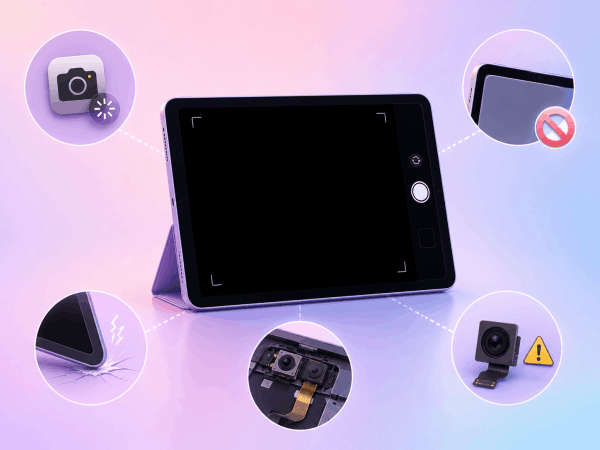
While a blank camera display can sometimes stem from a minor software glitch or an app conflict, practical experience across active tech forums and real-world repairs shows that a persistent black camera screen on an iPad is frequently caused by a hardware fault. Physical drops, loose internal ribbon connectors, or a failing camera module itself are very common culprits.
In this guide, we will walk through practical, step-by-step troubleshooting methods to fix your iPad camera app showing black screen, ranging from simple soft fixes to recognizing when it is time to seek professional repair.
CONTENTS:
Why is your iPad camera showing a black screen?
Before jumping into solutions, it helps to understand what causes this issue. The camera system relies on a seamless connection between iPadOS, camera permissions, and internal hardware components.
-
Temporary software freezes: Occasionally, the Camera app or iPadOS background processes crash, preventing the camera lens from initializing.
-
App or cover obstruction: Misconfigured third-party camera apps, strict privacy settings, or poorly fitted protective cases can block the camera feed.
-
Physical impact or ribbon cable disconnection: Even minor drops or bumps can cause the delicate flex cable connecting the camera module to the logic board to detach or break.
-
Component failure: Over time or after liquid exposure, the front or rear camera sensor can fail completely, requiring an actual replacement.
Quick checks before troubleshooting
Before performing any software adjustments or booking a repair appointment, rule out the obvious physical barriers:
-
Remove your iPad case or screen protector: Some heavy-duty cases or ill-fitting covers shift over time and obstruct the front or rear camera lens.
-
Clean the camera lenses: Wipe both the rear and front lenses gently with a clean microfiber cloth to remove dirt or debris.
-
Switch between front and rear cameras: Open the Camera app and tap the flip icon. If the front camera works fine while the rear camera remains completely black (or vice versa), the issue is almost certainly isolated to that specific hardware camera module.
Read More:
- Fix iPad Overheating and Turning Off While Playing Games
- iPad Screen Burn-In and Image Retention: Causes, Fixes & Prevention
Step-by-step fixes for iPad camera black screen
If simple physical checks do not solve the problem, follow these practical steps to clear temporary system glitches.
1. Close and reopen the Camera app
Force closing the application stops all active background processes and clears minor software bugs.
-
Swipe up from the bottom of your screen and pause in the middle to bring up the App Switcher (or double-click the Home button on older models).
-
Locate the Camera app preview card.
-
Swipe the Camera app card upward off the top of the screen to close it completely.
-
Return to your Home Screen and relaunch the Camera app.

2. Check camera permissions for third-party apps
If the black screen occurs only in specific applications like Zoom, WhatsApp, or Instagram, the issue lies with app permissions rather than your device.
-
Open Settings on your iPad.
-
Scroll down and select Privacy & Security.
-
Tap Camera.
-
Ensure the toggle switch is turned on for the specific app you are trying to use.
3. Perform a standard restart
Restarting your iPad clears system cache files and reinitializes device drivers without erasing any of your personal data.
-
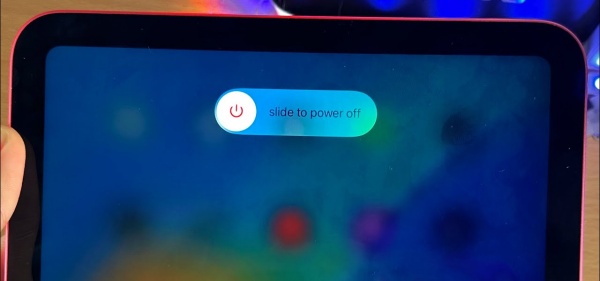
Press and hold either the top volume button and the top power button simultaneously until the power-off slider appears on the screen. (For iPads with a Home button, press and hold the top power button).
-
Drag the slide to power off control to the right.
-
Wait approximately 30 seconds for your device to turn off completely.
-
Press and hold the top power button again until the Apple logo appears to turn your iPad back on.
If your camera feed remains completely black after a standard restart, or if you notice that the camera flashlight (LED flash) stops working alongside the camera app, the issue is almost certainly hardware-related.
Real-world experience shows that internal connection issues account for a large percentage of permanent camera failures on iPads. Here is what you should do:
Internal ribbon cable issues
A subtle bump or a low-height drop can unseat the small ribbon cable that links the camera assembly to the main logic board. While the rest of the iPad operates smoothly, the operating system simply cannot detect an active camera sensor.
Camera module replacement
If the internal sensor has burned out or suffered liquid intrusion, the camera unit will need to be physically replaced. Attempting to pry open an iPad at home without specialized heating pads, suction tools, and anti-static equipment can tear delicate display cables and damage the battery.

Recommended repair paths
-
Authorized service centers: If your iPad is covered under warranty or protection plans, schedule an appointment with an authorized technician. They use genuine replacement components and specialized diagnostics to confirm hardware faults.
-
Reputable repair shops: If your iPad is out of warranty, seek out a certified repair center that specializes in tablet hardware repairs. Ensure they offer a warranty on both replacement parts and labor.
Frequently asked questions
Why does my iPad camera show black on FaceTime only?
If your camera works fine in the native Camera app but shows a black screen on FaceTime, navigate to Settings > FaceTime and ensure video permissions are enabled. You should also check for any software updates under Settings > General > Software Update.
Can a software update fix a black camera screen?
Yes, updating to the latest version of iPadOS can patch system bugs that interfere with camera rendering. Go to Settings > General > Software Update to install any pending updates. However, if the hardware sensor itself is damaged, a software update will not resolve the black screen.
How much does it cost to fix an iPad camera hardware error?
Repair costs vary significantly depending on your iPad model and warranty status. If covered under an active protection plan, hardware repairs are usually very inexpensive. Out-of-warranty camera replacements depend on whether the fix requires just a re-seated cable or a brand-new camera module.

Final thought
Dealing with an iPad camera app showing black screen can certainly interrupt your day, but systematically working through basic troubleshooting helps you narrow down the root cause quickly. Starting with simple steps like closing the app, verifying privacy settings, and performing a standard restart will solve most software-related glitches.
However, if your camera remains black across all apps and standard troubleshooting yields no results, it is best to accept that a hardware fault is at play. Entrusting your iPad to a qualified repair specialist is the safest, most effective way to restore your camera and get your device back in full working order.





