
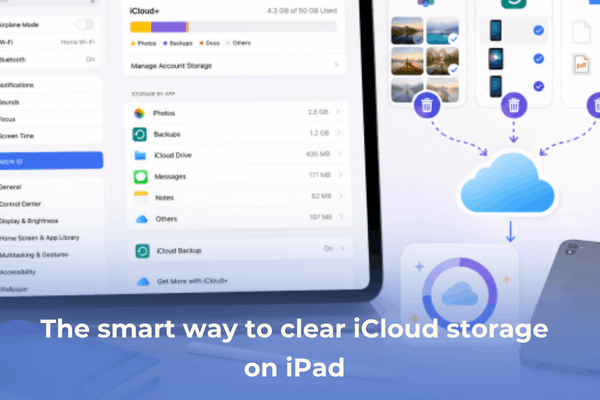

Learn how to clear iCloud storage on iPad with practical steps. Say goodbye to the storage full warning without losing your data.
We have all been there. You are in the zone, editing a beautiful digital journal on your iPad, sketch-booking a new idea, or catching up on your favorite Korean drama reviews, and suddenly—bam. The dreaded “iCloud Storage Is Full” notification pops up.
It is incredibly frustrating, especially when you feel like you haven’t even saved that much. Apple generously gives us 5GB of free space, but in 2026, where a single high-quality video or Procreate file can swallow half a gigabyte, that 5GB feels like a drop in the ocean.
If you are staring at that warning, wondering, “How do I free up iCloud storage on my iPad?” without wanting to just dump money into a bigger plan right away, this guide is for you. Let’s bypass the basic, generic advice and dive into the practical, user-tested steps that actually move the needle.
CONTENTS:
Why is my iCloud storage full so fast?
Before we start deleting things blindly, it helps to understand why that space vanished. Many users are shocked to find their cloud is full even when their iPad itself has plenty of local storage left.
The biggest culprit is usually automation. By default, Apple sets your iPad to back up almost everything silently in the background. If you own an iPhone and an iPad under the same Apple Account, they are both competing for that same slice of cloud pie. High-resolution photos, 4K videos, hidden app data caches, and years of old Messages attachments are typically what eat up your gigabytes before you even realize it.

The blueprint: How to clear iCloud storage on iPad
Instead of doing a factory reset or losing files you actually care about, let’s target the real space-hogs with a surgical approach.
This is the single most effective way to claw back massive amounts of space. Many people do not realize that iCloud saves backups of devices they do not even own anymore.
-
Go to Settings > [Your Name] > iCloud.
-
Tap Manage Account Storage (or Manage Storage).
-
Tap Backups.
Here, you will see a list of devices syncing to your account. Do you see an old iPhone 11 or an ancient iPad mini you sold two years ago? Tap it and hit Delete Backup.
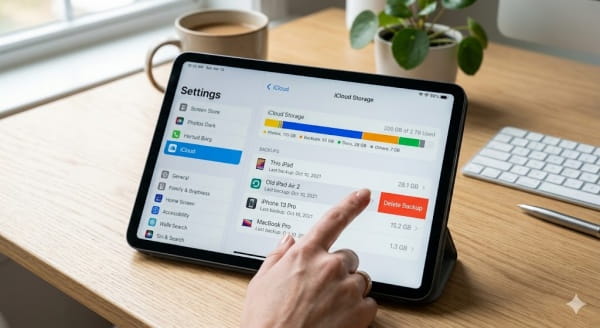
For your current iPad, tap its name under the backup list. You will see a breakdown of exactly which apps are backing up data. Turn off the toggle for heavy apps that do not need cloud syncing (like massive offline video editing caches or games that already save progress to their own servers).
2. Dive into the Messages “ghost attachment” zone
If you sync your Messages app with iCloud, every single meme, video, and PDF file someone sent you years ago is sitting in your cloud.
To clear this out efficiently:
-
Go to Settings > General > iPad Storage.
-
Scroll down to Messages.
-
Tap Review Large Attachments.
This sections acts like a folder of your largest files. You can delete massive videos and files straight from this menu without having to scroll through endless chat histories.
3. Tackle the iCloud Drive junk drawer
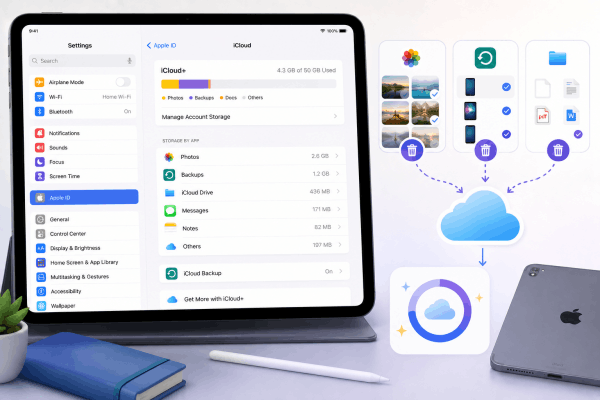
Think of iCloud Drive as your digital attic. We toss files in there intending to look at them later, and then we forget they exist. Digital creators often leave old zip folders, forgotten PDF templates, or discarded audio tracks here.
Open the built-in Files app on your iPad, tap iCloud Drive in the sidebar, and sort the files by size. Target the largest files first. Once deleted, remember to go to the Recently Deleted folder in the sidebar and empty it—otherwise, that space won’t free up for 30 days!
4. Optimize your photo storage (don’t delete, optimize)
Photos and videos take up the lion’s share of most cloud accounts. If you don’t want to delete your memories, you can significantly reduce their digital footprint.
Go to Settings > Photos and ensure Optimize iPad Storage is checked. This keeps lightweight, smaller versions of your photos on your iPad and cloud, while keeping the full-resolution originals safely managed.
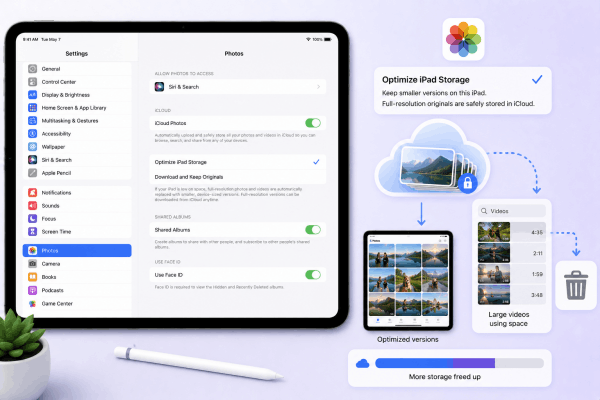
If you truly need to clear out space, head over to your Photos app, tap Search, and type “Videos.” Videos are almost always the reason your storage hits the ceiling. Deleting just three or four bloated, accidental screen recordings can completely clear your storage warning.
What should I delete if my iCloud storage is full?
If you are hit with an immediate emergency and need space right now to save an important work document or school project, follow this quick-triage list:
-
Old device backups: Instantly frees up 2GB to 5GB.
-
Accidental screen recordings: iPad screen recordings are massive; clearing them provides immediate relief.
-
The “Recently Deleted” folder: In both the Photos and Files apps. Deleting items doesn’t free up space until you purge these folders.
-
Shared folders: If someone shared a massive folder of project assets with you on iCloud Drive, it might be counting against your quota. Remove yourself from shared folders you no longer use.
Read More:
- How to use Apple Journal app for productivity: The ultimate guide
- Notification sounds not working on iPad? Here is how to reclaim your alerts
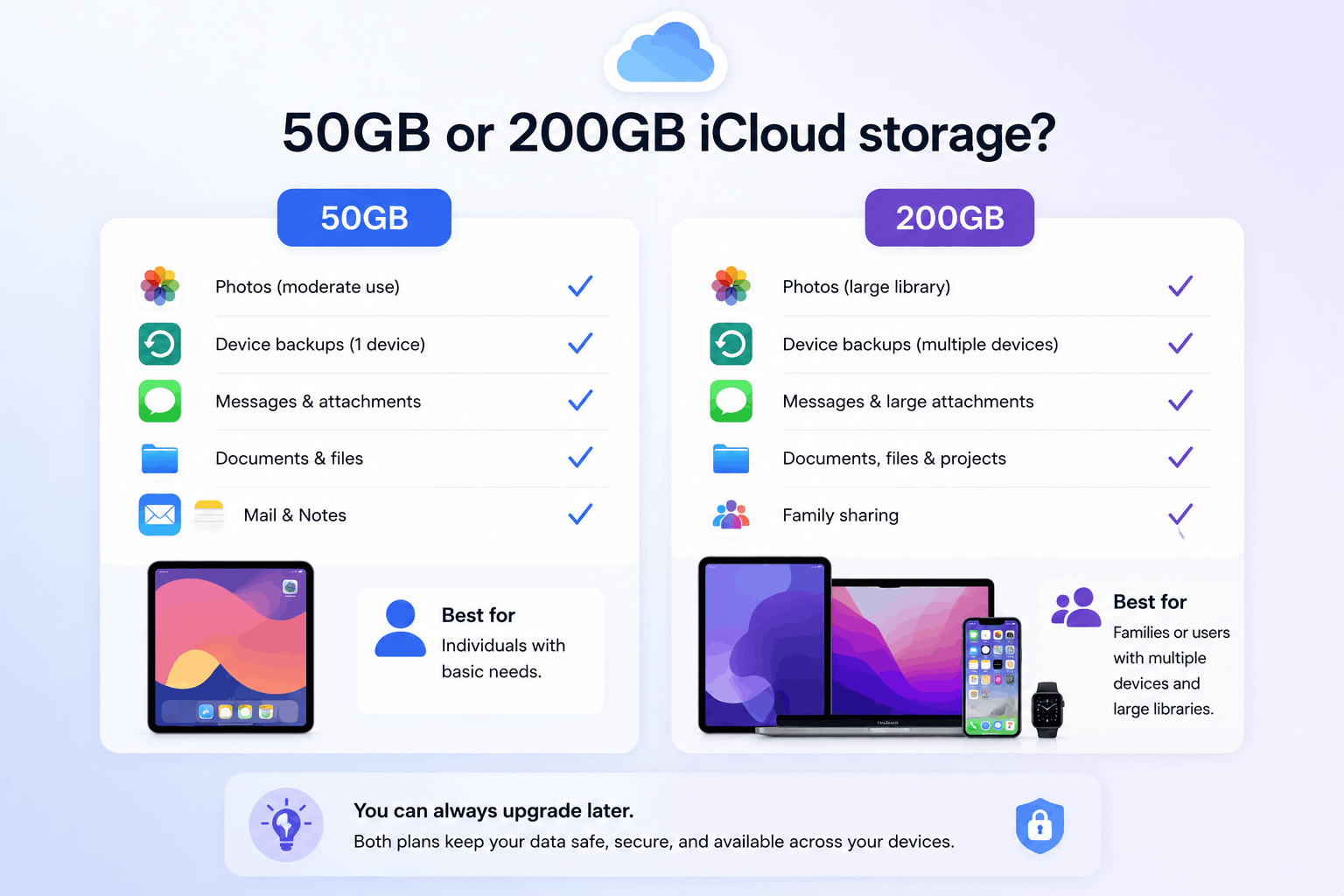
Should I get 50GB or 200GB iCloud storage?
Sometimes, no matter how much you clean, your digital life simply requires more breathing room. If you choose to upgrade, Apple’s paid tiers (iCloud+) offer an affordable escape from storage anxiety. But which one fits your routine?
1. The 50GB Tier: The solo digital minimalist
This is ideal if you only own an iPad, or perhaps an iPad and a base-model iPhone. It provides plenty of space for daily document backups, thousands of photos, and standard device syncing. It is perfect for freelancers and students who keep their heavy project files archived elsewhere (like an external SSD or a local hard drive) and only use the cloud for active work.
2. The 200GB Tier: The content creator & power user
If you are someone who works extensively with high-resolution digital art, shoots 4K videos, or manages multiple Apple devices (iPhone, iPad, and Mac), 50GB will disappear in a flash. The 200GB plan is also the sweet spot because it allows Family Sharing. If you want to share a single bucket of storage with your parents or partner so they don’t have to deal with storage warnings either, this is the most economical choice.
Frequently asked questions
If I clear my iCloud storage, will it delete photos off my iPad?
It depends on how you delete them. If you delete a photo inside the Photos app while iCloud Photos is turned on, it deletes it from both the cloud and your iPad. To save local space without losing cloud files, use the Optimize iPad Storage feature instead. If you want to clear cloud space entirely, you will need to back up those photos to a computer or an external drive before removing them from iCloud.
Why is my iCloud storage still full after deleting everything?
This is a very common glitch. First, ensure you have cleared the Recently Deleted albums in both your Photos and Files apps. If the storage meter still won’t budge, log out of your Apple Account via Settings, restart your iPad, and log back in. This forces your iPad to re-sync and recalculate your true cloud usage.
Does deleting emails free up iCloud space?
Yes! If you use an @icloud.com, @me.com, or @mac.com email address, your emails and their attachments count directly against your iCloud limit. Go to your Mail app, sort by attachments, and delete old emails with large files to gain back some quick megabytes.






