
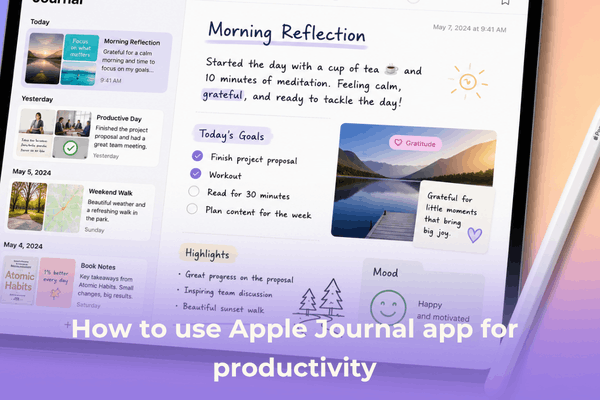

Master how to use Apple Journal app for productivity on your iPad. Discover real-world workflows, Apple Pencil tips, and reflection frameworks.
Think about your usual productive setup. You probably have a calendar packed with blocks of time, a sleek to-do list ticking down your tasks, and maybe a digital scratchpad for quick notes. But here is an honest question: with all these tools tracking what you do, where are you tracking how you do?
Execution without a pause to look back is just busywork. It is incredibly easy to hit 100% completion on your weekly check-list while moving in a direction that does not actually serve your growth. This is exactly where your iPad transforms from a standard work machine into a deep reflection space, thanks to Apple’s native digital diary.

Yes, Apple Journal is fully optimized for both iPhone and iPad (running iPadOS 17.2 or later). However, while the mobile version is great for quick, on-the-go logs, the spacious screen of the iPad turns the app into a powerful command center for mental clarity. Let’s break down how to unlock this built-in tool to build sharper habits, protect your focus, and make your weekly goals stick.
CONTENTS:
How to use Apple Journal app for productivity
To transform a journaling app into a genuine vehicle for self-improvement, you need to look past the idea of writing long, poetic essays about your feelings. Instead, treat the canvas as an active feedback loop for your energy, goals, and daily bottlenecks.
1. Build a 10-minute weekly review system
A highly effective framework to run inside the app is a structured look-back routine. Instead of opening a blank page and wondering what to type, set up a recurring template at the end of every week. Create a quick text replacement snippet in your iPad settings so you can drop these four simple prompts into a new entry instantly:
-
The Score Check: What went right this week? List three concrete wins.
-
The Friction Log: Where did I lose momentum or get distracted?
-
The Fix: What is one micro-adjustment I can make next week to bypass that friction?
-
The Momentum Move: What is the absolute first action item for Monday morning?
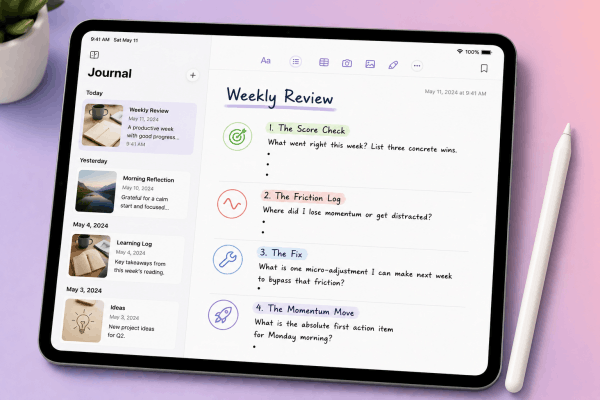
By answer these questions consistently, you turn raw, chaotic days into actionable data. You stop repeating the same organizational mistakes because you are actively logging the friction points.
2. Segment your life with multiple journals
Mixing raw emotional brain-dumps with high-level professional goals in a single timeline can create visual chaos. To stay organized, use the sidebar feature on your iPad to hit the plus icon and create separate spaces.
| Journal Name | Focus Area | Recommended Content Type |
| Growth & Strategy | Career milestones, business ideas, and professional wins | Typed text, project sketches, audio brainstorms |
| The Friction Log | Distractions, bad habits, and energy drains | Quick bulleted text lists |
| Daily Stillness | Gratitude, evening wind-downs, and mood logging | Apple Pencil handwriting, ambient voice memos |
Dividing your entries ensures that when you enter “Work Mode” on your iPad, you can filter your view strictly to your career logs without getting pulled into other thoughts.
3. Harness on-device intelligence without the blank-page anxiety
One of the best design choices in Apple Journal is its intelligent suggestion engine. If you enable Journaling Suggestions in your iPad Privacy & Security settings, your device securely analyzes your daily activity, like places you visited, workouts logged, music played, or photos taken.
Settings -> Privacy & Security -> Journaling Suggestions -> Enable "Allow Sync to iPad"
If you pair your iPad with an iPhone, these suggestions sync flawlessly via iCloud. Instead of staring at an empty white screen, you can tap a suggested moment from a highly focused deep-work session or a long walk, and use it as a foundational anchor for your daily log.

Leveraging the iPad form factor for deep work
The real magic happens when you move away from treating the app like an iPhone clone and start leaning heavily into unique iPad capabilities.
Text vs. ink: The Apple Pencil advantage
Typing is fast, but handwriting forces a slower, deliberate cognitive pace. If you use an Apple Pencil, Apple Journal supports native handwriting and sketching directly on the canvas.
Turning on Auto-Refine Handwriting in the markup toolbar helps smooth out quick, messy scripts while keeping your personal writing style intact. If you like clear organization, use the Scribble tool to write out thoughts by hand and watch the app convert them into clean, typed text in real time.
Discover More:
- Notification sounds not working on iPad? Here is how to reclaim your alerts
- How to share your screen in Google Meet on iPad: A complete guide
Master the iPad productivity stack
To make journaling a frictionless part of your workspace, you need to weave it into your multitasking routines. Do not hide the app away in your App Library.
-
Split View & Stage Manager: Keep your project manager or Safari open on the left side of the screen, and slide Apple Journal into the right side. When you finish a major milestone or wrap up an educational video, immediately log your key takeaways without switching applications.
-
The Share Sheet Shortcut: Did you come across an incredibly inspiring essay in Safari or a great industry report in Apple News? Do not just bookmark it. Hit the Share button and tap Journal. You can drop a live link directly into a fresh entry and immediately write down how you intend to apply those insights to your current goals.

Advanced tips from power users
-
Protect your workspace with Face ID: True reflection requires absolute honesty. If you are worried about someone glancing at your professional ideas or personal friction logs, go to
Settings -> Apps -> Journaland toggle on Lock Journal. This forces an automatic Face ID or passcode prompt every single time the app opens. -
Log your state of mind: Productivity is directly tied to your emotional baseline. Use the built-in emotion tracking feature inside the app to record your current state of mind. Because this data safely connects with the native Health app, you can easily look for patterns to see if your focus drops on days when your stress levels trend higher.
-
Track your consistency with Insights: Check the built-in Insights tab to view your current journaling streaks and data tiles. It acts as a gentle, visual gamification system that reminds you to pause and reflect every day.

FAQs about how to use Apple Journal app for productivity
Does Apple Journal sync automatically between my iPhone and iPad?
Yes. As long as both devices are signed into the exact same Apple Account and have iCloud syncing turned on for the app, your journals, custom icons, and individual entries will stay completely mirrored across your devices.
Can I export my data out of the app if I want to switch systems later?
Absolutely. You can print your entries or use the standard iOS/iPadOS share sheets to export your text and attachments out of the app, ensuring you always retain full ownership of your data.
Will journaling daily take up too much of my morning?
Not if you focus on structure over volume. By utilizing quick 5-to-10-minute prompt frameworks or using voice-to-text dictation via the keyboard microphone button, you can capture deep, high-value insights without losing precious hours of your workday.
Ultimately, learning how to use Apple Journal app for productivity is not about creating more work, it is about making your current work smarter. By turning your iPad into a dedicated reflection space, you build a powerful, quiet feedback loop that protects your focus, catches your mistakes, and keeps you moving toward your biggest goals.
So, grab your Apple Pencil, open up a fresh canvas, and let your iPad help you design your most intentional workweek yet!





