


Don’t let a silent iPad ruin your workflow. If you are facing notification sounds not working on iPad, these real-world tweaks will fix it instantly.
When notification sounds not working on iPad devices become a recurring issue, it can disrupt your workflow and leave you feeling disconnected. While standard tech guides often tell you to just “restart your device,” real-world usage shows that the culprit is usually buried deep within specific settings or temporary software glitches.
Let’s skip the generic advice and dive into the practical, community-tested steps to get your iPad speaking to you again.
CONTENTS:
Notification sounds not working on iPad: How to fix the silence
Before assuming your iPad hardware is broken, the issue almost always stems from overlapping software settings. Here is a step-by-step checklist based on real user experiences to troubleshoot and resolve the problem.
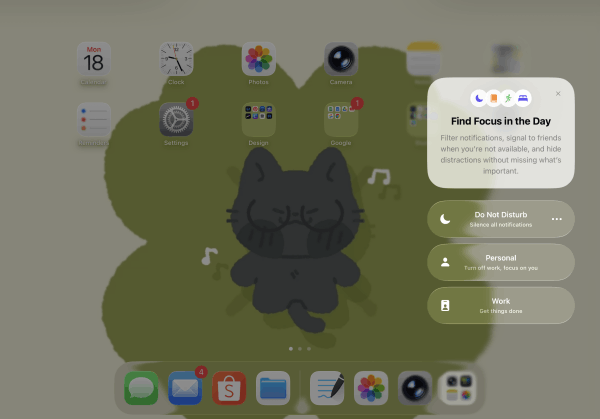
The most common reason for missing alerts is a Focus mode that you forgot was turned on, or one that synced automatically from your iPhone.
-
The Quick Fix: Swipe down from the top right corner of your screen to open the Control Center. Look at the Focus button (it might say “Do Not Disturb,” “Work,” or “Sleep”). If it is highlighted, tap it to turn it off.
-
The Sync Issue: If you don’t want your iPhone’s settings overriding your iPad, go to Settings > Focus and toggle off Share Across Devices. This prevents your iPad from going silent just because you put your phone on Focus mode.
Inspect app-specific notification settings
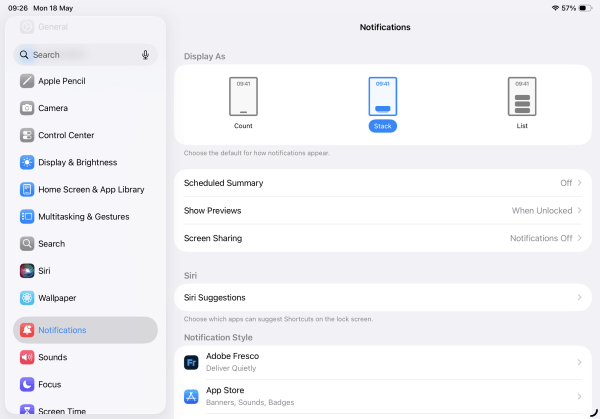
Sometimes, the global volume is loud, but a specific app has lost its permission to make sound. This frequently happens after major software updates.
-
Open Settings and tap on Notifications.
-
Scroll down to the specific app that is staying quiet (e.g., Messages, Gmail, or Slack).
-
Ensure that Allow Notifications is toggled on.
-
Crucially, look at the Alerts section and ensure Sounds is toggled green. If this is turned off, the app will deliver banners silently.
Decode the Mute toggle vs. Ring/ Silent switch
Depending on your iPad model, how you mute system sounds can vary. Older iPads have a physical side switch, while newer models rely entirely on the Control Center.
-
Open your Control Center and look for the Bell icon (Silent Mode). If it is red or highlighted, your notification sounds are muted, even if your media volume (like YouTube or music) is turned up all the way. Tap it to unmute.
-
If you have an older iPad with a physical switch on the side, toggle it to ensure the orange line isn’t showing.
Look for Bluetooth audio hijacking
Your iPad might actually be playing the notification sound – you just can’t hear it because it is sending the audio somewhere else. If you use wireless earbuds, portable speakers, or even smart TVs, your iPad might still be connected to them in another room.
-
Turn off Bluetooth temporarily via Settings > Bluetooth to see if the sound returns to the iPad speakers.
-
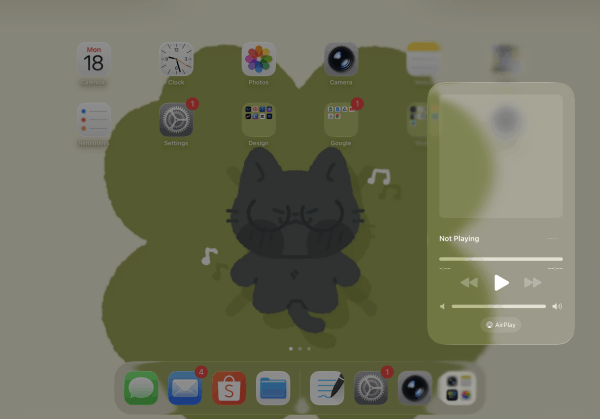
Alternatively, open the Control Center, tap the AirPlay icon (the triangle with concentric circles in the media playback card), and ensure iPad is selected as the active audio output.
Reset all settings
If you have tried everything and the notification sounds are still missing, there may be a corrupted cache in your system preferences. Instead of deleting your data, you can reset the settings layout.
-
Go to Settings > General > Transfer or Reset iPad > Reset.
-
Choose Reset All Settings.
Note: This will not delete your photos, apps, or documents. However, it will reset your Wi-Fi passwords, Bluetooth connections, and home screen layout back to defaults. It forces the iPad to rebuild its sound routing system from scratch.
Advanced tweaks for stubborn notification bugs
Sometimes the standard settings look perfect, but a deeper software conflict is happening behind the scenes. Here are two advanced practical tricks to try:
The “Attention-Aware” setting conflict
If you own an iPad with Face ID, your tablet is incredibly smart, sometimes too smart. It monitors whether you are looking at the screen. If the iPad detects your face, it will automatically lower or completely silence notification sounds because it knows you are already looking at the display.
-
To disable this, go to Settings > Face ID & Passcode and turn off Attention-Aware Features.

Force close the background audio daemon
Occasionally, an app that plays media (like a game or a streaming platform) crashes in the background but hangs onto the “audio channel,” preventing system notifications from breaking through.
-
Swipe up from the bottom of the screen to view the App Switcher.
-
Swipe away all open apps to completely close them.
-
Perform a force restart by pressing and quickly releasing Volume Up, pressing and quickly releasing Volume Down, and then holding the Power Button until the Apple logo appears.
Discover more:
- How to share your screen in Google Meet on iPad: A complete guide
- Master Picture-in-Picture Mode on iPad: The Ultimate Guide
FAQs about notification sounds not working on iPad
Why do I get notification sounds on my iPhone but not my iPad?
Apple uses an intelligent delivery system. If your iPad is locked and you are actively using your iPhone (or wearing an Apple Watch), iOS assumes you have seen the alert and may deliver the notification to your iPad silently to avoid a chorus of chiming devices.
Can a corrupted iPadOS update cause silent notifications?
Yes, minor bugs in system updates can cause the audio subsystem to glitch. Always ensure you are on the latest minor release by checking Settings > General > Software Update, as Apple frequently releases patches for audio and notification tracking bugs.
Why are my email notifications silent while messages work fine?
Email apps like Mail or Outlook often have internal settings that differ from the main iPad settings. Inside Settings > Notifications > Mail, check the “Fetch” settings and ensure that specific email folders are set to push alerts with sound allowed, as secondary folders are often muted by default to save battery.

Quick checklist for daily maintenance
To prevent your iPad from going silent unexpectedly in the future, keep these quick tips in mind:
-
Daily: Check your Control Center before starting work to ensure no accidental Focus modes are active.
-
Weekly: Disconnect unused Bluetooth devices to prevent audio hijacking.
-
Monthly: Do a quick app-by-app audit in your notification settings for any newly installed apps that might be cluttering your system.
Take control of your device settings today, and make notification sounds not working on iPad a problem of the past.





