

Is your Procreate selection tool not working or glitching? Fix selection bugs, invisible masks, and Apple Pencil issues with these practical steps.
Every digital artist has experienced that sudden moment of frustration: you are in the middle of a flow state on your iPad, ready to tweak a drawing, but your selection tool suddenly stops responding. You tap the screen, but no selection outline appears. Or worse, the Procreate selection tool not working or glitching causes your canvas to invert, distort, or select the wrong layer entirely.
Whether you are a seasoned illustrator or a beginner digital creator, selection glitches can halt your creative momentum immediately. Because Procreate relies heavily on touch gestures, layer masks, and Apple Pencil sensitivity, a breakdown in the selection tool usually stems from a minor setting oversight, gesture conflict, or canvas limitation rather than a corrupted app.
Here is a clear, practical troubleshooting guide to fix your Procreate selection tool and get back to creating without losing your work.
CONTENTS:
- Why is your Procreate selection tool not working or glitching?
- 7 practical ways to fix Procreate selection tool glitching or not responding
- 1. Check your active layer and Alpha Lock status
- 2. Adjust the Automatic Selection threshold
- 3. Turn off ColorFill in the Selection toolbar
- 4. Verify selection mode: Save, Invert, or Clear
- 5. Check your Apple Pencil tip and Palm Rejection
- 6. Clear Procreate cache with a standard iPad restart
- 7. Duplicate your canvas to clear corrupted data
- Comparison of Procreate selection modes and common issues
- Frequently asked questions
- Final thought
Why is your Procreate selection tool not working or glitching?
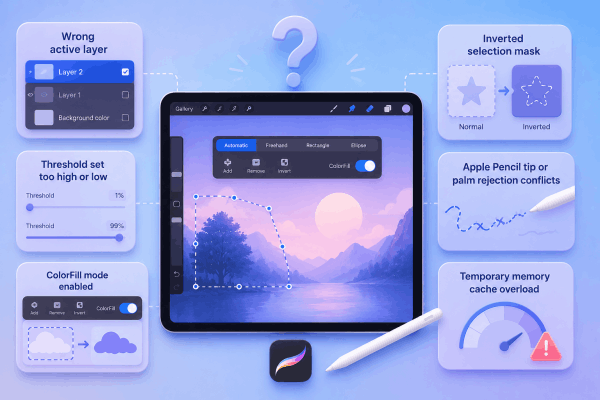
Before fixing the problem, it helps to understand what causes selection tools, like Automatic, Freehand, Rectangular, or Ellipse, to act up. Based on real-world workflow issues faced by digital artists, the most common causes include:
-
Wrong active layer: You are trying to select elements on an empty layer or a hidden layer.
-
Threshold set too high or low: The Automatic Selection threshold is flooding your entire canvas or selecting nothing at all.
-
ColorFill mode enabled: The Selection toolbar has ColorFill toggled on, instantly filling selections with paint instead of isolating them.
-
Inverted selection mask: The selection is active, but inverted, making it look like the tool isn’t responding to your touches.
-
Apple Pencil tip or palm rejection conflicts: Hardware touch sensitivity issues causing dropped selection lines or erratic Freehand tracing.
-
Temporary memory cache overload: Procreate runs out of allocated RAM on high-resolution canvases with many layers.
7 practical ways to fix Procreate selection tool glitching or not responding
Try these hands-on steps in order to isolate the glitch and restore full control over your selection tools.
1. Check your active layer and Alpha Lock status
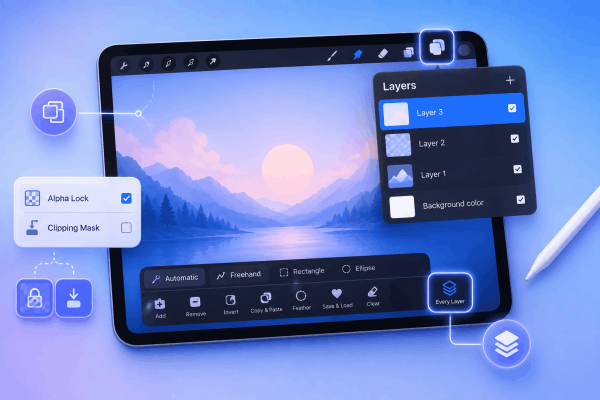
It is surprisingly easy to work on the wrong layer without realizing it. If your selection selection area appears blank or refuses to move, double-check your layer panel.
-
Tap the Layers panel (two overlapping squares in the top right).
-
Ensure you are on the correct layer containing the artwork you wish to select.
-
Verify that Alpha Lock or Clipping Mask isn’t active on that layer, as these restrict where selections and edits can take effect.
-
If your artwork is spread across multiple layers, consider enabling Every Layer in the Selection settings bottom bar.
2. Adjust the Automatic Selection threshold
If you use the Automatic Selection mode and tapping an object either selects the entire canvas or nothing at all, your threshold sensitivity is out of balance.
-
Select the Selection tool (S-ribbon icon) and tap Automatic.
-
Tap your canvas, but do not lift your Apple Pencil or finger.
-
Drag your Pencil tip smoothly to the left to decrease the threshold, or to the right to increase it.
-
Watch the blue top bar reading Selection Threshold: X%. Aim for around 15%–35% for clean object isolation.
Discover More:
- Procreate Layers Invisible? Easy Ways to Get Them Back
- Procreate Dreams Brush Lag and Freezing on iPad? Here Is the Fix
3. Turn off ColorFill in the Selection toolbar
Is your selection tool suddenly dropping solid colors onto your canvas the moment you close a loop? That isn’t a glitch, it’s the ColorFill feature working as intended.
-
Tap the Selection tool (S-ribbon icon).
-
Look at the bottom control panel.
-
Locate the ColorFill button on the far right of the bottom toolbar.
-
Tap it once to toggle it off (the button should no longer be highlighted blue).
4. Verify selection mode: Save, Invert, or Clear
Sometimes a selection is active, but you cannot see the marching ants (diagonal lines) because the mask display is hidden or inverted.
-
Invert: If you accidentally tap Invert on the bottom menu, Procreate selects everything except what you outlined. Tap Inverted again to switch back.
-
Clear / Deselect: Tap Remove or tap the Selection ribbon icon twice to clear stale selection memory before drawing a fresh line.
-
Selection Mask Visibility: Go to Actions (Wrench icon) > Preferences > Selection mask visibility. Adjust the slider so the diagonal stripe overlay is clearly visible (around 30-50%).
5. Check your Apple Pencil tip and Palm Rejection
When using Freehand selection, if your lines snap straight, jump around, or drop midway through tracing, the issue may be physical touch input.
-
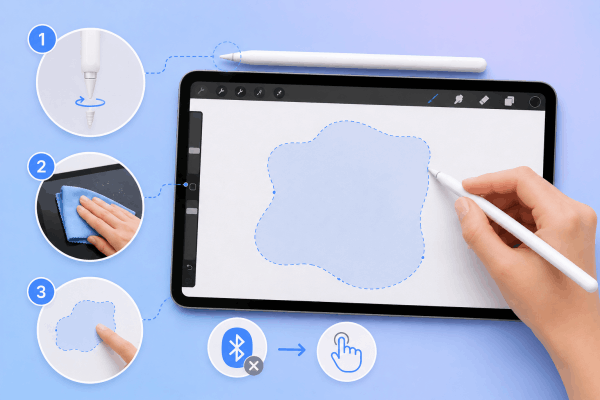
Tighten the tip: Gently twist your Apple Pencil tip clockwise to make sure it hasn’t loosened. A loose nib interrupts the pressure signal.
-
Clean your screen: Finger oils and dust can interfere with multi-touch palm rejection, causing Procreate to misinterpret your wrist as a selection tap.
-
Test with your finger: Switch off Bluetooth momentarily and try drawing a Freehand selection using your finger. If your finger works smoothly, your Apple Pencil tip or battery requires attention.
6. Clear Procreate cache with a standard iPad restart
If Procreate has been running for days in the background, system RAM cache can become bogged down, leading to laggy selection tools and screen freezing. A smooth restart freshens your device memory.
How to restart your iPad normally:
-
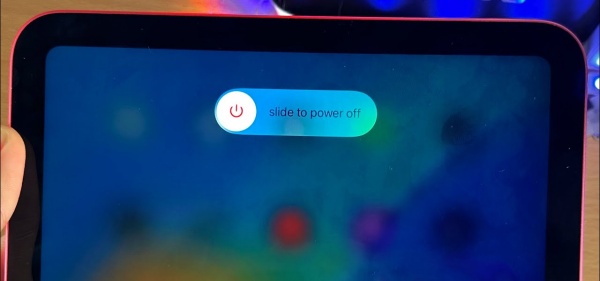
Press and hold the Top button along with either Volume button until the power-off slider appears on the screen. (On older iPad models with a physical Home button, press and hold the Top button).
-
Drag the slide to power off slider to the right.
-
Wait about 30 seconds for your iPad to shut down completely.
-
Press and hold the Top button again until the Apple logo appears to turn it back on.
7. Duplicate your canvas to clear corrupted data
On rare occasions, a specific canvas file can experience internal layer bugging, making tools behave erratically only within that single document.
-
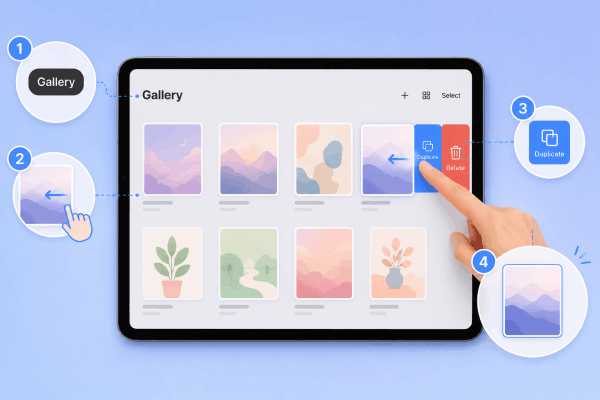
Tap Gallery in the top left to return to your canvas list.
-
Swipe left on the problematic canvas card.
-
Tap Duplicate.
-
Open the newly created canvas copy and test your selection tool again.
Comparison of Procreate selection modes and common issues
| Selection Mode | How It Works | Common Bug / Issue | Quick Fix |
| Automatic | Taps contiguous color areas | Floods the whole canvas | Drag left to lower Selection Threshold % |
| Freehand | Hand-drawn lasso outline | Line breaks or jumps | Tighten Apple Pencil tip / check Palm Rejection |
| Rectangle / Ellipse | Fixed geometric shape masks | Shape won’t transform | Turn off ColorFill / check Active Layer |
| ColorFill Active | Fills selections instantly | Unexpected color fills | Toggle off ColorFill on the bottom bar |
Frequently asked questions
Why can’t I see the selection lines (marching ants) in Procreate?
If you can select objects but don’t see the outline stripes, your selection mask opacity might be set to 0%. Go to Actions (Wrench) > Preferences > Selection mask visibility and increase the percentage slider.
Why does Procreate freeze when using the selection tool?
Freezing during selection usually happens on high-resolution canvases with limited remaining iPad RAM. Close other background apps, lower your canvas DPI/layer count if possible, or restart your iPad normally.
Does updating iPadOS fix Procreate tool glitches?
Yes. Procreate updates frequently to align with iPadOS releases. If you experience persistent tool glitches, update both your iPadOS in Settings > General > Software Update and the Procreate app in the App Store.

Final thought
A glitching selection tool in Procreate can feel alarming, especially when you are on a tight creative deadline. However, in almost every scenario, the fix comes down to adjusting your selection threshold, turning off accidental toggles like ColorFill, or giving your iPad a quick standard restart to clear system cache.
By keeping your pencil tip snug, keeping your active layers organized, and understanding your toolbar toggles, you can quickly eliminate these disruptions and keep your creative workflow flowing smoothly.







