


iPad Wifi connected but no internet? Fix it fast with these 7 practical, tested solutions to get your connection back in minutes.
Few things are more frustrating than sitting down to work, stream, or relax with your iPad, seeing the full Wifi indicator in the top status bar, and then watching every webpage fail to load.
When your iPad Wifi is connected but has no internet access, it creates a confusing glitch. Your tablet successfully communicates with your local wireless router, but that router cannot fetch data from the broader internet.
The good news? In most cases, this is a temporary software handshake error or a quick router setting issue rather than a broken hardware component. Below are seven practical, community-tested fixes to get your connection up and running again.
CONTENTS:
- 1. Do a simple restart on your iPad and router
- 2. Toggle Airplane Mode and forget the WiFi network
- 3. Turn off Private Wi-Fi Address or Limit IP Address Tracking
- 4. Fix date and time synchronization issues
- 5. Switch to a public DNS server (Google or Cloudflare)
- 6. Disable active VPNs and third-party security apps
- 7. Reset Network Settings as a last software resort
- Frequently asked questions about iPad Wifi connected but no internet access
- Final thought
1. Do a simple restart on your iPad and router
Before diving into complex network settings, start with the absolute simplest fix: turn things off and on again.
A standard power cycle clears temporary system caches, releases stuck background processes, and refreshes local IP allocations without erasing any of your data or personal preferences.
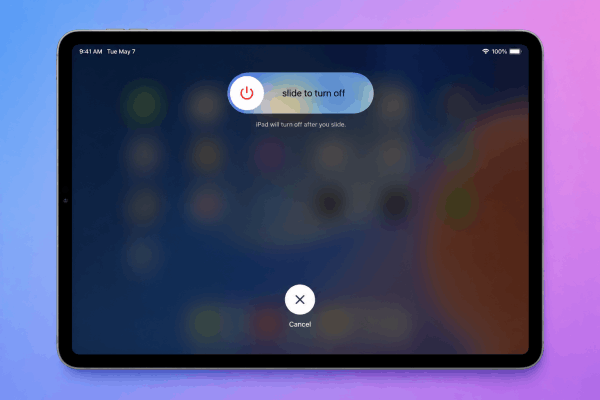
How to restart your iPad normally
Note: Avoid forcing a hard reset with hardware button combinations unless your screen is completely frozen. A simple standard shutdown is much safer for system file stability.
-
For iPads without a Home Button (Face ID or Touch ID top button): Press and hold either volume button alongside the top power button until the power-off slider appears. Drag the slider, wait about 30 seconds for the screen to turn completely black, then hold the top button again until the Apple logo appears.
-
For iPads with a Home Button: Press and hold the top power button until the power-off slider appears. Slide to turn off, wait 30 seconds, then press and hold the top button again to turn it back on.
How to power cycle your router
Unplug your router’s power cable directly from the wall outlet. Wait 60 full seconds, this allows the internal capacitors to drain completely, then plug it back in. Wait 2 to 3 minutes for all status lights to stabilize before testing your iPad again.
2. Toggle Airplane Mode and forget the WiFi network
Sometimes the wireless handshake between iPadOS and your router gets corrupted. Forcing your iPad to drop the local connection completely and re-authenticate often resolves silent network drops.
Step 1: Quick radio toggle
Swipe down from the top-right corner of your screen to open Control Center. Tap the Airplane Mode icon (it will turn orange), wait 15 seconds, and tap it again to turn it off.
Step 2: Forget and reconnect
-
Open Settings on your iPad.
-
Tap Wi-Fi.
-
Tap the Info icon (i) next to your active network.
-
Select Forget This Network and confirm.
-
Turn WiFi off, wait 10 seconds, turn it back on, and select your network from the list to enter your password fresh.
3. Turn off Private Wi-Fi Address or Limit IP Address Tracking
Apple’s privacy features are fantastic for protecting your data on public networks, but they can occasionally conflict with home routers, mesh Wi-Fi setups, or ISP-provided equipment that uses MAC address filtering.
Disabling Private Wi-Fi Address
-
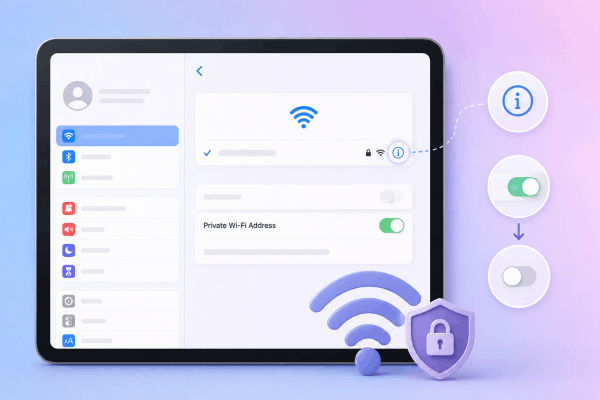
Go to Settings > Wi-Fi.
-
Tap the (i) icon next to your network.
-
Toggle off Private Wi-Fi Address.
-
Rejoin the network when prompted.
If you subscribe to iCloud+, also try going to Settings > [Your Name] > iCloud > Private Relay and temporarily turning it off to test if Apple’s relay servers are experiencing a regional outage.
4. Fix date and time synchronization issues
It might sound unrelated, but an incorrect system date or time on your iPad will block internet access entirely. Secure connections (HTTPS) rely on precise time synchronization between your device and server certificates. If your iPad’s clock is off by even a few minutes, security checks fail, resulting in a WiFi connected with no internet error message in your browser.
How to re-sync your date and time
-
Navigate to Settings > General > Date & Time.
-
Toggle on Set Automatically.
-
If it is already enabled, toggle it off, wait 5 seconds, and turn it back on. Ensure the correct time zone is displayed underneath.
5. Switch to a public DNS server (Google or Cloudflare)
Your Internet Service Provider (ISP) automatically assigns a Default Domain Name System (DNS) server when you join a network. If your ISP’s DNS server goes down, your iPad stays connected to WiFi, but web addresses like google.com won’t translate into numeric IP addresses, breaking your internet connection.
Changing your iPad’s DNS settings to a reliable, free public DNS provider often resolves the issue instantly.
| Provider | Primary Server | Secondary Server | Best For |
| Cloudflare | 1.1.1.1 |
1.0.0.1 |
Maximum speed & privacy |
| Google Public DNS | 8.8.8.8 |
8.8.4.4 |
High reliability & global uptime |
How to change DNS settings on iPad
-
Open Settings > Wi-Fi.
-
Tap the (i) icon next to your connected network.
-
Scroll down and tap Configure DNS.
-
Change the setting from Automatic to Manual.
-
Delete the existing DNS servers under DNS Servers.
-
Tap Add Server and enter
1.1.1.1(or8.8.8.8). -
Tap Add Server again to enter
1.0.0.1(or8.8.4.4). -
Tap Save in the top right corner.
Read More:
- iPad Can’t Connect to Wifi And What You Should Do
- iPad Wifi dropping randomly? Here’s the ultimate fix
6. Disable active VPNs and third-party security apps
Virtual Private Networks (VPNs) route your web traffic through secure tunnels. If a VPN server crashes, experiences high latency, or loses its underlying configuration, it can lock down your device’s network traffic while keeping your local WiFi indicator active.
-
Disconnect the VPN: Open your dedicated VPN app or navigate to Settings > General > VPN & Device Management and toggle off any active connections.
-
Remove network profiles: If you recently installed third-party security suites, ad-blockers, or profile configurations, temporarily delete them to isolate the conflict.
7. Reset Network Settings as a last software resort
If none of the above steps work, performing a network settings reset usually fixes stubborn configuration bugs.
-
Go to Settings > General > Transfer or Reset iPad.
-
Tap Reset at the bottom of the screen.
-
Select Reset Network Settings.
-
Enter your iPad passcode and confirm the prompt.
-
Your iPad will reboot automatically. Once restarted, rejoin your WiFi network.
Frequently asked questions about iPad Wifi connected but no internet access
Why does my iPad say connected to Wifi but no internet, while my phone works fine?
This usually indicates an IP address conflict or cached network profile bug specific to your iPad’s MAC address on the local router. Toggling Airplane mode, forgetting the network, or changing your iPad’s DNS server often fixes this immediately without affecting other devices.
Will resetting network settings delete my iPad photos or apps?
No. Resetting network settings only erases wireless network data, saved Wi-Fi networks/passwords, VPN profiles, and Bluetooth connections. Your personal photos, apps, documents, and settings remain completely intact.
What should I do if my iPad won’t connect to any Wifi network at all?
If your iPad fails to load pages on home, work, and public networks, check if Low Data Mode is enabled under Wi-Fi settings or perform a network settings reset. If the issue persists across all networks, contact Apple Support to check for hardware issues with the internal Wi-Fi antenna.

Final thought
Dealing with an iPad Wifi connected but no internet access issue is frustrating, but it rarely signals a major hardware failure. Most of the time, the fix comes down to clearing a stuck network cached file, adjusting your DNS addresses, or giving both your tablet and router a clean restart.
Start with the simplest steps first—a soft restart and network toggle—before moving on to network resets. By systematically working through these troubleshooting steps, you’ll have your iPad back online and running smoothly in no time!






