


Fix Procreate layers invisible or disappearing suddenly with these quick solutions. Learn how to recover your hidden iPad artwork fast.
If you are in the middle of a digital painting session on your iPad and suddenly half of your artwork vanishes into thin air, do not panic. Experiencing your Procreate layers invisible or disappearing suddenly is one of the most heart-stopping glitches any digital artist can encounter. You open your layer panel, and while the thumbnails might still show your drawings, your canvas remains completely blank.
In this guide, we will break down the exact practical reasons why Procreate layers go missing and walk through step-by-step solutions to bring your artwork back immediately.
CONTENTS:
Why are your Procreate layers invisible or missing?
Before jumping into the fixes, it helps to understand what causes your Procreate artwork to hide itself. Digital art software relies heavily on your iPad’s RAM and GPU processing. When layers turn invisible, the issue typically stems from one of four categories:
-
Accidental Touch Gestures: iPad touchscreens are extremely responsive. A quick two-finger tap, an unintended pinch, or a mis-tapped checkbox can instantly alter layer visibility or opacity without you realizing it.
-
Layer Modes and Opacity Sliders: Blend modes like Multiply, Screen, or Overlay combined with transparent background colors can make content seem transparent or completely gone.
-
System and RAM Overload: High-resolution canvases with dozens of layers consume massive amounts of memory. If Procreate runs out of allocated RAM, it may fail to render active layers on the canvas display.
-
Temporary App or OS Bugs: Occasionally, minor software glitches inside Procreate or iPadOS prevent the canvas interface from refreshing correctly.

Quick checks to restore invisible Procreate layers
Before applying complex fixes, run through these quick preliminary checks. Nine times out of ten, one of these quick tweaks resolves the disappearing layer bug instantly.
Check the layer visibility checkbox
It sounds basic, but it is the most common culprit. Open your Layers panel (the two overlapping squares in the top right corner). Look at the right side of each layer name. If the small checkbox is unchecked, your layer is hidden. Tap the box to ensure the checkmark is active.
Review layer opacity levels
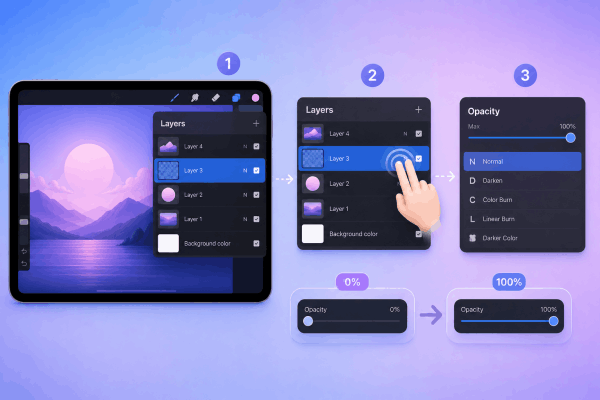
If your checkbox is ticked but the layer remains invisible, check its opacity setting.
-
Open the Layers panel.
-
Tap the layer with two fingers, or tap the letter next to the checkbox (like N for Normal).
-
Check the Opacity slider at the top of your screen. If it is set to 0%, drag it back to 100%.
Inspect blend modes and clipping masks
Incorrect blend modes can render your layer invisible depending on what sits beneath it:
-
Clipping Masks: Look for a small right-angle arrow next to your layer thumbnail pointing downward. If the base layer below it is empty or hidden, the clipping mask will turn completely invisible. Tap the layer and deselect Clipping Mask.
-
Alpha Lock: If Alpha Lock is enabled (indicated by a checkered pattern behind the thumbnail) and you painted with a clear eraser or matching background color, the layer contents won’t show up.
-
Incompatible Blend Modes: Change your blend mode back to Normal by tapping the letter next to the checkmark to see if the drawing reappears.
Practical fixes for Procreate layers disappearing suddenly
If simple layer toggles did not bring your work back, try these field-tested methods used by real digital creators to clear software caching issues and restore hidden files.
1. Toggle layer visibility on and off rapidly
Sometimes the rendering engine inside Procreate freezes on a specific frame.
-
Open the Layers panel.
-
Rapidly uncheck and re-check the box next to the invisible layer 3-4 times.
-
Alternatively, long-press the visibility checkmark on a single layer to activate Solo Mode (which hides all other layers), then long-press it again to restore every layer. This forces Procreate to recalculate canvas graphics.

2. Duplicate the invisible layer
If a layer preview thumbnail shows your drawing but the canvas is blank, force the app to generate a fresh graphic copy:
-
Swipe left on the invisible layer in your layer menu.
-
Tap Duplicate.
-
Frequently, the newly created duplicate layer will instantly render on your screen. You can then delete the original glitched layer.
Read More:
- Procreate layer limit: Why it happens and how to fix it
- Procreate Dreams Brush Lag and Freezing on iPad? Here Is the Fix
3. Exit to the Gallery and re-open the file
When Procreate experiences a temporary memory leak, returning to the main menu forces the app to save state and clear cache.
-
Tap Gallery in the top left corner of your screen.
-
Wait a few seconds for the thumbnail preview to update.
-
Tap on your artwork canvas to re-open it.
4. Restart your iPad normally
If the layers remain unresponsive across multiple files, your iPad’s RAM might be completely exhausted. A standard power restart resets your iPad system memory without affecting your files.
How to restart your iPad normally:
-
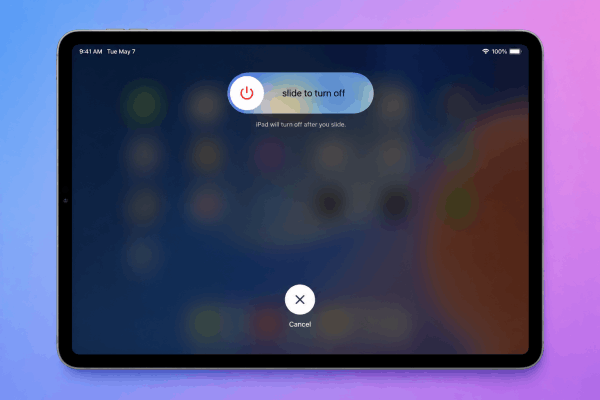
Press and hold the Top Power button alongside either Volume button (or just the Top button on older iPad models with a Home button) until the power-off slider appears on the screen.
-
Slide to power off your device completely.
-
Wait about 20 to 30 seconds until the screen goes completely dark.
-
Press and hold the Top Power button again until the Apple logo appears to turn your iPad back on.
-
Re-open Procreate and test your canvas.
How to prevent layer glitches in Procreate
Preventing disappearing layers is much easier than recovering them after a crash. Keep your workflow smooth and safe with these essential habits:
-
Watch Your Layer Limits: Every iPad model has a maximum layer limit based on canvas resolution and device RAM. Keep an eye on your layer count by tapping Actions (Wrench icon) > Canvas > Canvas information > Layers. Avoid pushing your iPad to its absolute maximum limit.
-
Merge Unnecessary Layers: Group or merge layers that do not need separate editing. Fewer layers mean better stability and less strain on your iPad processor.
-
Keep Procreate and iPadOS Updated: Software updates regularly fix background rendering bugs and memory leaks. Check the App Store routinely to keep your design tools up to date.
-
Export Backups Regularly: Always export important pieces as
.procreatefiles or PSDs to cloud storage or an external drive. Having a working backup guarantees peace of mind if a file ever becomes corrupted.

Frequently asked questions
Why is my Procreate layer thumbnail visible but the canvas is blank?
This usually indicates a display rendering glitch. The layer data exists (which is why the thumbnail displays it), but Procreate failed to draw it on the main screen canvas. Duplicating the layer or exiting to the Gallery usually forces the app to redraw the canvas graphics correctly.
Can I recover a deleted layer in Procreate?
You can only undo a deleted layer if you have not exited the active canvas file. Two-finger tap the screen or tap the Undo arrow immediately. Once you exit to the Gallery or close the app, Procreate’s undo history clears completely, and deleted layers cannot be restored.
Will restarting my iPad delete my Procreate artwork?
No. Performing a standard restart (sliding the power toggle to turn the iPad off and turning it back on) will not delete your files or local app data. Procreate automatically saves canvas changes locally whenever you make edits.

Final thoughts
Dealing with Procreate layers invisible or disappearing suddenly can feel terrifying, but in almost every instance, your artwork is completely safe.
By working down from quick UI checks, such as checking visibility boxes, layer opacity, and clipping masks, to practical solutions like duplicating layers or restarting your iPad normally, you can get back to creating without losing your progress.
Keep your iPad updated, manage your layer count wisely, and remember to backup your best artwork regularly!





