
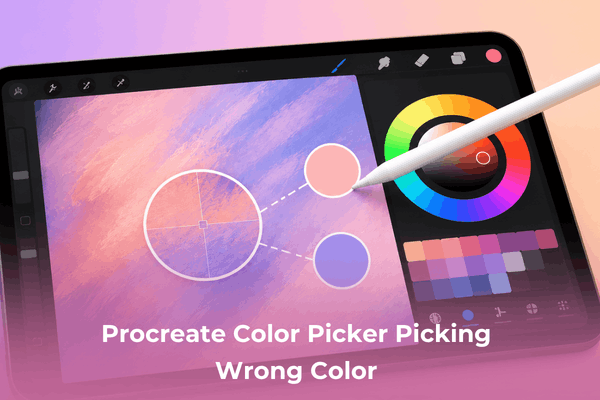

Is your Procreate color picker picking wrong color? Fix Eyedropper accuracy, layer blending, and color profile issues with this easy guide.
Few things disrupt a smooth creative workflow faster than tapping your screen with the Eyedropper tool, only to watch Procreate select a muddy, dull, or completely inaccurate shade.
Procreate color picker picking wrong colo is a common headache for digital artists on iPad. Whether your Procreate Eyedropper is picking up muted tones, selecting colors from hidden layers, or reacting oddly to canvas settings, the solution is usually quick once you know where to look.
Here is a practical, step-by-step troubleshooting guide to help you fix color accuracy issues in Procreate and get back to creating.
CONTENTS:
- Why is my Procreate eyedropper tool selecting inaccurate colors?
- How to fix Procreate color picker picking wrong color
- Procreate color troubleshooting cheat sheet
- Advanced digital art tips for perfect color accuracy
- Frequently asked questions about Procreate color picker picking wrong color
- Final thought
Why is my Procreate eyedropper tool selecting inaccurate colors?
Before diving into the fixes, it helps to understand why your Procreate Eyedropper might be misbehaving.
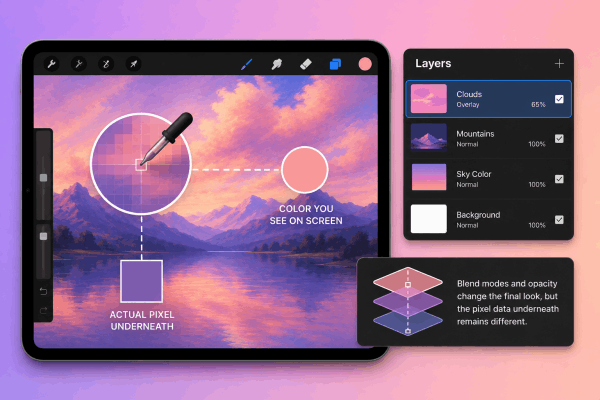
When you tap on your canvas, Procreate samples the exact pixel underneath your finger or Apple Pencil. However, several underlying factors can distort what you see versus what the app selects:
-
Layer blend modes and opacity adjustments: Active blend modes like Multiply, Overlay, or reduced layer opacity shift the final visual output without altering the raw pixels underneath.
-
Canvas color profiles: Mismatched color spaces (such as RGB vs. CMYK) cause noticeable shifts in hue and saturation.
-
Active layer restriction settings: The Eyedropper can be locked to sample only from the current active layer rather than the visible canvas artwork.
-
Brush dynamics and opacity: Brush settings like wet mixing, color jitter, or lowered brush opacity make newly painted strokes appear lighter or different from the picked color.
-
Reference companion window bugs: Color picking directly from the Reference window can occasionally cause color shifts due to display rendering differences.
Let’s walk through how to solve each of these issues.
How to fix Procreate color picker picking wrong color
1. Check your layer blend modes and opacity
If you are trying to sample a color from a layer set to a blend mode (like Multiply, Screen, or Soft Light), or if there is a transparent layer stacked on top, the visible color on screen is an optical mix of multiple layers.
-
Open your Layers panel.
-
Look for letters next to the layer checkmarks (e.g., M for Multiply, N for Normal).
-
If you sample from a layer with a blend mode or lower opacity, Procreate picks the base color of that specific layer, not the combined color you see on screen.
-
Quick fix: Create a flattened duplicate of your visible artwork on a top layer temporarily, sample your color, and then delete or hide that temp layer.
2. Disable “Sample active layer” in gesture controls
A very common culprit behind inaccurate color sampling is the active layer restriction setting. If this setting is enabled, Procreate ignores every other layer on your canvas and only samples pixels from the layer you currently have selected.
-
Tap the Actions menu (wrench icon) in the top-left toolbar.
-
Select Prefs > Gesture Controls.
-
Tap on Eyedropper in the left menu.
-
Ensure Sample active layer only is toggled OFF.

When disabled, the Eyedropper tool will accurately pick up the combined visual colors across all visible layers on your screen.
3. Verify your canvas color profile (RGB vs. CMYK)
If your picked colors consistently look dull, desaturated, or muddy when painted down, your canvas might be set to a CMYK color profile instead of sRGB.
CMYK has a smaller color gamut intended for physical printing, which compresses vibrant neon and bright RGB tones into muted shades.
-
Tap Actions (wrench icon) > Canvas > Canvas information.
-
Tap Color profile.
-
For digital artwork displayed on screens, ensure your profile is set to sRGB IEC61966-2.1 or Display P3.
4. Check brush opacity and color dynamics
Sometimes the Eyedropper picks the correct color, but the brush you are using paints it differently. This makes it seem as though the color picker failed.
-
Check main opacity: Look at the slider on the left sidebar of your canvas. If it is below 100%, your strokes will appear lighter or semi-transparent.
-
Check brush settings: Open your Brush Library, tap your selected brush, and go to Color dynamics. Ensure sliders like Hue Jitter, Saturation Jitter, or Secondary Color are set to 0%.

5. Avoid color picking directly from the reference window
Procreate’s Reference Companion is fantastic for viewing inspiration images side-by-side with your artwork, but sampling directly from it can sometimes cause minor color shifts due to how color spaces translate between windows.
-
Instead of using the Eyedropper inside the Reference panel, insert the reference image directly onto your main canvas layer.
-
Sample your desired colors on the main canvas, save them to a custom Color Palette, and then delete or hide the image layer.
Procreate color troubleshooting cheat sheet
| Symptoms | Likely Cause | Quick Solution |
| Picked color looks dull or greyish | CMYK profile or active blend modes | Switch to sRGB profile / sample on Normal layer |
| Eyedropper picks transparent/wrong background | “Sample active layer” option is ON | Turn off “Sample active layer” in Gesture Controls |
| Color appears correct in circle, but stroke looks different | Low brush opacity or brush color jitter | Set brush opacity to 100% & disable color jitter |
| Eyedropper picks nearby pixels instead of center target | Apple Pencil tip calibration or zoom level | Zoom in closer to sample precise pixel clusters |
Advanced digital art tips for perfect color accuracy
Fixing the Eyedropper tool is just step one. To maintain color consistency throughout your digital painting workflow, try implementing these practical art habits:
-
Build dedicated color palettes early: Instead of constantly eyedropping from existing strokes, sample your core values early and save them to a dedicated palette panel.
-
Mind your surrounding background color: Color perception is relative. A mid-tone grey surrounded by black will look significantly lighter than the same grey surrounded by white. If colors look off, temporarily toggle your background layer to mid-grey.
-
Calibrate your iPad display settings: Features like True Tone and Night Shift alter your iPad screen’s color temperature, making warm colors appear warmer and cool tones look muddy. Turn these off in iPad Settings > Display & Brightness when working on color-critical art.
See More:
- Fix Procreate Memory Limit Error: Quick & Practical Solutions
- Procreate Selection Tool Not Working or Glitching? Here is the Fix
Frequently asked questions about Procreate color picker picking wrong color
Why does my Procreate eyedropper turn everything grey?
This usually happens when sampling from a transparent layer or when your canvas is set to a CMYK profile with uncalibrated settings. Ensure you are sampling visible flattened artwork and using an sRGB profile.
How do I change the eyedropper delay on iPad?
Go to Actions (wrench icon) > Prefs > Gesture Controls > Eyedropper. Adjust the Delay slider to make the color ring appear faster or slower when holding your finger/pencil down.
Why is color drop filling my entire canvas?
This is caused by ColorDrop Threshold. When dropping a color into an area, drag your color to the target, hold your finger down on the screen without lifting, and drag left or right to lower or increase the fill threshold percentage.
Final thought
Dealing with an inaccurate color picker in Procreate can feel discouraging when you are in the flow of a painting session. However, in almost every case, the fix comes down to adjusting a gesture setting, resetting brush opacity, or verifying your canvas color profile.
By turning off single-layer sampling and sticking to sRGB color spaces for digital art, you will keep your colors true, vibrant, and precise.






