


iPad copy paste not working between apps? Try these 8 practical, real-world fixes to get your Universal Clipboard working seamlessly again.
Thousands of iPad users encounter “iPad copy paste is not working between app” issue every week. Sometimes it stems from a minor system glitch, while other times it relates to app permissions, cloud synchronization issues, or Universal Clipboard settings.
Below are the most effective, real-world fixes gathered from active tech users to get your copy-and-paste functionality working again in no time.
CONTENTS:
- Quick checklist before troubleshooting
- Fix 1: Toggle the “Paste from Other Apps” permission
- Fix 2: Perform a standard restart of your iPad
- Fix 3: Turn Handoff off and back on (Universal Clipboard)
- Fix 4: Force quit affected apps
- Fix 5: Clear keyboard dictionary and custom clipboards
- Fix 6: Check your iCloud Sync and Apple ID settings
- Fix 7: Update iPadOS to the latest version
- Practical workflow tips for heavy iPad users
- Frequently asked questions about iPad copy paste not working between apps
- Final thought
Quick checklist before troubleshooting
Before diving into deep settings, run through a few initial checks:
-
Verify basic gestures: If you use the three-finger pinch gesture (pinch in with three fingers to copy, pinch out to paste), test using the standard pop-up menu instead.
-
Test in basic apps: Try copying text inside Notes and pasting it into Safari. If it works there, the issue might be limited to a specific third-party app.
-
Check app restrictions: Some banking, corporate, or secure messaging apps block copy-paste functionality by design to protect sensitive data.

Fix 1: Toggle the “Paste from Other Apps” permission
Starting in recent iPadOS updates, Apple introduced enhanced privacy controls that require apps to request permission before reading data from your clipboard. If you accidentally denied this prompt, cross-app pasting will fail.
-
Open the Settings app on your iPad.
-
Scroll down to find the specific app you are trying to paste into.
-
Tap Paste from Other Apps.
-
Change the setting from Ask or Never to Allow.
Fix 2: Perform a standard restart of your iPad
System services responsible for background processes like the clipboard can occasionally freeze. A standard restart clears temporary memory glitches without deleting any data.
-
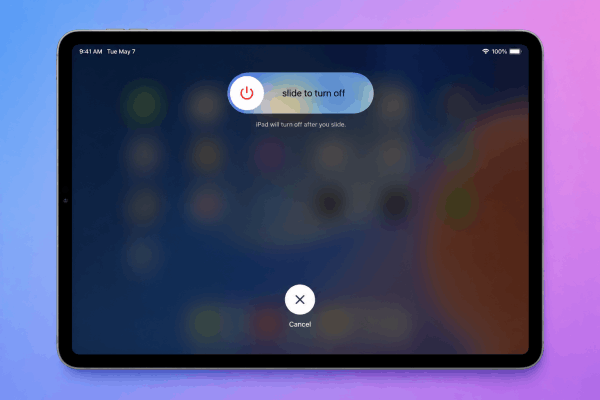
Press and hold either Volume button and the Top button until the power-off slider appears. (On iPads with a Home button, press and hold the Top button alone).
-
Slide to power off the device completely.
-
Wait about 30 seconds for the screen to go completely dark.
-
Press and hold the Top button again until the Apple logo appears on your screen.
Fix 3: Turn Handoff off and back on (Universal Clipboard)
If you are trying to copy content on your iPhone or Mac and paste it directly onto your iPad, you rely on Apple’s Universal Clipboard (powered by Handoff). When sync breaks down, resetting Handoff usually restores the connection.
-
Go to Settings > General > AirPlay & Handoff.
-
Toggle Handoff off.
-
Wait 10 seconds, then toggle Handoff back on.
-
Ensure both Bluetooth and Wi-Fi are active on all devices involved.
Fix 4: Force quit affected apps
If the clipboard freezes only when moving data between two specific applications (like moving text from Chrome to a third-party writing app), force closing both apps refreshes their active memory states.
-
Swipe up from the bottom of your screen and pause in the middle to open the App Switcher.
-
Swipe up on the preview cards of both the source app and the destination app to close them.
-
Relaunch both apps from your home screen and attempt to copy and paste again.

Fix 5: Clear keyboard dictionary and custom clipboards
Sometimes the underlying clipboard service gets bogged down by cached data, custom keyboard configurations, or third-party clipboard managers.
-
Disable third-party keyboards: If you use Gboard or SwiftKey, go to Settings > General > Keyboard > Keyboards, tap Edit, and temporarily remove them to test the default Apple keyboard.
-
Reset keyboard dictionary: Go to Settings > General > Transfer or Reset iPad > Reset > Reset Keyboard Dictionary. This clears saved custom words that might cause background text rendering bugs.
Keep Reading:
- Procreate Color Picker Picking Wrong Color? How to Fix It Fast
- Fix iPad Magic Keyboard Backlight Not Working: Quick Solutions
Fix 6: Check your iCloud Sync and Apple ID settings
Universal Clipboard relies heavily on shared iCloud services. If your Apple account credentials need re-verification, cross-device copy-paste will silently fail.
-
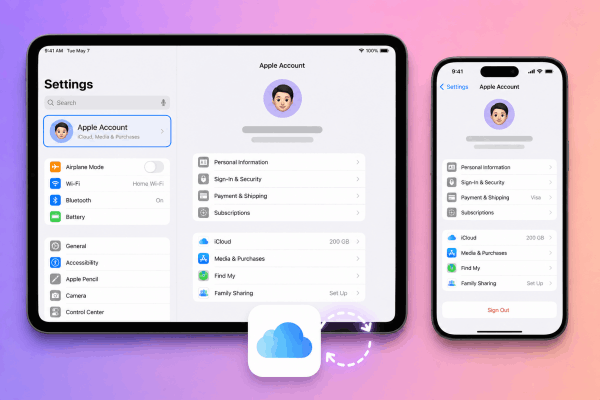
Open Settings and tap your Apple Account profile name at the top.
-
Ensure there are no pending terms to accept or password warnings.
-
Make sure both devices are logged into the exact same Apple ID.
Fix 7: Update iPadOS to the latest version
System bugs that affect inter-app communication are frequently patched in routine iPadOS updates.
-
Go to Settings > General > Software Update.
-
If an update is available, tap Download and Install.
-
Keep your iPad connected to Wi-Fi and power during the update process.
Practical workflow tips for heavy iPad users
To minimize clipboard friction in your daily personal and professional workflows, consider adopting these quick habits:
-
Use Split View or Slide Over: When transferring multiple pieces of data, open both apps side-by-side using iPadOS multitasking. You can often drag and drop text, photos, or links directly between windows, bypassing the clipboard altogether.
-
Leverage Quick Notes: If pasting into a destination app fails, swipe up from the bottom-right corner of your screen to open a Quick Note, paste your text there as a temporary staging area, and then copy it over to your main app.

Frequently asked questions about iPad copy paste not working between apps
Why can I copy text within an app but not paste it into another?
This is almost always caused by privacy permissions blocking the destination app from accessing your clipboard, or a temporary freeze in the system clipboard daemon. Adjusting the app’s “Paste from Other Apps” setting or performing a regular restart usually resolves this.
Does Low Power Mode affect Universal Clipboard?
Yes. Low Power Mode limits background network activity and Bluetooth syncing, which can cause delays or outright failures when copying and pasting between Apple devices.
Why does copy-paste stop working only in web browsers?
Certain websites disable text selection and copying via JavaScript to prevent content copying. If it only happens on specific webpages, the limitation is set by the site owner, not your iPad.

Final thought
Having your iPad copy paste stop working between apps can feel like a major roadblock, especially when you depend on your tablet for productivity.
Fortunately, this issue is rarely hardware-related and almost always stems from a temporary software hiccup or a quick-to-fix permission toggle. By systematically trying these practical solutions, you will have your seamless workflow back up and running in minutes.





