


Fix a Procreate brush size slider missing from your iPad interface. Try these simple UI, gesture, and setting fixes to get drawing again.
Few things disrupt a creative workflow faster than going to adjust a stroke width only to find the sidebar completely gone. When working on digital artwork, losing quick access to stroke dimensions and layer transparency controls stalls momentum instantly.
This issue is rarely caused by a permanently broken app or a corrupted canvas. Instead, a hidden sidebar usually points to accidental full-screen gestures, disabled UI settings within iPadOS, or minor display glitches that can be restored with a few quick adjustments.
CONTENTS:
Why is your Procreate brush size slider missing?
A missing sidebar typically traces back to interface display toggles or conflict between app settings and iPadOS system preferences.
-
Accidental full-screen mode: Tapping the canvas with multiple fingers or triggering a custom gesture hides all navigation toolbars and sidebars to maximize drawing space.
-
Disabled sidebar toggle: The internal app setting controlling sidebar visibility may have been switched off during a software update or accidental menu tap.
-
iPadOS accessibility conflicts: System-level settings like Bold Text or custom Display Text Scaling can occasionally force Procreate interface elements off the visible canvas area.
-
Temporary graphics glitche: Memory cache buildup after prolonged drawing sessions can cause UI overlays to disappear temporarily.
Identifying which of these triggers caused the sidebar to vanish helps pinpoint the right fix immediately.

How to restore a missing Procreate brush size slider
Fixing the interface requires checking in-app gesture settings, verifying sidebar preferences, and adjusting iPadOS system configurations.
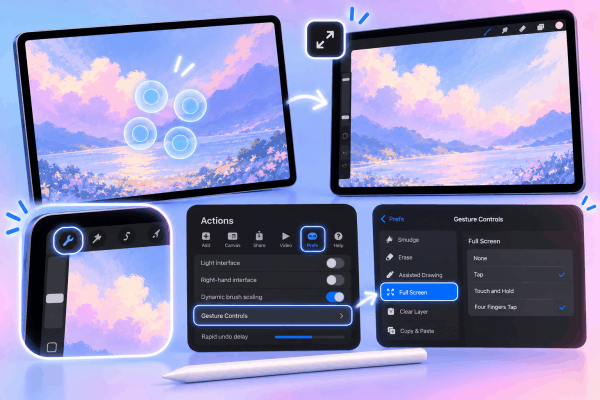
1. Exit full-screen mode using gestures
Full-screen mode hides all canvas controls, including the color picker, layer panel, and side sliders.
-
Tap the canvas with four fingers simultaneously. This is the default factory gesture to toggle full-screen mode on and off.
-
Look at the top corner of your screen for a small full-screen indicator icon (two opposing arrows). If visible, tap it to bring back your toolbars.
-
Open the Actions menu (wrench icon), tap Prefs, and select Gesture Controls. Check under the Full Screen tab to see if a custom gesture (like a tap or finger hold) is set to hide the UI automatically.
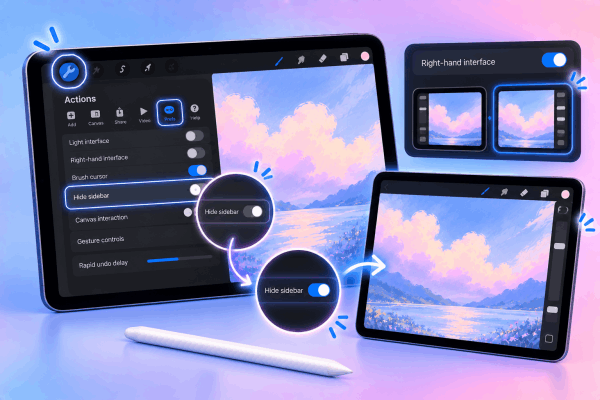
Procreate includes a direct switch to show or hide the sidebar on either side of the screen.
-
Tap the wrench icon in the top-left toolbar to open the Actions menu.
-
Select the Prefs tab.
-
Locate the Hide sidebar toggle. If it is switched on, toggle it Off to make the size and opacity controls visible again.
-
If the sidebar is already enabled but sits awkward for your drawing hand, toggle Right-hand interface to switch its side.
3. Turn off Bold Text in iPadOS settings
A well-documented compatibility issue involves system-wide font formatting overriding the rendering bounds of Procreate sidebars.
-
Close Procreate and open the Settings app on your iPad.
-
Scroll down and tap Accessibility, then select Display & Text Size.
-
Check if Bold Text is enabled. Switch the toggle Off.
-
Reopen Procreate to see if the brush size and opacity bars render correctly along the edge of your screen.
4. Adjust iPad display zoom and text scaling
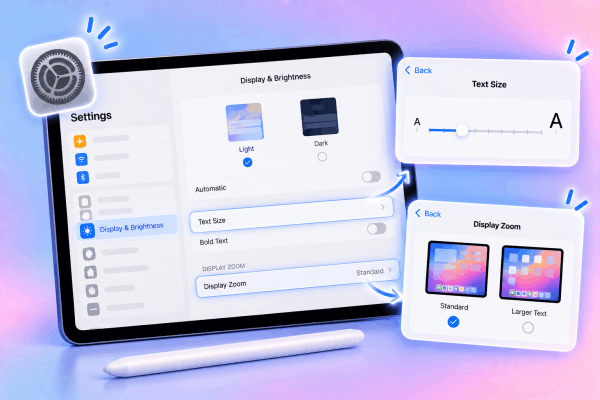
Setting screen text or display resolution to extreme sizes can push edge UI elements off the active viewing area.
-
Open your iPad’s Settings app.
-
Tap Display & Brightness, then scroll down to Text Size.
-
Move the slider back toward the standard middle position.
-
Tap Display Zoom (if available on your iPad model) and switch the view from Larger Text to Standard.
5. Perform a standard iPad restart
If the UI elements remain missing due to a background process deadlock, a basic system reboot refreshes graphic memory.
-
Disconnect any charging cables or external accessories from your iPad.
-
Press and hold the Top Power button along with either Volume button until the power slider appears on screen.
-
Drag the slide to power off control and wait 30 seconds for the display to go entirely dark.
-
Press and hold the Top Power button again until the Apple logo displays.
-
Launch Procreate and verify that your brush size and opacity sliders have returned.

Once the sidebar is back, adjusting a few interface controls ensures smooth brush size changes during detailed line art or shading.
-
Pinpoint slider precision: When making subtle brush adjustments, tap and hold the slider knob, then drag your finger or Apple Pencil sideways toward the center of the canvas before moving up or down. This unlocks finer decimal percentage adjustments instead of jumping in large increments.
-
Set brush size memory points: Tap the + icon along the edge of the brush size slider to set a quick-save notch for your favorite line weights. You can save up to four size presets per brush.
-
Control dynamic brush scaling: If stroke thickness changes unexpectedly when zooming in or out on your canvas, open Actions > Prefs and toggle Brush scaling between Relative to screen and Relative to canvas to match your preferred drawing style.
See More:
- Procreate Layer Visibility Toggle Lag: How to Fix iPad Slowdown
- Fix Procreate Undo Gesture Dynamic Tap Failing on iPad
Frequently asked questions
Here are quick solutions to common interface questions regarding Procreate sliders and controls.
Why is my Procreate brush size slider grayed out or unresponsive?
An unresponsive slider typically indicates that the selected brush has fixed size parameters set inside the Brush Studio. Open the Brush Library, tap your active brush, select Properties, and check the Brush behavior settings to ensure Maximum Size is set higher than Minimum Size.
Can I move the brush size slider to a different position on the screen?
Yes, you can move the sidebar vertically by tapping and holding the empty space between the size slider and opacity slider. Drag your finger up or down along the edge of the screen to reposition the control stack where it feels most comfortable for your grip.
Why does my sidebar disappear every time I draw a stroke?
This occurs when full-screen mode triggers automatically via active gestures. Go to Actions > Prefs > Gesture Controls > Full Screen and disable options like Touch or Apple Pencil double-tap to prevent accidental hiding during artwork creation.

Final thought
Dealing with a Procreate brush size slider missing from your canvas can feel frustrating, but the fix almost always comes down to turning off full-screen mode, toggling the interface switch in preferences, or adjusting iPadOS text formatting.
Ensuring your gesture shortcuts are intentionally configured keeps sidebars accessible so you can focus on creating without interface distractions.





