


Experiencing Procreate layer visibility toggle lag on iPad? Fix canvas delay and performance drops with these practical solutions.
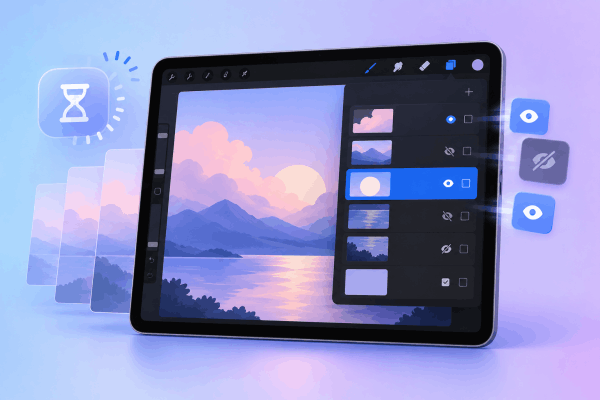
Toggling a layer on or off in Procreate should feel instantaneous. Yet, tapping that tiny checkbox sometimes results in a noticeable delay or a frozen canvas before the elements actually appear or disappear.
When working on complex digital illustrations, even a fraction of a second in delay disrupts creative workflow. The Procreate layer visibility toggle lag is rarely caused by a broken app. Instead, it usually stems from high system memory strain, system setting conflicts, or unoptimized canvas dimensions.
The following practical adjustments restore smooth, real-time layer toggling on an iPad.
CONTENTS:
What causes layer visibility lag in Procreate?
Procreate relies heavily on the iPad’s Unified Memory (RAM) and GPU to render pixel changes in real time. Toggling a layer’s visibility requires the graphic engine to re-calculate the entire display stack instantly—combining blending modes, opacity levels, and clipping masks.
Several underlying issues trigger this rendering lag:
-
Excessive RAM consumption: High-resolution canvases with dozens of active layers push available system memory to its limits.
-
Low storage buffer: iPadOS requires at least 10-15 GB of free internal storage to manage temporary swap memory efficiently.
-
Accessibility feature conflicts: System settings like Zoom, AssistiveTouch, or Motion effects interfere with immediate touch detection.
-
Complex layer structures: Extensive clipping masks, group folders, and heavy blend modes demand higher processing power during visibility updates.
-
Background process overhead: Multiple open applications running simultaneously split system resources away from Procreate.

6 practical ways to resolve Procreate layer visibility toggle lag
Instead of upgrading your hardware, try these straightforward software adjustments first. Here are 6 practical methods to eliminate layer toggle delay and restore smooth performance.
1. Free up iPad storage space
Procreate uses virtual memory caching to render complex canvas states smoothly. When available iPad storage drops below 10%, the system struggles to write temporary cache files, causing input delays across the interface.
Check available space:
-
Open Settings on your iPad.
-
Navigate to General > iPad Storage.
-
Ensure at least 10 GB to 15 GB of free space remains available.
If storage is almost full, offload unused apps, clear large video files, or back up older Procreate files (.procreate format) to cloud storage or an external drive before deleting them from the app.
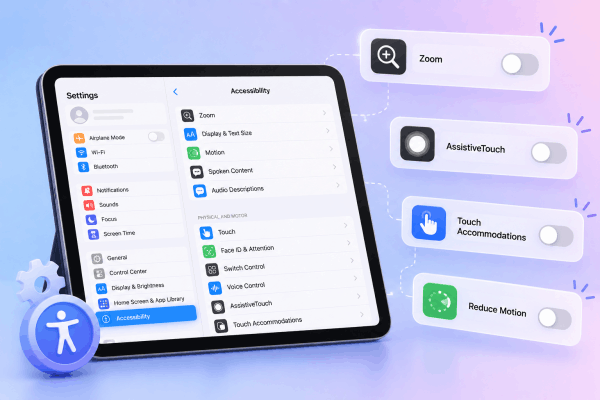
2. Disable system accessibility features
Certain iPadOS Accessibility tools run continuous background hooks to monitor screen touches. These features can inadvertently create a slight input lag when tapping small UI targets like Procreate’s layer checkboxes.
Turn off conflicting settings:
-
Open Settings > Accessibility.
-
Select Zoom and toggle it Off.
-
Select Touch > AssistiveTouch and toggle it Off.
-
Select Touch Accommodations and ensure it is Off.
-
Select Motion and turn off Reduce Motion.
Artists often discover that turning off Zoom instantly eliminates the micro-delay when tapping UI checkboxes.
3. Merge or flatten non-essential layers
Working with a massive layer count increases the rendering workload every time a layer visibility state changes. Consolidating completed elements lightens the processing burden.
-
Pinch to merge: Pinch two or more completed layers together in the Layers panel to combine them into one.
-
Flatten groups: Tap a layer group name and select Flatten to convert the entire folder into a single layer.
-
Duplicate and merge: Keep a duplicate backup of the unflattened artwork saved in the Gallery, then work on a streamlined version to maintain fluid performance.
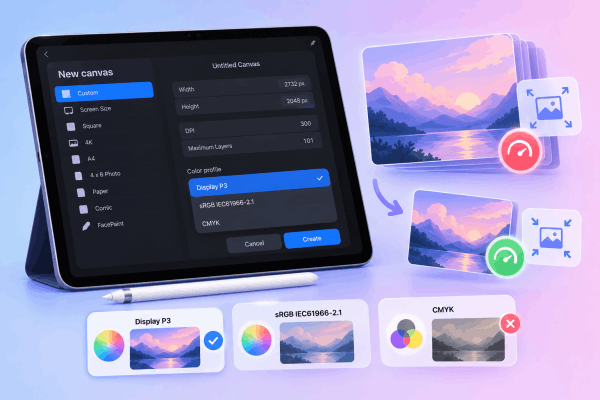
4. Optimize canvas dimensions and color profiles
Large pixel dimensions (such as 8K or 300+ DPI poster prints) paired with CMYK color profiles require significantly more memory to process than standard RGB canvases.
To optimize canvas setup:
-
Use Display P3 or sRGB IEC61966-2.1 for digital art, as CMYK profile processing in Procreate requires extra graphic computation.
-
Avoid creating canvases with maximum dimensions unless required for physical printing. Fewer total pixels translate directly to faster layer toggling and brush performance.
5. Close background apps
Leaving resource-heavy applications open in the background, such as web browsers with dozens of tabs, video editing tools, or streaming apps, diverts active RAM away from Procreate.
-
Swipe up from the bottom of the screen and hold to open the App Switcher.
-
Swipe up on all background applications to close them.
-
Return to Procreate to test layer responsiveness.
Discover More:
- Fix Procreate Undo Gesture Dynamic Tap Failing on iPad
- Fix Procreate Fill Tool Flooding Canvas: 5 Fast Solutions
6. Perform a simple iPad restart
Temporary memory leaks or background system glitches can accumulate over days of continuous use, leading to app-wide micro-stutters. A basic restart clears system RAM caches and resets background processes.
How to restart your iPad properly:
-
Press and hold the Power button (or top button) along with either Volume button until the power-off slider appears on the screen.
-
Drag the Slide to power off slider to the right.
-
Wait about 10 to 15 seconds until the device turns off completely.
-
Press and hold the Power button again until the Apple logo appears to turn the iPad back on.

Procreate performance optimization checklist
Quick troubleshooting summary:
| Issue / Checkpoint | Recommended Action | Expected Outcome |
| Storage Capacity | Keep >10 GB free space | Prevents cache bottlenecks |
| Accessibility Settings | Turn off Zoom & Touch Accommodations | Restores immediate touch reaction |
| Layer Management | Merge finished details & flatten groups | Lowers GPU rendering load |
| App Management | Close all background apps | Allocates maximum RAM to active canvas |
| System State | Standard slide-to-power-off restart | Clears temporary system memory leaks |
Frequently asked questions
Why does Procreate lag only when hiding or unhiding layers?
Hiding or revealing a layer forces Procreate’s Valkyrie graphics engine to instantly recalculate the entire visual composition. If the canvas has multiple clipping masks, adjustment layers, or complex blend modes, the calculations take longer, manifesting as a brief UI delay.
Does upgrading to iPadOS Beta cause Procreate layer lag?
Beta versions of iPadOS often contain unoptimized code, memory allocation bugs, and background logging processes that degrade graphics performance in creative apps. Reverting to the latest stable release of iPadOS resolves these software-level performance drops.
How much free storage does Procreate require to run smoothly?
While Procreate itself occupies relatively little space, it relies heavily on system swap space. Maintaining a buffer of at least 10 GB to 15 GB of free storage space on your iPad prevents system throttle and lag.
Final thought
Dealing with Procreate layer visibility toggle lag often boils down to managing system resources and eliminating software conflicts.
Keeping iPad storage clear, turning off unused Accessibility tools, and maintaining an organized layer structure ensures that the digital workspace stays fast, responsive, and ready for continuous creative output.





