


Troubleshoot Notion iPad widgets not updating automatically. Learn key iPadOS settings, background refresh fixes,… to restore live data.
Adding Notion widgets to an iPad Home Screen promises a seamless productivity dashboard, offering instant access to daily task lists, project boards, or habit trackers. However, staring at an outdated task list or a frozen page preview defeats the primary purpose of having quick glanceable information.
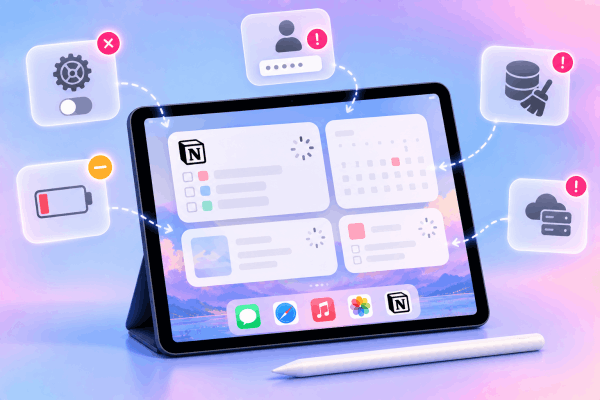
When a Notion widget fails to refresh automatically, the breakdown rarely stems from a deleted workspace or a corrupted database. Instead, background data limitations in iPadOS, account session timeouts, or aggressive power-saving protocols usually cause the background sync process to freeze.
CONTENTS:
Why are Notion iPad widgets not updating automatically?
Understanding why background synchronization stops helps identify the precise setting responsible for stalling your workspace data.
-
Disabled Background App Refresh: iPadOS limits background data transmission for apps when this global or app-specific toggle is turned off.
-
Low Power Mode restrictions: System-level battery saver modes freeze non-essential background processes, preventing widgets from requesting fresh cloud data.
-
Authentication token expiration: Account security timeouts can silently log the background widget out while keeping the main app session active.
-
Corrupted local app cache: Stale cache files accumulated after recent iPadOS or Notion updates can prevent new data blocks from rendering correctly.
-
Embedded web widget provider downtime: Third-party embedded widgets (such as external weather cards or custom clocks built via external builders) depend on third-party servers that may experience temporary outages.
Pinpointing these underlying causes allows you to apply targeted solutions without reconfiguring your entire workspace.
How to fix Notion iPad widgets not updating automatically
Resolving frozen widgets involves re-enabling background sync privileges in system settings, refreshing app authorization, and clearing local database caches.
1. Enable Background App Refresh for Notion
iPadOS relies on Background App Refresh to let Home Screen widgets fetch updated database entries while the app remains closed.
-
Open the Settings app on your iPad.
-
Scroll down and tap General, then select Background App Refresh.
-
Ensure the master Background App Refresh toggle at the top is set to Wi-Fi & Cellular Data (or Wi-Fi).
-
Scroll down through the application list, locate Notion, and ensure its individual toggle is turned On.

2. Disable Low Power Mode
Low Power Mode automatically pauses background activity across all widgets to extend battery runtime.
-
Open Settings on your iPad.
-
Tap Battery in the left sidebar.
-
Switch Low Power Mode to Off.
-
Alternatively, swipe down from the top-right corner to open Control Center and tap the battery icon to disable power-saving constraints instantly.

3. Re-authenticate and edit widget targets
Re-linking the specific page path forces iPadOS to create a fresh data stream between the Home Screen widget and your cloud database.
-
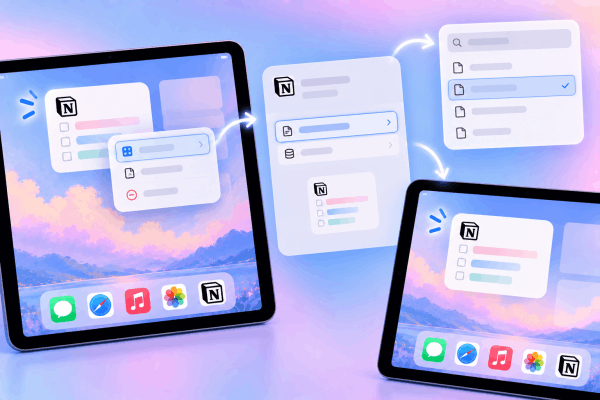
Long-press the frozen Notion widget on your Home Screen until the quick action menu appears.
-
Select Edit Widget.
-
Tap the active Page or Workspace field.
-
Select a different workspace page temporarily, then switch it back to your intended database target.
-
Tap outside the menu popup to save changes and force an immediate refresh.
4. Reinstall Notion to clear local system cache
Unlike desktop operating systems, iPadOS does not feature a native cache-clearing button within settings for third-party apps. Reinstalling the app clears corrupted data builds while leaving your cloud-stored notes completely safe.
-
Long-press the Notion app icon on your Home Screen or App Library.
-
Tap Remove App, then select Delete App to confirm.
-
Open the App Store, search for Notion, and reinstall the app.
-
Launch Notion, sign back into your account, and re-add your home screen widgets.
Keep Reading:
- How to use Notion on iPad effectively: The ultimate productivity guide
- Procreate Brush Size Slider Missing? How to Bring It Back Fast
5. Perform a standard iPad restart
If system-level background processes remain deadlocked after adjusting permissions, restarting the iPad flushes temporary RAM logs affecting background syncs.
-
Disconnect any external power cables or accessories from your iPad.
-
Press and hold the Top Power button along with either Volume button until the power-off slider appears on the screen.
-
Drag the slide to power off control and wait 30 seconds for the hardware to shut down completely.
-
Press and hold the Top Power button again until the Apple logo appears to power the device back on.
-
Re-check your Home Screen to verify that widget sync cycles have resumed.

Practical tips for maintaining seamless Notion sync on iPadOS
Optimizing workspace architecture ensures widgets render faster and consume fewer system resources during background updates.
-
Simplify widget databases: Avoid pointing home screen widgets directly to massive databases with dozens of complex rollups, relations, or heavy media attachments. Create a streamlined “Today” database view filtered strictly to immediate tasks to reduce payload size.
-
Use direct iOS Shortcuts as alternatives: If a specific page only needs quick opening access rather than live monitoring, create a native Apple Shortcuts button pointing to the Notion page URL. Shortcuts open pages instantly with zero background sync battery overhead.
-
Keep iPadOS updated: System updates frequently fix memory leak bugs that cause background widget host engines to crash silently. Check Settings > General > Software Update regularly.
Frequently asked questions
Here are answers to common questions regarding background synchronization and widget performance on iPadOS.
How often do iPad OS widgets update background data automatically?
iPadOS controls widget update schedules dynamically based on machine learning, battery levels, and app usage frequency. On average, active widgets refresh every 15 to 45 minutes rather than in real-time, preserving battery performance.
Do embedded web widgets update automatically inside Notion pages?
Third-party embedded widgets (like weather charts or countdown timers) inside a Notion page refresh when the page loads. If an embedded block appears blank or frozen, open the source URL directly in a browser to confirm the third-party service is operating normally.
Why does my widget show a blank preview box?
A blank or gray widget box indicates that the Notion background process lost authentication credentials or the target page was moved or deleted. Long-press the widget, tap Edit Widget, and re-select your target page.

Final thought
Resolving a Notion iPad widgets not updating automatically glitch usually boils down to verifying system permissions and removing background execution blockers.
Ensuring Background App Refresh remains enabled, turning off Low Power Mode, and keeping database views lightweight will restore real-time visibility to your Home Screen. Once background sync privileges are configured correctly, your iPad transforms back into an efficient, real-time command center.






