

Fix Procreate undo gesture dynamic tap failing on iPad with practical fixes. Learn how to restore smooth two-finger undo taps fast.
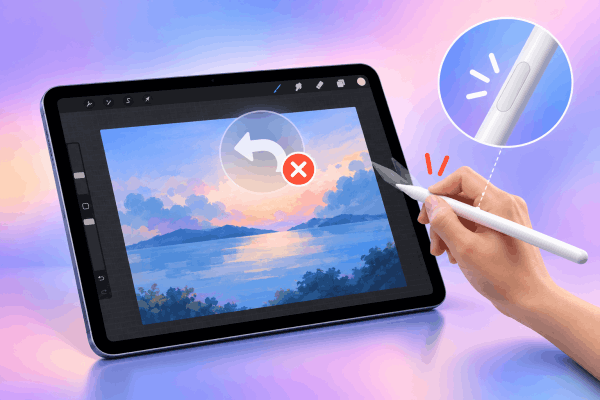
Procreate has revolutionized digital art on the iPad, turning a simple tablet screen into a full-fledged canvas. One of its most beloved features is the quick gesture control—specifically, the two-finger tap to undo mistakes. When this feature works smoothly, you barely even notice it. You draw a line, do a rapid two-finger tap, and keep creating without breaking your flow.
However, many artists encounter an annoying issue where the Procreate undo gesture dynamic tap starts failing. Instead of instantly removing your last stroke, the app ignores your input, registers a single brush mark, or zooms into your canvas instead.
If your two-finger undo gesture is acting up, you do not need to reinstall Procreate right away. Let’s look at why this happens and explore practical fixes to restore your workflow.
CONTENTS:
Why is your two-finger undo gesture failing in Procreate?
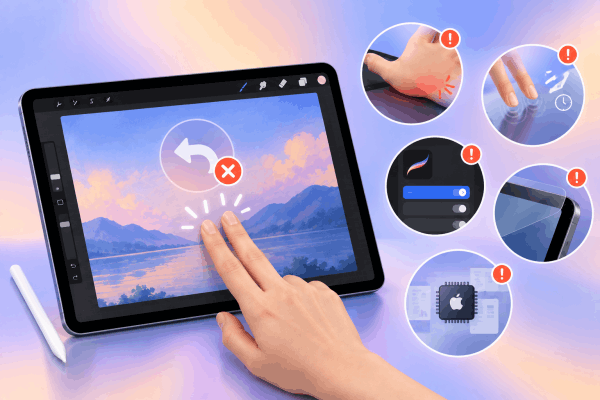
Understanding the cause helps you apply the right fix quickly. The dynamic tap gesture relies on precise touch recognition from both the iPad’s hardware and Procreate’s software. When the undo tap fails, it usually comes down to a few common culprits:
-
Touch recognition conflicts: Your palm or edge of your hand might be contacting the screen moments before your fingers tap, confusing the iPad’s multi-touch sensors.
-
Gestational timing issues: Tapping too quickly or holding your fingers down too long turns a “dynamic tap” into a press-and-hold action.
-
Incorrect gesture settings: A minor update or accidental tap in Procreate settings can alter how two-finger actions behave.
-
Screen protectors and hardware obstruction: Thick tempered glass or screen protectors with poor touch sensitivity can block light tap inputs.
-
Temporary memory glitches: System memory buildup on your iPad can cause input lag between finger registration and screen response.
Practical solutions to fix Procreate undo gesture dynamic tap failing
If you are tired of tapping your screen repeatedly with no result, here are hands-on solutions tested by daily Procreate users.
1. Adjust your gesture controls in Procreate
The most direct fix lies within Procreate’s internal settings.
-
Open Procreate and open any canvas.
-
Tap the Actions menu (the wrench icon in the top left corner).
-
Select Preferences, then tap Gesture Controls.
-
Navigate to the Undo / Redo tab.
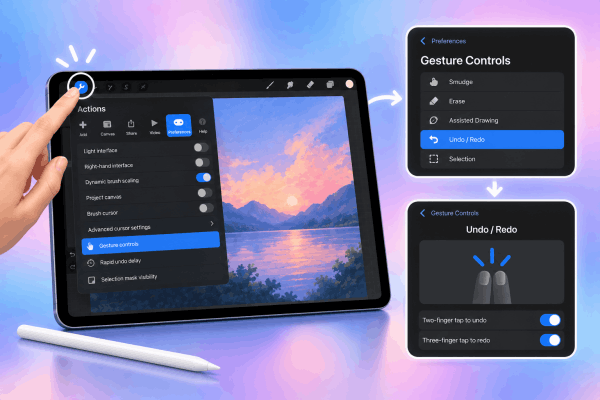
Ensure that the settings here match your expected workflow. If touch gestures are disabled or assigned to alternative actions, the standard two-finger undo tap will not respond correctly.
2. Tweak touch delay settings to match your speed
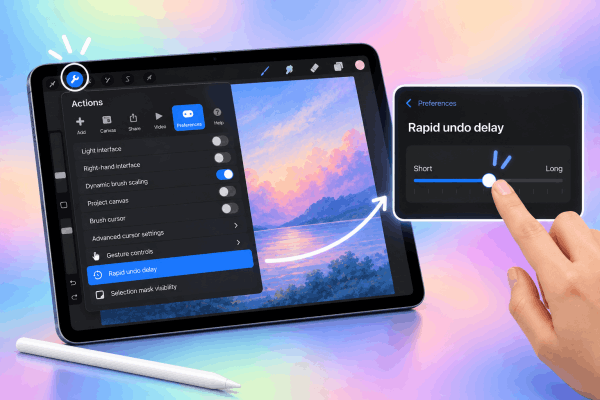
Everyone taps at a slightly different speed. Procreate features a slider that adjusts how quickly it recognizes a hold versus a tap.
Go back to Actions > Preferences and look for the Rapid Undo Delay slider. If this slider is set too low, Procreate might interpret your quick undo tap as a rapid, continuous undo command, leading to unresponsive behavior or unintentional multiple undos.
Try nudging the slider slightly to the right to see if touch responsiveness improves.
3. Check physical screen contact and palm rejection
Digital artists often rest their palms on the iPad screen while drawing. While Apple devices feature advanced palm rejection, subtle accidental contacts still mess up multi-finger gestures.
-
Wear a two-finger artist glove: This simple accessory prevents your palm or ring finger from triggering touch sensors right before your two-finger tap connects.
-
Clean your screen: Accumulated hand oils, dust, or moisture disrupt capacitive touch recognition. Clean your display thoroughly with a microfiber cloth.
-
Evaluate your screen protector: If you recently applied a matte or thick glass screen protector, test drawing on a small corner without pressing hard. Some thick protectors reduce sensitivity along the edges, interfering with dynamic multi-finger taps.
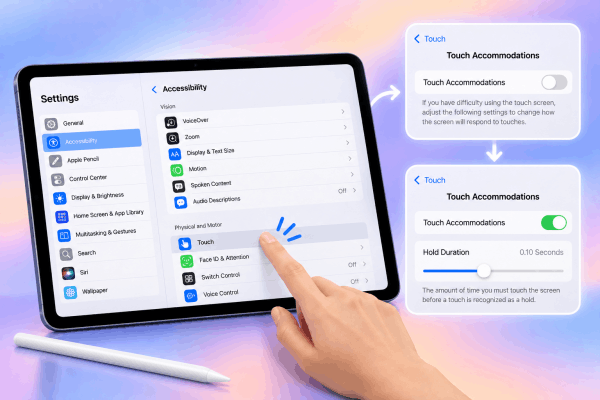
4. Adjust iPadOS accessibility touch settings
Sometimes the underlying iPad operating system interferes with gesture inputs. Adjusting how iPadOS handles touches can fix persistent tap failures across drawing apps.
-
Open your iPad Settings.
-
Go to Accessibility, then select Touch.
-
Tap on Touch Accommodations.
If Touch Accommodations is turned on, it introduces a forced delay or ignores fast consecutive taps. Turn this setting off, or adjust the Hold Duration to ensure fast, dynamic taps register without delay.
5. Clear system background memory with a simple restart
If Procreate has been running through long drawing sessions, temporary cache files can cause input lag. A soft system restart refreshes the memory without touching your artworks or custom brushes.
-
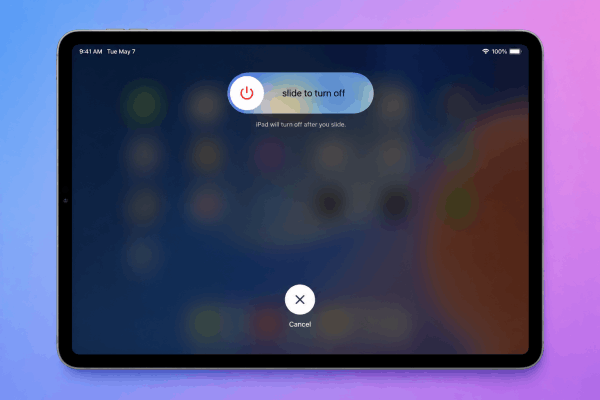
Press and hold the Top button along with either Volume button until the power-off slider appears.
-
Drag the slide to power off slider to turn off your iPad completely.
-
Wait about 30 seconds for the device to power down fully.
-
Press and hold the Top button again until the Apple logo appears on screen.
Once your iPad turns back on, reopen your project and test the two-finger undo gesture.
Additional workflow tips for smooth Procreate usage
Beyond fixing the gesture itself, adopting a few habit tweaks can keep your digital painting process seamless.
-
Use the floating Undo button: If gestures feel inconsistent during precise detail work, activate Procreate’s sidebar undo/redo arrows or use the two-finger tap alternative on screen interface elements.
-
Keep your pencil charged: Surprisingly, a low-battery Apple Pencil or loose pencil nib can trigger weird touch conflicts on the screen, causing the display to freeze dynamic gesture inputs temporarily.
-
Update Procreate regularly: Developers release frequent performance patches to optimize gesture recognition against new iPadOS updates. Keep your apps updated via the App Store.
Find out more:
- Fix Procreate Fill Tool Flooding Canvas: 5 Fast Solutions
- Procreate brush stroke tapering glitch: How to fix stroke ends
Frequently asked questions about Procreate undo gesture dynamic tap failing on iPad
Why does my two-finger tap zoom in instead of undoing in Procreate?
This happens when your fingers land on the screen at slightly different times or move upon contact. Procreate interprets a asynchronous two-finger touch as a pinch-to-zoom action instead of an undo tap. Focus on laying both fingertips down simultaneously.
Can a screen protector stop Procreate gestures from working?
Yes. Thick glass screen protectors or low-quality matte films lower touch screen sensitivity, causing light dynamic taps to drop out during fast drawing workflows.
Will restarting my iPad delete my Procreate brushes or artworks?
No. A standard restart simply turns off the device safely and clears temporary system RAM. Your files, layers, custom settings, and brushes remain completely intact.
Final thought
A failing Procreate undo gesture dynamic tap can break your creative momentum, but the issue is almost always easy to solve.
By fine-tuning your gesture delays, keeping screen surfaces clean, and adjusting basic touch settings, you can get back to creating art effortlessly. Try these adjustments one by one to pinpoint what works best for your drawing style!







