
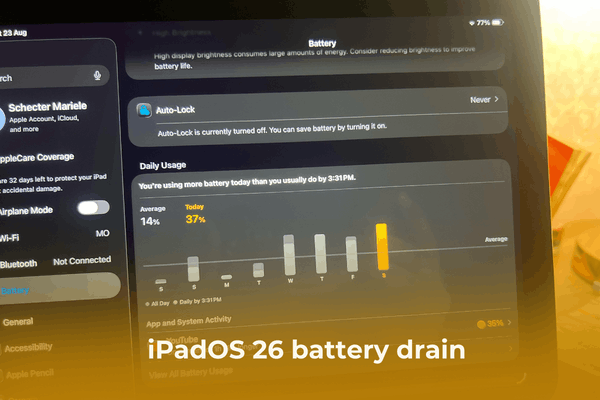

Struggling with iPadOS 26 battery drain? Learn why your iPad is losing power and discover some proven fixes to optimize performance and extend battery life.
So, you’ve just installed the shiny new iPadOS 26, ready to dive into the Liquid Glass interface and all those clever Apple Intelligence features, only to find your battery percentage dropping faster than a lead balloon. It’s frustrating, I know. You bought an iPad for its legendary portability, not to be tethered to a wall outlet all day.
Read More:
Before you consider rolling back your software, take a deep breath. Battery drain immediately after a major update is actually quite common. In this guide, I’ll walk you through why this happens and share the exact steps I use to fix iPadOS 26 battery drain and get your tablet back to peak endurance.
CONTENTS:
Why is iPadOS 26 draining your battery?
It’s easy to blame “bad code,” but usually, your iPad is just working overtime behind the scenes. Here’s what’s likely happening:
-
Background Indexing: After an update, iPadOS 26 needs to re-index your entire library: Files, Photos, Mail,… so that Spotlight search stays instant.
-
The “Liquid Glass” Tax: The new 3D depth effects and real-time transparency in the UI look gorgeous, but they require constant GPU cycles.
-
On-Device Intelligence: Apple Intelligence is more powerful in version 26, meaning your processor is busy learning your habits and processing “Genmoji” prompts in the background.
How to fix iPadOS 26 battery drain: 9 proven solutions
Actually, it’s quite normal for an iPad to lose charge faster right after the iPadOS 26 update, as these upgrades often cause temporary battery drain. That said, if the situation is worrying you, I’ve put together a few solutions below that you should definitely try.
1. The 48-hour rule
I always tell people the same thing: wait. For the first 24 to 48 hours, your iPad is performing massive “housekeeping” tasks.
If you just updated last night, give it another day of regular charging. Often, the drain stabilizes itself once indexing is complete.
2. Enable the new “Adaptive power mode”
iPadOS 26 introduced Adaptive Power, a smarter version of the traditional Low Power Mode. Instead of just cutting performance, it uses AI to throttle background tasks based on your usage patterns.
-
Go to Settings > Battery and toggle on Adaptive Power.

3. Tame the Liquid Glass Visuals
The new design language is a battery hog. If you’re on an older iPad Pro or Air, the GPU might be struggling.
-
Go to Settings > Accessibility > Motion and turn on Reduce Motion.
-
Then, go to Display & Brightness and try lowering the Transparency levels.
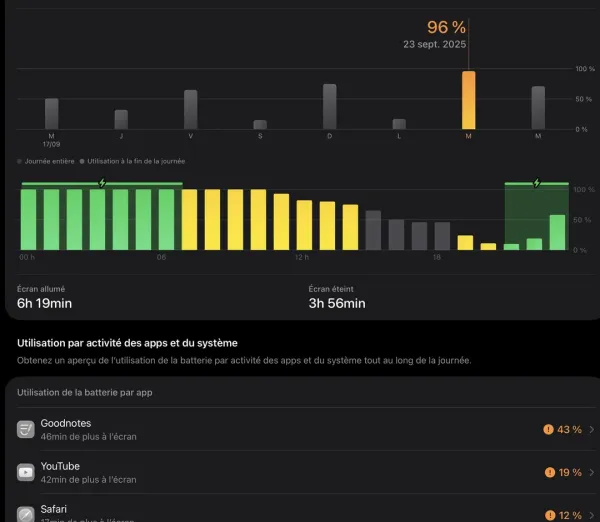
4. Audit your battery usage stats
If the drain persists, it’s likely a rogue app.
-
Navigate to Settings > Battery.
-
Check the list of apps from the last 24 hours. If an app you barely used (like a social media tool) shows 40% usage, delete it or force-quit it until an update is released.
5. Optimize Apple Intelligence processing
Apple Intelligence is a game-changer, but it doesn’t need to be “always on” for everything.
-
Go to Settings > Apple Intelligence & Siri.
-
Review Background Processing and turn off features you don’t use daily, like “Predictive Image Pre-rendering.”
6. Manage background app refresh
There is no reason for a shopping app or a game to be updating data while you aren’t using it.
-
Go to Settings > General > Background App Refresh.
-
Set it to WiFi Only or, better yet, turn it off for everything except essential communication apps like Slack or Mail.

7. Adjust Stage Manager settings
Stage Manager in iPadOS 26 is more fluid, but keeping multiple “Live Windows” active consumes RAM and power.
-
If you aren’t multitasking, turn off Stage Manager via the Control Center.
-
Limit the number of active app groups to three or fewer to save energy.

8. Update your entire app library
Apps designed for iPadOS 25 might have memory leaks on iPadOS 26. Developers usually push “Day 1” patches.
-
Open the App Store, tap your Profile Icon, and pull down to refresh. Tap Update All.
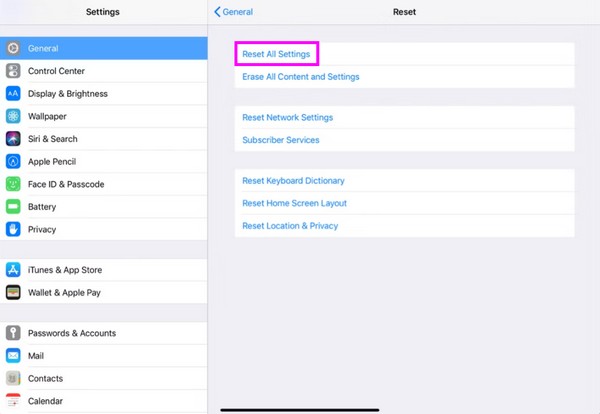
9. Reset All Settings
If a software bug is causing a loop in the background, a settings reset can break it without deleting your photos or apps.
-
Go to Settings > General > Transfer or Reset iPad > Reset > Reset All Settings.
-
Note: You will need to re-enter WiFi passwords and Apple Pay cards.
Pro tips for long-term battery health
Beyond software fixes, how you treat your iPad matters just as much. I highly recommend sticking to official Apple chargers or certified MFi (Made for iPad) accessories. Using high-quality power bricks and cables ensures consistent voltage and protects your device from power surges.
Additionally, try to break the habit of using your iPad while it’s fast-charging, especially for heavy tasks like gaming or video editing. Lastly, always keep your iPad out of direct sunlight to prevent the lithium-ion cells from wearing out prematurely.

Q&A: Common questions about iPadOS 26 battery drain
Q: Is it normal for my iPad to get warm after updating to iPadOS 26?
A: Yes, absolutely. During the first 48 hours, your iPad is indexing thousands of files, photos, and emails to make them searchable.
This heavy background processing taxes the CPU/GPU, which generates heat and, consequently, drains the battery faster. It should settle down once the “housekeeping” is done.
Q: Does Apple Intelligence work in the background even when I’m not using it?
A: To an extent, yes. Features like “Summarization” and “Predictive Image Pre-rendering” do some light processing in the background so they are ready when you need them. If you feel this is “nuking” your battery, you can manually toggle off specific AI features in Settings > Apple Intelligence & Siri.

Q: Will “Adaptive Power Mode” make my iPad feel slow?
A: Unlike the standard Low Power Mode, Adaptive Power is designed to be less intrusive. I’ve found that it primarily targets background sync and high-refresh-rate tasks that you won’t notice during basic web browsing or note-taking. It’s a great balance between performance and longevity.
Q: My battery health dropped 2% immediately after the update. Did iPadOS 26 damage my battery?
A: It’s highly unlikely that the software physically damaged your hardware. What usually happens is that the update triggers a battery recalibration. The new OS is simply giving you a more accurate (and sometimes more honest) reading of your battery’s actual health that was already there.
Q: Should I leave my iPad plugged in overnight after the update?
A: I highly recommend it. Keeping your iPad connected to WiFi and power overnight allows it to finish indexing and syncing iCloud data without draining the battery during your active hours.
Conclusion
Upgrading to a new OS should be an exciting experience, not a stressful one. While iPadOS 26 brings incredible new visual and AI capabilities, they do come with a temporary power cost.
By following the steps above, especially utilizing the new Adaptive Power mode and auditing your background apps, I’m confident you’ll see your battery life return to normal within a few days.
I’d love to hear from you: Which of these tips made the biggest difference for your iPad? Or did you find another “rogue” app causing issues? Let me know in the comments below!






