


Fix your iPad Wifi dropping randomly with our newest guide. Discover 5 easy, proven tips to stabilize your connection and boost your productivity today!
We’ve all been there. You’re in the flow, sketching on Procreate or finishing a report, and suddenly—the loading spinner of doom appears. Your iPad Wi-Fi is dropping randomly, and no matter how many times you toggle the Wi-Fi icon, it just won’t stay connected.
In 2026, with iPadOS becoming more powerful than ever, our dependency on a stable connection is non-negotiable. Whether you’re using the latest iPad Pro M4 or a reliable older model, Wi-Fi instability is usually caused by a few common culprits: software glitches, network interference, or outdated settings.
In this guide, I’ll walk you through the most effective, tried-and-tested methods to stabilize your iPad’s connection.
CONTENTS:
How to fix iPad Wifi dropping randomly with simple steps
Before we dive into the fixes, let’s make sure we’re looking at a software or settings glitch rather than a dead router. If you notice any of the following symptoms, your iPad Wi-Fi is dropping randomly:
-
The Disappearing Icon: You’re browsing the web and suddenly notice the Wi-Fi “fan” icon at the top of your screen has vanished, replaced by “LTE/5G” or nothing at all.
-
The “Spinning Wheel” of Death: Buffering icons appear constantly in apps like YouTube, Netflix, or Safari, even though your other devices (like your phone) are working perfectly.
-
Authentication Errors: Your iPad frequently prompts you to “Enter Password” for a network it should already remember.
-
Grayed-Out Wi-Fi Toggle: In extreme cases, the Wifi button in your Settings menu becomes grayed out and unclickable.
-
The “No Internet Connection” Alert: You see a yellow sub-text under your Wi-Fi name in Settings that says “No Internet Connection,” despite the router being online.

If you’re running into any of these issues, don’t worry. Just try these simple tips below to get back on track
1. The “quick refresh” trio
Before we dive into the technical weeds, let’s start with the basics. These three steps fix about 80% of random disconnects.
-
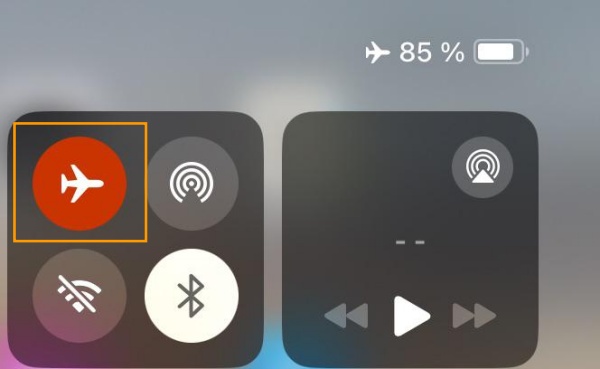
Toggle Airplane Mode: Swipe down from the top-right corner to open Control Center. Tap the Airplane icon, wait 10 seconds, and tap it again. This forces your iPad to re-scan for the strongest signal.
-
Restart Your iPad: It sounds cliché, but a “Force Restart” clears temporary cache that might be interfering with your network chip.
-
For iPads without a Home button: Press and quickly release Volume Up, then Volume Down, then hold the Top button until the Apple logo appears.
-
-
Reboot Your Router: Your router can get “tired” too. Unplug it for 30 seconds and plug it back in. This refreshes the DHCP handshake between your router and your iPad.
2. Forget and Rejoin the Network
Sometimes, the saved configuration for your Wifi becomes corrupted.
-
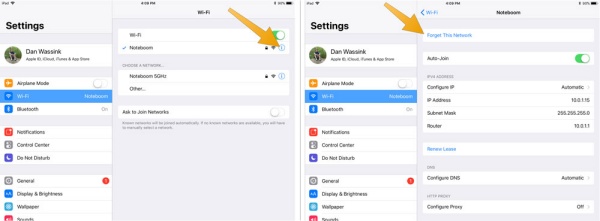
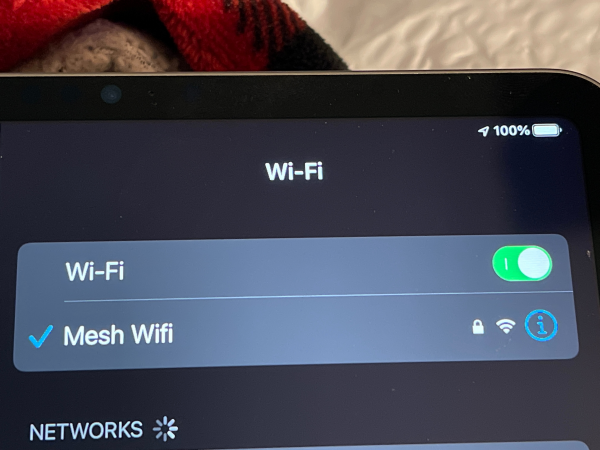
Go to Settings > Wifi.
-
Tap the blue (i) icon next to your network name.
-
Select Forget This Network.
-
Find your network again in the list and enter the password.
This gives your iPad a “clean slate” for that specific connection.
3. Disable “private Wifi address”
Apple introduced the private Wifi address feature to prevent tracking across different networks. While great for security in coffee shops, it can confuse some home routers, leading to frequent drops.
-
How to fix: Go to Settings > Wi-Fi, tap the (i) next to your home network, and toggle Private Wifi Address to OFF.
-
Note: Only do this on trusted networks like your home or office.
Discover More:
- iPad Pro M4 laggy? Here’s why and how to fix it
- How to fix App Library lag on iPadOS 26 with simple steps
4. Reset network settings
If the drops persist, it’s time to reset the entire network stack. This won’t delete your photos or apps, but it will erase all saved Wifi passwords and Bluetooth pairings.
-
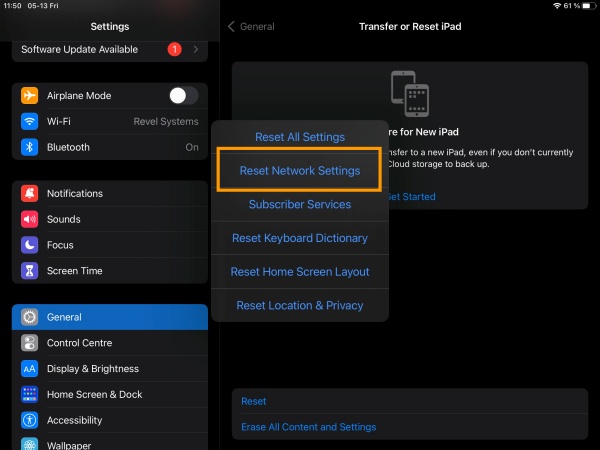
Open Settings > General.
-
Scroll down to Transfer or Reset iPad.
-
Tap Reset > Reset Network Settings.
-
Confirm with your passcode. Your iPad will reboot.
5. Advanced tweaks: DNS and Interference
Still losing connection? Let’s look at the “hidden” settings.
Switch to Google DNS
Sometimes your ISP’s default DNS is slow or unstable. Switching to a reliable provider like Google can help.
-
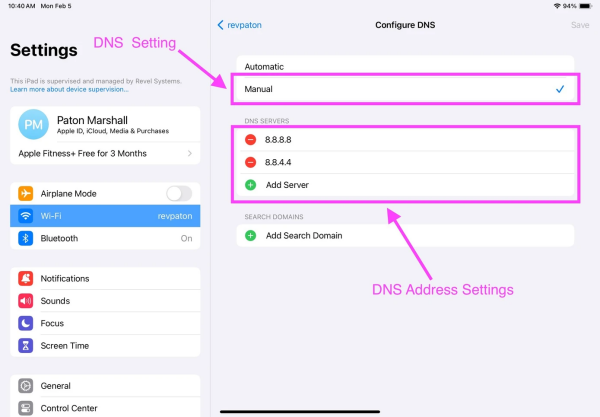
In Settings > Wifi, tap the (i) next to your network.
-
Tap Configure DNS and set it to Manual.
-
Add the servers:
8.8.8.8and8.8.4.4.
Check for 2.4GHz vs 5GHz Interference
The 2.4GHz band is crowded with microwaves, baby monitors, and old Bluetooth devices. If your router supports it, try connecting exclusively to the 5GHz band. It has a shorter range but is much faster and less prone to interference.
Summary Table: Troubleshooting Checklist
| Step | Action | Best For |
| 01 | Toggle Airplane Mode | Minor glitches/signal hunting |
| 02 | Disable Private Address | Compatibility issues with routers |
| 03 | Forget Network | Corrupted login credentials |
| 04 | Reset Network Settings | Persistent, unexplained drops |
| 05 | Update iPadOS | Fixing known Apple software bugs |
Frequently asked questions (FAQs) about iPad Wifi dropping randomly
Why does my iPad drop Wifi when it goes to sleep?
This is often a power-saving feature. However, if it’s excessive, try turning off “Low Data Mode” in your Wi-Fi settings or ensuring that Background App Refresh is enabled for essential apps.
Could my iPad case be causing Wifi issues?
Yes! Some metallic or heavy-duty “rugged” cases can interfere with the internal antennas. If you notice the signal improves when the case is off, it’s time for a new one (I highly recommend minimalist silicone or leather cases for better signal transparency).
What if my iPad is the only device dropping connection?
If your iPhone and laptop stay connected but your iPad doesn’t, the issue is likely your iPad’s internal settings or a hardware glitch. Try the Reset Network Settings step above.
Final Thoughts
A reliable iPad is a powerhouse for productivity, and you shouldn’t let a “flaky” Wi-Fi connection hold you back. Usually, a quick network reset or toggling the Private Address setting does the trick.
Pro Tip: Always keep your iPad updated to the latest version of iPadOS. Apple frequently releases “under-the-hood” patches for wireless stability that aren’t always mentioned in the main highlights.






