

CapCut export failed or sticking at 99% on iPad? Try these quick, practical fixes to save your video smoothly without losing progress.
You have spent hours fine-tuning transitions, syncing audio, and tweaking effects on your iPad. You hit export, watch the progress bar tick up, and then… total freeze at 99%. Or worse, a sudden message pops up saying “CapCut export failed.”
It is one of the most frustrating experiences for creators, especially when working on a deadline. The good news is that you do not need to delete your project or reinstall the app right away. This issue usually stems from temporary memory bottlenecks, corrupted cache, or specific media assets within your timeline.
Here are the most effective tips to bypass the 99% stuck screen and successfully export your CapCut videos on iPad.
CONTENTS:
Why CapCut gets stuck at 99% during export
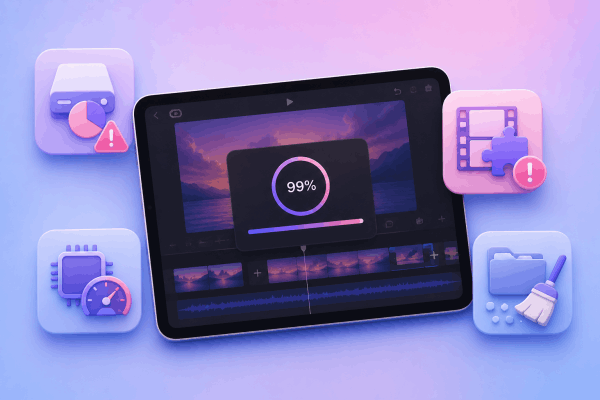
When CapCut processes a video export, the final 1% is where the app stitches the audio tracks, renders heavy effects, and writes the complete file to your iPad storage. If the export fails right at the end, it typically happens due to:
-
Low available storage: The app needs extra buffer space to assemble the final video file.
-
Overloaded RAM: Heavy 4K assets or stacked effects exhaust your iPad memory.
-
Corrupted clips or effects: A glitchy transition or corrupt sticker near the end of the timeline stalls the render engine.
-
App cache bloat: Accumulated temporary files disrupt processing.
How to fix CapCut iPad export failed or sticking at 99%
Try these step-by-step troubleshooting methods in order. Most creators find that the first three steps solve the issue instantly.
1. Free up iPad storage space
CapCut requires roughly double the estimated final video size as temporary swap space during the render process. If your iPad internal storage is nearly full, the render process will hang at 99% because it cannot finalize the file writing process.
-
Open Settings on your iPad.
-
Tap General > iPad Storage.
-
Ensure you have at least 5 GB to 10 GB of free space available.
-
Delete unneeded files or offload heavy apps, then retry exporting.

2. Clear the CapCut app cache
Accumulated draft cache files can cause conflicts during file generation. Clearing the cache inside CapCut will not delete your video projects, but it will strip away unnecessary temporary files.
-
Open CapCut on your iPad.
-
Tap the Settings gear icon in the top-right corner of the main screen.
-
Select Clear cache and confirm.
-
Reopen your project and tap export again.
3. Identify and remove corrupted timeline assets
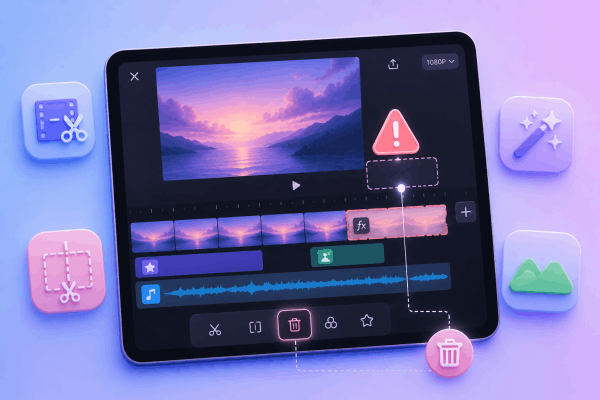
If the render engine consistently stops at the exact same percentage, a specific effect, filter, transition, or audio clip at that position in your project might be corrupt.
-
Drag your timeline playhead to the end of your project (around the 90% to 100% mark).
-
Look for heavy visual effects, keyframe animations, third-party stickers, or imported green-screen overlays near the end.
-
Delete or temporarily remove those elements, then attempt to export.
-
Alternatively, split the last few seconds of your video clip and re-apply the cut segment.
4. Lower export resolution and frame rate settings
Rendering 4K resolution at 60 frames per second puts heavy strain on your iPad processor and memory. Dropping the resolution temporarily allows you to bypass the processing bottleneck.
-
On the export screen in CapCut, tap the resolution dropdown menu at the top.
-
Change 4K down to 1080p (or 1080p down to 720p).
-
Lower the frame rate from 60 fps to 30 fps.
-
Try exporting again. Once successful, you can test raising the settings back up later.
5. Restart your iPad
A fresh system restart clears stuck background processes and frees up system memory (RAM).
-
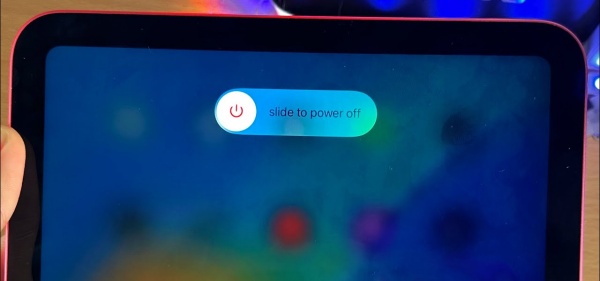
Press and hold the Top button alongside either Volume button until the power-off slider appears on the screen.
-
Slide to power off your iPad completely.
-
Wait about 30 seconds for the device to shut down.
-
Press and hold the Top button again until the Apple logo appears to turn it back on.
-
Reopen CapCut and start the export.
6. Export the project in smaller segments
If your video is long or heavily edited, your iPad memory might be hitting its processing limit.
-
Duplicate your main project from the CapCut homepage so you keep a backup.
-
Open the copy, delete the second half of the project, and export Part 1.
-
Reopen the duplicate, delete the first half, and export Part 2.
-
Combine both exported parts in a fresh timeline and export the final video.
Discover More:
- How to import custom fonts into CapCut: A step-by-step guide
- CapCut Pro Yearly vs. One Year Plan: What’s the Difference and Which Should You Choose?
Extra pro tips for smooth CapCut exports on iPad
-
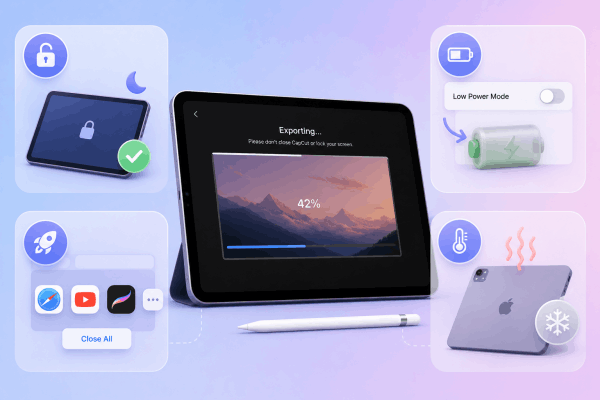
Keep CapCut active: Never lock your iPad screen or switch to another app while exporting. CapCut needs full foreground system resources to finish writing the file.
-
Disable Low Power Mode: Navigate to Settings > Battery and turn off Low Power Mode. This feature throttles CPU performance, which can stall heavy video renders.
-
Turn off background app refresh: Close all other background applications (like Safari, Procreate, or YouTube) before hitting export to dedicate maximum RAM to CapCut.
-
Keep the device cool: Overheating causes your iPad to thermal throttle, slowing down processing speeds dramatically. Remove thick protective cases during long render sessions.
Frequently asked questions
Will clearing the CapCut cache delete my draft projects?
No. Clearing the cache inside the app settings only removes temporary log files and downloaded sticker previews. Your project files, cuts, and drafts remain completely safe.
Why does my CapCut export stall at 99% even with plenty of free storage?
This usually indicates an overloaded RAM issue or a corrupted asset right near the end of your timeline. Try restarting your iPad normally and lowering your export frame rate down to 30 fps.
Should I reinstall the CapCut app if exports keep failing?
Reinstalling the app should be your absolute last resort. Uninstalling CapCut on iPad deletes all local project files and drafts that are not backed up to CapCut Cloud. Try restarting your iPad and reducing render quality first.

Final thought
Dealing with a CapCut export failed or sticking at 99% error on your iPad is frustrating, but it is rarely permanent. In almost every case, clearing your storage space, removing a glitched timeline effect, or performing a standard iPad restart resolves the bottleneck immediately.
Keep your iPad cool, keep background apps closed, and your project will be ready to share in no time.






