

Learn how to manage app permissions on your iPad so apps only access what you allow. Improve privacy, fix access problems, and stay in control.
Your iPad comes preloaded with apps and invites you to install new ones. Each app asks permission to access things like your camera, location, or microphone. Even trusted apps can end up asking for more than you realize. That’s why getting familiar with iPad app permissions settings matters.
In this article, you’ll find how to review and manage permissions, understand what each one does, and fix common issues when apps stop working properly because of permission settings.
CONTENTS:
- What are app permissions on iPad?
- Why you should check permissions regularly
- How to review app permissions settings
- Common permission settings explained
- Fix issues caused by wrong permissions
- Reset permissions when things get messy
- Tips to manage permissions smartly
- FAQ about iPad app permissions settings
- Final thoughts
What are app permissions on iPad?
App permissions refer to the access you grant each app. When you download an app for the first time, iPadOS usually asks to allow permission for specific features. Examples might include granting access to your photos, allowing notifications, using location, or accessing camera and microphone.

Permissions exist so apps can perform tasks correctly. But if you give an app more access than necessary, you could risk privacy or accidentally let the app drain battery or misbehave.
Why you should check permissions regularly
When an app stops working the way you expect, permission issues are a likely culprit. For instance:
-
A photo editor can’t import your photos.
-
A navigation app won’t update your current location.
-
A social app won’t send notifications.
Because of this, it’s smart to regularly review what you’ve allowed and revoke permissions you no longer trust or need.
Discover more:
- How to scan documents with iPad: The convenient way
- How to share files between iPad and Mac: The complete guide you actually need
How to review app permissions settings
It’s so easy. You just need:
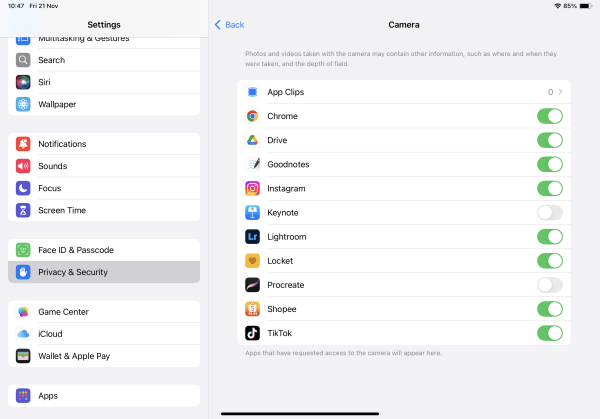
- Open Settings => scroll and tap Privacy & Security.
- Choose a category like Location Services, Microphone, Camera, Photos, or Notifications.
- You’ll see a list of apps that requested access in that category.
- Tap an app name to change permissions. Options often include: Allow while using app, Ask next time, Never.
- For critical settings, go back to Settings => General => Transfer or Reset iPad => Reset and choose Reset Location & Privacy if you want to clear them all and start fresh.

Common permission settings explained
Each permission controls how much access an app gets to your personal data and features. Understanding them helps you decide what’s worth allowing:
-
Camera & Microphone: Apps request access to record video or audio. If access is denied, the app may show an error when you try to record.
-
Location Services: Apps use your location for various tasks like maps or weather. You can set it to work only when you’re using the app.
-
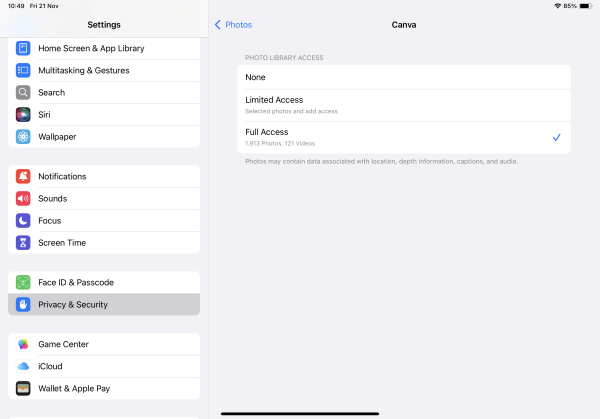
Photos: Choose between Selected photos or All photos. Restricting it to selected makes sense for privacy.
-
Notifications: Denying notifications may stop alerts but won’t stop an app from functioning — unless it depends on background updates.
-
Background App Refresh: This sits in Settings => General. Turning it off for certain apps can save battery and data.
-
Motion & Fitness: Some apps log your steps or activity. If they stop working, check here for access.
Fix issues caused by wrong permissions
Sometimes apps stop working the way they should because a permission was turned off by accident. Before assuming the app is broken, try adjusting its access settings.
App won’t load photos
Open Photos under Privacy & Security. If access is set to None or Selected, switch to All Photos or pick specific albums. Relaunch the app.
Map or ride-share app can’t detect location
Go to Location Services, tap the app, and choose While Using the App. If it still fails, turn location off and on again.

Voice-recording or video app says mic unavailable
Check Microphone settings. Toggle access off, then on. If still blocked, restart your iPad.
Notifications aren’t arriving
Head to Notifications, pick the app, and ensure Allow Notifications is on. Also check your Focus modes to see if they’re blocking alerts.
Reset permissions when things get messy
Sometimes permissions build up and mix in unexpected ways. To tidy them:
-
Go to Settings => General => Transfer or Reset iPad.
-
Tap Reset then Reset Location & Privacy.
-
After your iPad restarts, apps will ask for necessary permissions again when you launch them next.

Tips to manage permissions smartly
-
Give apps only the permission they need right now. You can always change them later.
-
When an app asks for broad access like Always Use Location, stop and think: does this app need that level of access?
-
Periodically explore your permissions. Take five minutes once a month to review and revoke access you no longer use.
-
Use Analytics & Improvements in Privacy & Security to check which apps access sensitive data most often.
-
On shared devices, consider using Screen Time to restrict apps from accessing data categories like Microphone or Camera.
FAQ about iPad app permissions settings
Q: Can I allow access only for selected photos?
Yes. In Settings => Privacy & Security => Photos, select Selected Photos so you pick individual items.
Q: Will resetting location & privacy erase personal data?
No. It only clears permission history. Your files, apps, and settings remain untouched.
Q: Do permissions work differently on iPad vs iPhone?
They’re basically the same. Some apps might behave differently due to screen size or performance, but permission categories remain consistent.
Q: If I deny microphone access, will voice dictation stop working globally?
Yes. If the mic is disabled for all apps, dictation and voice recording will fail until access is restored.
Q: Why does an app still ask for permission each time I open it?
You might have chosen Ask Next Time instead of While Using. Try granting full access and see if the prompt goes away.
Final thoughts
Permissions feel like a hidden layer of control on your iPad. You might download an app and forget what you allowed it to do. By spending a little time checking iPad app permissions settings, you give yourself peace of mind and smoother performance.
Take a moment right now to open your settings, see what appshave access to your private data, and revoke anything you don’t want. In the long run, this simple habit will keep your iPad feeling secure and efficient.






