


Deleted something in GoodNotes by mistake? Here’s how to recover deleted notes in GoodNotes without the stress.
Accidentally deleting a note in GoodNotes can give you a small heart attack. Maybe you swiped the wrong file, hit “Delete” without thinking, or your notebook disappeared after an app crash. Whatever the reason, don’t panic. GoodNotes has several ways to restore lost notes, and in most cases, you can bring everything back in a few taps.
This guide covers every possible recovery method so you can get your work back safely.
CONTENTS:
Why notes disappear in GoodNotes?
Notes don’t vanish without a reason. Most of the time, they’re moved to the Trash folder, hidden inside backups, or synced incorrectly between devices. Understanding this helps you choose the correct recovery method.
-
A swipe gesture may delete a notebook instantly.
-
Sync failures sometimes hide notebooks temporarily.
-
App bugs or updates can cause missing pages.
-
You might have deleted a folder without noticing its contents.
Whatever the cause, GoodNotes gives you several safety nets.
How to recover deleted notes in GoodNotes
Here’s what you can do next if you deleted a file in GoodNotes by mistake:
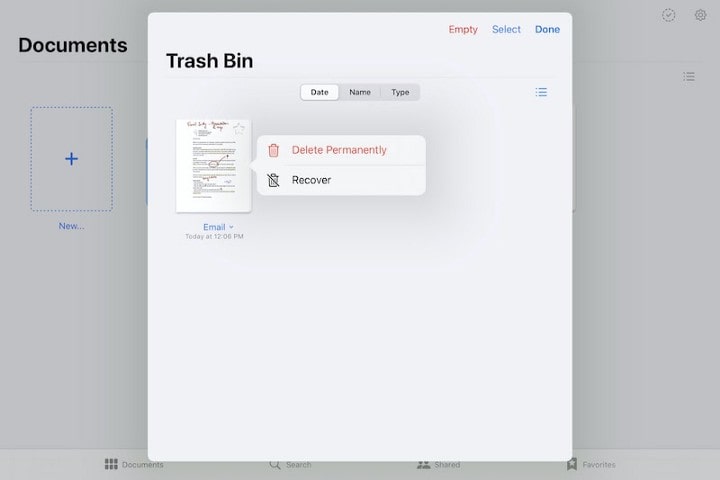
Check the Trash folder first
The Trash is GoodNotes’ built-in recycle bin. Anything you delete normally goes there unless you cleared it yourself earlier.
How to restore from Trash:
-
Open GoodNotes.
-
Tap the gear icon in the top-right corner.
-
Choose Trash.
-
Find your deleted notebook or page.
-
Tap Restore.
As soon as you restore it, the file returns to the exact location it was before deletion.

How long does GoodNotes keep deleted notes?
GoodNotes keeps items in Trash indefinitely unless you empty it manually. If the file isn’t there, move to the next method.
Restore notes from GoodNotes backups
GoodNotes allows automatic and manual backups. Many users don’t realize these backups often save their notes long after deletion.
Check auto-backup
If you enabled Auto-Backup, your notes might be stored on a cloud service.
-
Open GoodNotes Settings.
-
Tap Auto-Backup.
-
Check the connected service (Google Drive, OneDrive, Dropbox).
Once inside your cloud storage, look for .goodnotes files or .pdf backups inside the backup folder. You can re-import them into GoodNotes easily.

Restore manually backed-up files
If you exported individual notebooks earlier, you may find them on your iPad or cloud storage.
Tap the file => Open in GoodNotes => choose where to place it.
Recover notes through iCloud sync
If your GoodNotes data syncs through iCloud, there’s a chance your missing notes still exist on another device.
Try checking another device
Open GoodNotes on your iPhone, Mac, or another iPad. If the notebook appears there, your device probably had a sync hiccup.
Force sync GoodNotes
-
Open Settings app => Apple ID => iCloud.
-
Toggle GoodNotes off.
-
Wait a moment.
-
Toggle it back on.
This forces GoodNotes to resync your notebooks.

Check the “Recently Edited” section
Some users notice missing notebooks show up again after browsing through different sorting views. It’s worth trying.
Use iCloud Drive to restore older notebook versions
GoodNotes 6 stores notebook data in iCloud Drive more transparently than older versions.
How to restore using iCloud Drive
-
Open the Files app on iPad.
-
Go to iCloud Drive => GoodNotes.
-
Look for older versions of your notebook.
-
Import the version you want back into GoodNotes.

If you see folders with timestamps, it’s even easier to identify the correct version.
Recover notes using iPad backups (Finder or iCloud backups)
This method takes more time, yet it works when all in-app options fail.
You’ll be restoring your entire iPad to a past state – useful if the missing notes are extremely important.
Restore using iCloud backup
-
Open Settings => General => Transfer or Reset iPad.
-
Choose Erase All Content and Settings.
-
When the setup screen appears, choose Restore from iCloud Backup.
Pick a backup created before you lost your GoodNotes notes.
Restore using Finder (Mac)
-
Connect iPad to your Mac.
-
Open Finder and select your iPad.
-
Choose Restore Backup.
-
Pick a backup date before deletion.
Note: This method replaces your current iPad data with older data. Make sure you back up everything first.
Fix cases where only a single page disappeared
Sometimes the entire notebook is there except for one missing page.
This usually happens due to:
-
accidental page deletion.
-
page moved to another notebook by mistake.
-
undo history clearing after app restart.
Try these quick checks:
-
Use the Search bar in GoodNotes. Sometimes the page exists inside another notebook.
-
Check the Pages Overview view. It gives a clearer look at where pages sit inside a notebook.
-
If you exported the notebook earlier, re-import it as a duplicate and compare versions.
Read More:
- iPad app permissions settings: Take control of your apps and privacy
- How to scan documents with iPad: The convenient way
What to do if GoodNotes crashed before saving?
GoodNotes usually saves continuously, yet specific crashes may interrupt this process.
Try reopening the app
Close GoodNotes completely => reopen => wait a few minutes for sync.
Check iCloud.com
Open iCloud.com => Drive => GoodNotes.
Some temporary versions appear there even if they don’t show inside the app.
Contact GoodNotes support
If your notes vanished due to a known bug, support may recover your notebook file if it still exists on iCloud servers.

How to avoid losing notes in the future
Losing notes once is painful enough. You can prevent it from happening again with a few habits:
-
Turn on Auto-Backup to a cloud service.
-
Export important notebooks regularly.
-
Avoid force-quitting GoodNotes while it’s still syncing.
-
Give your notes descriptive names so they’re easier to find if something goes wrong.
-
If using GoodNotes 6, check that iCloud Sync is enabled and stable.
These habits take only a moment yet save you hours of stress later.

FAQ: Quick answers about how to recover deleted notes in GoodNotes
Q: Is it possible to recover notes after emptying the Trash?
If the Trash was cleared, recovery depends on backups. Try Auto-Backup, iCloud Drive versions, or device-level backups.
Q: I can’t find the Trash in GoodNotes, where is it?
Tap the gear icon => choose Trash. Older versions might hide it in Settings.
Q: Can I restore a single page instead of the entire notebook?
Yes. Pages in Trash can be restored individually.
Q: Why do some notebooks disappear even though I didn’t delete them?
iCloud sync delays or app crashes sometimes hide notebooks temporarily. Resyncing usually brings them back.
Q: Does re-installing GoodNotes delete my notes?
If iCloud sync is enabled, your notes should reappear. If sync was off, deleting the app removes local notes permanently.

Final thoughts
Losing GoodNotes notes feels devastating, especially if you’re in the middle of studying or working on a project. The good news is that most deleted notes can be recovered with the right steps. Start with the Trash, explore your backups, and resync with iCloud if needed. In the rare case none of these work, restoring an older iPad backup might do the trick.
Once you understand all the recovery options, GoodNotes becomes a lot less scary. And with regular backups, you won’t have to worry about losing your hard work again.






