
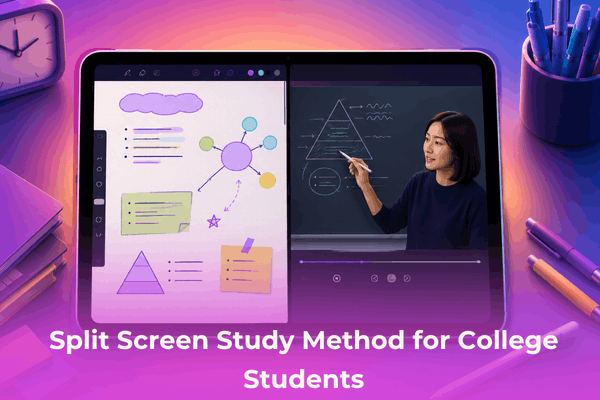

Master the split screen study method for college students. Learn practical iPad and tablet tips to take better notes and crush your exams.
College life comes with an endless stream of digital reading materials, lecture slides, research papers, and assignments. For years, students struggled with “tab switching fatigue”—the mental friction that happens when you constantly Alt-Tab or swipe back and forth between a 50-page PDF textbook and a note-taking application.
Enter the split screen study method for college students. Whether you are using an iPad, an Android tablet, or a laptop, running two applications side-by-side fundamentally transforms how you process information. It bridges the gap between passive reading and active learning.
As a tech enthusiast who has spent hundreds of hours testing tablet setups, note-taking apps, and workflow hacks, I can tell you that split-screen multitasking is a game-changer for academic productivity. Here is everything you need to know to build a seamless digital note-taking workflow.
CONTENTS:
- What is the split screen study method?
- Split screen study method for college students: Why it changes everything
- Best app pairings for seamless dual window studying
- Step-by-step guide: How to split screen on iPad for studying
- Practical split screen study tips from real student workflows
- Supplementary tips to maximize focus and prevent clutter
- Frequently asked questions
- Final thought
What is the split screen study method?
The split screen study method involves dividing your display into two or more distinct working areas. Instead of viewing one app in full-screen mode, you place your source material (a PDF lecture slide, recorded lecture, or web browser) on one side and your workspace (a handwritten note app, flashcard creator, or document editor) on the other.
Rather than trying to remember facts for five seconds while switching tabs, dual window studying allows you to reference, summarize, synthesize, and drag-and-drop content in real time.

Split screen study method for college students: Why it changes everything
Understanding why this method works helps you apply it more effectively. When you study, your brain relies on working memory. Every time you switch away from a document to write down a point, your brain loses a fraction of that information – a phenomenon known as context switching.
Here is why adopting split screen study tips creates an immediate spike in grade performance and study speed:
-
Active recall acceleration: You can view exam questions on the left while drafting responses on the right without losing your place.
-
Instant visual drag-and-drop: Need a diagram from your anatomy textbook in your digital notebook? You can tap, hold, and drop images or text directly across apps in a fraction of a second.
-
Better context retention: Seeing your lecture notes right beside your professor’s slides ensures you never miss key definitions or structural context.
-
Faster flashcard creation: Opening your textbook next to Anki or Quizlet lets you build active recall decks in half the usual time.

Best app pairings for seamless dual window studying
To make the most of your display space, pairing the right software is essential. Here are four tried-and-tested app combinations that college students rely on every day:
1. Goodnotes / Notability + Files or PDF Expert
-
Ideal for: STEM majors, literature students, and heavy textbook readers.
-
Workflow: Open your digital textbook or syllabus PDF on the left half of the screen. Keep your digital notebook open on the right half. Use your Apple Pencil or stylus to handwrite summaries, draw diagrams, or annotate directly while reading.
2. Browser (Safari/Chrome) + Notion / Obsidian
-
Ideal for: Essay writing, term papers, and humanities research.
-
Workflow: Keep academic journal articles or primary sources open in your browser on one side, and outline your essay structure in Notion or Obsidian on the other.
3. Recorded Lecture Video + Note App
-
Ideal for: Online courses or reviewing recorded lectures.
-
Workflow: Play your class recording on one side while taking rapid typed or handwritten notes on the other side.
4. Textbook PDF + Anki
-
Ideal for: Pre-med, biology, and language students.
-
Workflow: Read chapter concepts on the left and instantly copy key vocabulary, anatomical names, or formulas into new flashcard prompts on the right.

Step-by-step guide: How to split screen on iPad for studying
If you use an iPad for college, Apple provides native features designed for split screen multitasking for students. Here is how to set it up quickly:
Method 1: Traditional Split View
-
Open your first study app (for example, your note-taking app).
-
Tap the three dots (…) located at the top center of the screen.
-
Select Split View. The current app will slide to the side, exposing your Home Screen.
-
Tap your second app (such as your PDF reader or web browser).
-
Both apps will snap into a side-by-side view. You can drag the central divider line to give more screen real estate to whichever app needs it.

Method 2: Stage Manager or Windowed View
If you own an iPad that supports Stage Manager or running windowed apps:
-
Turn on Stage Manager or Windowed Apps in your iPad Settings (Settings > Multitasking & Gestures).
-
Open multiple apps simultaneously, drag their corners to resize them, and overlap them just like on a desktop computer.
Tech Tip: Don’t forget Slide Over! If you just need a quick calculator, dictionary, or Spotify playlist, drag the app into a small floating window over your main Split View instead of taking up half your screen.
Practical split screen study tips from real student workflows
Beyond the basic mechanics, how do you actually make this habit stick during intense study sessions? Here are real-world multitasking study hacks refined through everyday student testing:
-
Use a 60/40 screen split: A 50/50 split isn’t always optimal. If you are typing an essay while referencing a small diagram, give 60% or 70% of the screen space to your document editor and leave the remaining slice for reference.
-
Master cross-app gesture shortcuts: On iPadOS, long-pressing an image or highlighted text snippet in Safari allows you to lift it off the screen and drop it straight into your notes without saving it to your photo library first.
-
Turn your iPad into a dual monitor: If you write essays on a MacBook or laptop, don’t limit split-screen to just one device. Use built-in display extension features (like Sidecar) to turn your tablet into a dedicated second monitor for your reference materials.
-
Set up a dedicated Focus Mode: Dual-window studying opens the door to distraction if social media or chat apps are readily accessible. Set a “Study Focus” mode that hides distracting apps and mutes non-essential notifications while split screen is active.
Supplementary tips to maximize focus and prevent clutter
Working with split screens on smaller displays (like an 11-inch iPad or 13-inch laptop) can sometimes feel cramped. Here is how to keep your workspace clean:
-
Hide app toolbars and sidebars: Most note-taking apps have sidebars that list your folders and notebooks. Collapse these menus when entering split view to reclaim precious horizontal space.
-
Adjust display scaling: In your tablet or laptop display settings, set the text scaling or resolution to “More Space.” This slightly shrinks UI elements, giving you significantly more usable layout room.
-
Orientation matters: Use Landscape Mode when reading articles or taking notes side-by-side. Switch to Portrait Mode if you prefer stacking windows top-and-bottom (great for watching lecture videos above your notes).
Discover More:
- How to study for exams using only an iPad without losing your focus
- How to organize college lecture notes on iPad to study smarter
Frequently asked questions
Is split screen studying effective on small screens?
Yes! While a 12.9-inch or 13-inch tablet gives you a near 1:1 paper feel, an 11-inch screen works exceptionally well if you collapse app sidebars and adjust your display text size to fit more content.
Does running two apps in split screen drain the battery faster?
Running two active apps simultaneously (especially video players combined with active note-taking apps) requires more processing power, which can drain your battery 15–20% faster. Lowering your screen brightness slightly and turning off background app refresh helps preserve battery life during long library sessions.
What is the difference between Split View and Slide Over on iPad?
Split View divides your screen into fixed side-by-side panes. Slide Over places a single app inside a narrow floating window that sits on top of your main app and can be swiped away off-screen when not in use.
Can I split screen two windows of the exact same app?
Yes! On modern operating systems, you can open two windows of the same application side-by-side. This is ideal if you need to compare two different chapters of the same PDF textbook or refer to last week’s notes while writing this week’s entry.

Final thought
Adopting the split screen study method for college students is one of the easiest ways to upgrade your academic routine without spending extra money on new gear.
By eliminating constant tab switching and organizing your digital workspace intentionally, you make studying less tiring and far more active. Give it a try during your next study session, your brain (and your GPA) will thank you.


