


Master your iPad Focus Mode setup for Deep Work. Learn practical tips, hidden automation tricks, and filters to block distractions instantly
The iPad is one of the most versatile devices Apple ever built. It is an incredible canvas for drawing, a sleek media machine, and an ultra-portable workstation. But let’s be honest: that versatility is a double-edged sword. One minute you are drafting an important proposal or writing a chapter of your book, and the next, a stray notification pulls you into a rabbit hole of YouTube essays or group chats.
If you have ever tried to get serious, high-cognitive work done on an iPad, you know that willpower alone isn’t enough. You need to build a digital fortress.
Thankfully, Apple built the exact tool you need right into iPadOS. By executing a hyper-customized Focus Mode setup for deep work iPad, you can transform your tablet from a distraction trap into a pure flow-state engine. Let’s move past the basic “Do Not Disturb” toggle and build a practical, automated productivity environment that actually works.
CONTENTS:
Why your current iPad setup kills deep work
Deep work—a term coined by productivity expert Cal Newport—refers to professional activities performed in a state of distraction-free concentration that push your cognitive capabilities to their limit.
The enemy of deep work is context switching. Every time your iPad screen lights up with a non-urgent email, a calendar reminder, or a news alert, your brain leaves the task at hand. Even if you don’t tap the notification, research shows that simply seeing it leaves a “residual distraction” in your mind, taking up to 20 minutes to regain full focus.

The default settings on an iPad are optimized for engagement, not isolation. If your home screen is covered in red notification badges and your lock screen constantly flashes with updates, you are fighting an uphill battle against your own dopamine pathways.
Step-by-step Focus Mode setup for deep work iPad
To fix this, we are going to create a dedicated Deep Work Focus Mode that changes your iPad’s entire behavior the moment it turns on.
Step 1: Create the baseline focus profile
First, we need to create a blank canvas specifically optimized for your heavy-lifting tasks.
-
Open the Settings app on your iPad.
-
Scroll down and tap Focus.
-
Tap the + (Plus) icon in the top right corner, then choose Custom.
-
Name your new focus profile “Deep Work” and give it a stark, intentional icon (like a book, a brain, or a simple solid circle).

Step 2: Ruthlessly filter people and notifications
The core of an effective focus profile is blocking the outside world while leaving a tiny window open for absolute emergencies.
-
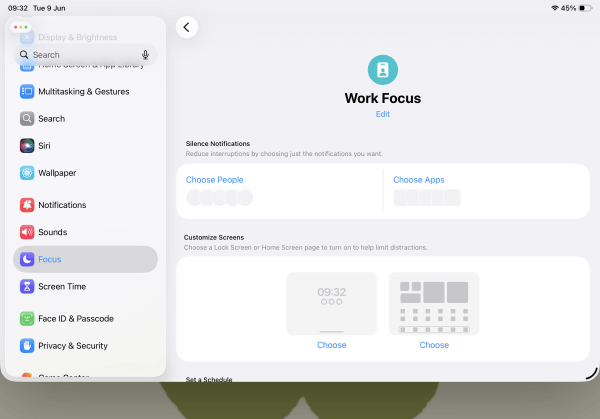
Allowed People: Go to Choose People. Switch the setting to Silence Notifications From. If you want to block absolutely everyone except your immediate family, choose Allow Notifications From instead, and add only your spouse, partner, or kids.
-
Phone Calls: Set Allow Calls From to Favorites Only. If an emergency happens, your critical contacts can still reach you, but random phone numbers won’t break your stride.
-
Allowed Apps: Go to Choose Apps. Select Allow Notifications From and keep this list incredibly small. Only include tools that are explicitly required for the work you are doing right now (e.g., your primary note-taking app, a document editor, or a minimalist timer). Drop Slack, Teams, Mail, and all social media.
Step 3: Hide the visual noise (the “Distraction Detox”)
Silencing sounds isn’t enough; we need to clean up the visual environment of iPadOS. Under the options tab of your newly created Focus Mode, turn on these two settings:
-
Dim Lock Screen: This stops your wallpaper from flashing bright colors if a muted notification arrives. The screen stays dark and calm.
-
Hide Notification Badges: This is a massive psychological win. It hides those small red numbers sitting on top of your app icons. No red dots, no subconscious temptation to check your messages.
Read More:
- Apple Pencil hover features explained: The ultimate practical guide for iPad users
- Building a second brain on iPad: Transform your tablet into a digital powerhouse
Crafting a minimalist home screen for focus
One of the most powerful features of modern iPadOS is the ability to link a specific home screen layout to a specific Focus Mode. When your Deep Work mode activates, your normal home screen vanishes, replaced by a hyper-focused workspace.
Designing your deep work layout
Before turning the mode on, go to an empty space on your iPad home screen and create a brand-new page. On this page, place only the 3 to 5 apps you need to execute your deepest work. For example:
-
A clean writing app (like Ulysses, Bear, or standard Apple Notes).
-
A PDF reader or annotation tool if you are researching.
-
A simple clock or focus timer widget.

Do not put any folders on this page. Folders hide apps, and hidden apps invite your brain to tap through out of habit.
Linking the screen to your focus
Now, map this specific layout to your focus state:
-
Go back to Settings > Focus > Deep Work.
-
Scroll down to Customize Screens.
-
Tap Choose under the Home Screen icon.
-
Deselect all of your regular, messy home screen pages and check only the ultra-minimalist page you just built.
The moment you toggle Deep Work on, your iPad will visually shift. All your distracting games, social hubs, and news apps will completely disappear from sight.
Advanced automation: Triggering flow state instantly
If you have to manually open your settings and turn on Focus Mode every time you want to work, friction will eventually win, and you’ll stop doing it. The secret weapon of high-level iPad productivity is automation.
The app-based trigger
Instead of setting a rigid time schedule (which rarely works if your day-to-day routine fluctuates), set your iPad to activate Deep Work based on your behavior.
-
Inside your Deep Work Focus settings, scroll down to Set a Schedule.
-
Tap Add Schedule and select App.
-
Choose the primary tool you use for deep sessions, such as your coding terminal, writing app, or video editor.
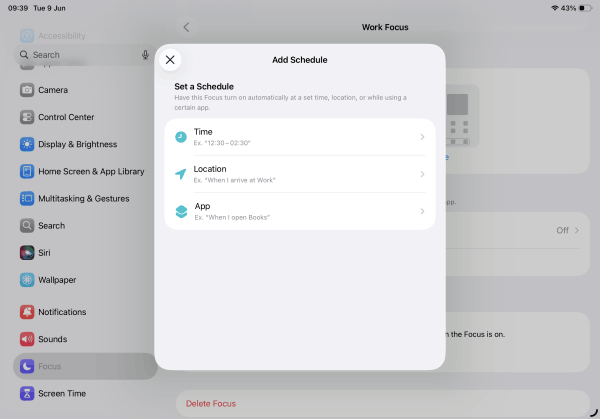
Now, whenever you open that specific application, your iPad automatically silences the world, swaps your home screen, and locks you into the workspace. When you close the app, your iPad seamlessly reverts to normal.
Pair with Guided Access for absolute lockdown
If you struggle with the reflexive habit of tapping away from your work the second a paragraph gets tough, pair your Focus Mode with Guided Access.
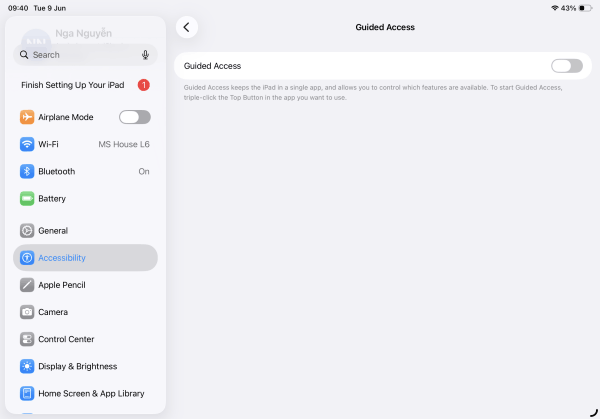
Go to Settings > Accessibility > Guided Access and turn it on. When you are inside your writing or design app, triple-click the top power button. This completely locks your iPad inside that single application.
You cannot swipe home, you cannot check notifications, and you cannot leave until you triple-click again and enter your passcode. It is a highly effective “digital prison” that forces you to sit with your creative friction until breakthroughs happen.
Pro-level Focus Filters you should be using
Most people stop at muting notifications, but Focus Filters are where the true magic happens. Focus Filters tell specific apps how to behave inside a chosen Focus Mode.
To configure these, scroll to the absolute bottom of your Deep Work Focus settings page and tap Add Filter.
1. Safari Tab Groups & Profiles
If you open Safari to research a topic, you shouldn’t see your open tabs for holiday planning, online shopping, or entertainment news.
-
The Fix: Create a “Work” profile or a specific “Deep Work” Tab Group in Safari.
-
The Filter: Set a Safari Focus Filter so that when Deep Work is active, Safari only displays that specific clean tab group. The rest of your web history is completely hidden.

2. Isolated Mail accounts
Seeing personal spam or retail discount emails while trying to write code or analyze data ruins focus.
-
The Filter: Choose the Mail Filter. Select only your primary work inbox or an essential project account, turning off visibility for your personal Gmail or iCloud accounts entirely during focus blocks.
FAQs about iPad Focus Mode setup for Deep Work
Can I still receive emergency calls when Deep Work Focus is active?
Yes. To ensure you don’t miss true emergencies, go to your Focus settings, select People, and make sure Allow Repeated Calls is toggled on. If anyone calls you twice within three minutes, the second call will bypass the filter and ring out loud.
Does setting up Focus Mode on my iPad affect my iPhone?
By default, yes. Apple enables Share Across Devices across your Apple Account. If you turn on Deep Work on your iPad, your iPhone and Mac will switch over too. If you prefer to use your iPad in absolute isolation while keeping your phone responsive, go to Settings > Focus and toggle off Share Across Devices.
My third-party apps are still sending notifications. How do I stop them?
While native Apple apps perfectly adapt to Focus Filters, some third-party tools require manual settings. If an app slips through the cracks, go back to your allowed apps list, switch the toggle to Silence Notifications From, and explicitly add that problematic app to the block list.
Final thoughts
Your iPad is a beautifully engineered piece of hardware, but it is only as focused as you configure it to be. Relying on sheer mental discipline to resist distractions in the digital age is a losing battle.
By setting up a rigorous Focus Mode setup for deep work iPad, you stop fighting your device and start using it as an intentional partner. Take ten minutes today to clear out the notification clutter, set up an automatic app trigger, and hide your distracting home screens. You will be amazed at how much faster you hit your stride when your tablet refuses to let you look away.






