


Learn how to import fonts into Procreate on iPad. Follow simple steps to add custom fonts and use them for lettering, journaling, and design.
Learning how to import fonts into Procreate is one of those small but essential skills you’ll be glad you picked up early. Especially if you use Procreate not just for drawing, but also for lettering, journaling, photo edits, or design layouts.

One big reason many people choose iPad for creative work is Procreate itself. You don’t have to be a professional artist to enjoy it. Even casual users can sketch, color, experiment with layouts, or relax with digital art. And once you start adding text to your work, default fonts quickly feel limiting.
CONTENTS:
How to import custom fonts into Procreate
Procreate does come with built-in fonts. However, many of them feel basic, and some don’t fully support certain languages or special characters.
Custom fonts give you more control over style and personality. They help your artwork look more “you,” especially if you enjoy bullet journaling, digital planners, posters, or social content. That’s why knowing how to import fonts into Procreate is genuinely useful.

Step 1: Download the font you want
First, find a font you like. You can search on Google or font websites using the font name. If you need language support, make sure the font includes the characters you use.
Once downloaded, don’t worry too much about the file format. Procreate works well with common font files like .ttf, .otf, or even fonts inside a .zip file.
After downloading:
-
Choose Save to Files.
-
Pick a location on your iPad that’s easy to remember (Saving it under On My iPad => Procreate => Fonts helps a lot).
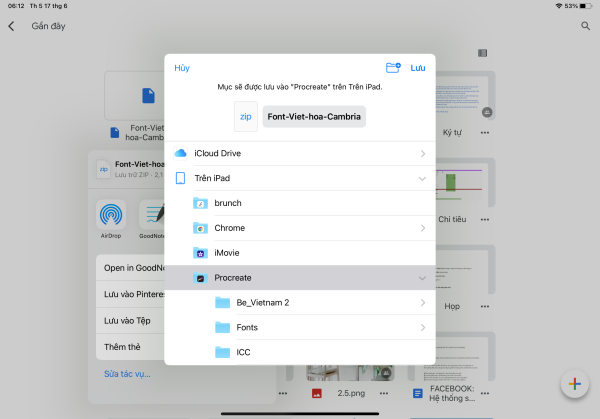
Step 2: Import the font into Procreate
There are two simple ways to import fonts. Use whichever feels easier.
Method 1: Import directly inside Procreate
– Open Procreate and create or open a canvas.
– Tap the Actions (wrench icon) in the top-left corner.

– Choose Add, then select Add Text.

– When the keyboard appears, tap the Aa icon.

– Select Import Font, then navigate to the folder where you saved your font. Once imported, the font will appear in your font list right away.

Method 2: Import from the Files app
– Open the Files app on your iPad.
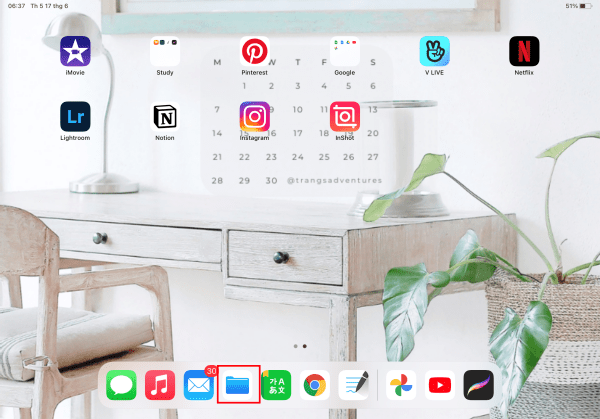
– Find the font file you downloaded earlier.
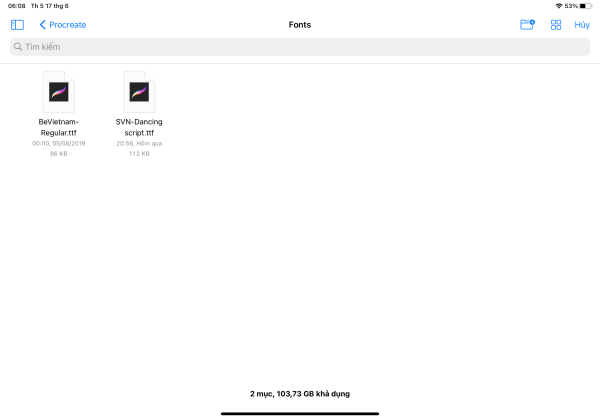
– Tap the font file twice.
– iPadOS will automatically add it to Procreate.
After that, go back to Procreate and add text as usual. You’ll see your new font ready to use.
Where to find the imported fonts later?
After importing, your custom fonts stay inside Procreate. You can access them anytime when adding or editing text. They remain available until you delete Procreate or remove them manually.
Q&A: How to import fonts into Procreate
Q: What font formats does Procreate support?
Procreate supports common font formats such as TTF and OTF. These formats work smoothly and are widely available on most font websites.
Q: Can I import fonts into Procreate directly on iPad?
Yes. You don’t need a computer. You can download fonts directly on your iPad and import them using Procreate or the Files app.
Q: Why doesn’t my imported font show up in Procreate?
This usually happens when the font file isn’t fully compatible or wasn’t imported correctly. Try importing the font again and make sure it’s a TTF or OTF file.

Q: Do imported fonts stay in Procreate permanently?
Imported fonts remain available as long as Procreate stays installed. If you delete the app, you’ll need to import the fonts again.
Q: Can I use custom fonts in Procreate for commercial projects?
That depends on the font license. Some fonts are free for personal use only, while others allow commercial use. Always check the license before using a font in paid work.
Q: Is it possible to delete fonts from Procreate later?
Yes. You can manage fonts inside Procreate settings and remove ones you no longer use to keep things organized.
Q: Does importing many fonts slow down Procreate?
In most cases, no. However, importing an excessive number of fonts may make the font list harder to navigate, so it’s better to keep only what you actually use.
Read More:
- Procreate Pen Pressure Not Working? Easy Fixes That Actually Work
- GoodNotes import PDF not working? Here’s how to fix it step by step
Final thoughts
Now you know how to import fonts into Procreate, and honestly, it’s much easier than it sounds.
Once you try it a couple of times, it becomes second nature.
Custom fonts make a big difference. They help your artwork feel more personal, polished, and intentional.
If you enjoy digital journaling, lettering, or creative layouts, this is one small trick that’s absolutely worth learning.







