


Procreate pen pressure not working on iPad? Learn simple fixes to restore Apple Pencil pressure sensitivity and get back to drawing smoothly.
Few things are more frustrating than opening Procreate, picking your favorite brush, and realizing the pen pressure just isn’t working. Every stroke looks the same. No variation and no control. It feels wrong immediately.

If Procreate pen pressure is not working on your iPad, don’t panic. In most cases, the issue comes from settings, connection problems, or small glitches that are easy to fix. In this article, I’ll walk you through what usually goes wrong and how to get your pressure sensitivity back without unnecessary stress.
CONTENTS:
What pen pressure means in Procreate
Pen pressure controls how thick, thin, light, or bold your strokes appear when you draw. Press harder, the line gets thicker or darker. Press lightly, the stroke feels soft and subtle.

When pen pressure stops working, Procreate still responds to your Apple Pencil, but the drawing feels flat. Every line looks identical, no matter how gently or firmly you draw. That’s usually the first sign something is off.
Procreate Pen Pressure Not Working And How To Fix
Check if your Apple Pencil supports pressure sensitivity
Before changing any settings, it’s important to confirm your hardware.
Apple Pencil (1st generation) and Apple Pencil (2nd generation) both support pressure sensitivity. Third-party styluses usually do not. If you’re using a non-Apple stylus, Procreate pen pressure will not work as expected, even if the pen can draw on the screen.
If you’re already using an Apple Pencil, move on to the next step.
Restart Procreate and reconnect Apple Pencil
This sounds basic, but it fixes more issues than you’d expect.
Close Procreate completely. Don’t leave it running in the background. After that, disconnect your Apple Pencil from Bluetooth settings. Wait a few seconds, then reconnect it. Open Procreate again and test a brush.
I’ve had moments where pen pressure randomly stopped working after switching apps. A quick reconnect solved everything instantly.
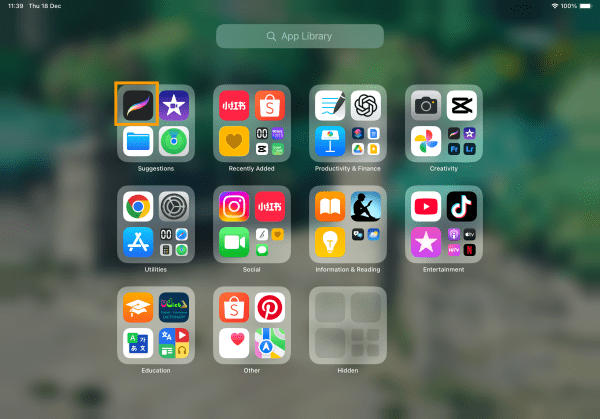
Check brush settings inside Procreate
Sometimes the problem is not Procreate itself, but the brush you’re using.
Open the brush you’re drawing with and go into Brush Studio. Look for the pressure settings inside the brush properties. If pressure influence is set to zero, your strokes will look flat no matter how hard you press.
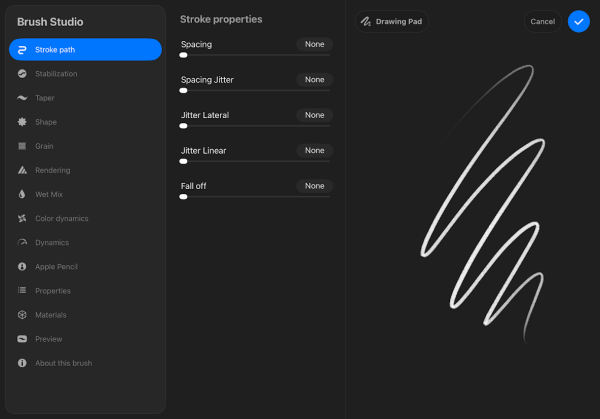
Try resetting the brush to default settings. If pen pressure works again after that, the issue was brush-related, not system-related.
Adjust pressure curve in Procreate settings
Procreate allows you to customize how pressure sensitivity responds to your hand.
Go to Procreate Settings, then open Pressure and Smoothing. If the pressure curve looks extreme or overly flat, it can cause pressure to feel unresponsive.
Try resetting the curve to default. Test a few strokes afterward. Many users accidentally adjust this setting and forget about it, then wonder why Procreate pen pressure is not working anymore.

Check iPad Accessibility settings
This step is easy to overlook.
Go to iPad Settings, then Accessibility. Look for touch-related options. Some accessibility features can affect how pressure input behaves, especially if AssistiveTouch or custom touch settings are enabled.
Turn off any feature you don’t actively use. Restart your iPad after making changes. This often restores normal Apple Pencil behavior.
Make sure iPadOS and Procreate are up to date
Software bugs can interfere with pen pressure.
Open App Store and check for Procreate updates. Then go to iPad Settings and confirm you’re running a stable version of iPadOS. Older versions sometimes introduce Apple Pencil glitches that are fixed later.
That said, if you recently updated and pen pressure stopped working right after, give it a little time. Minor bugs often appear early and get patched quickly.

Test your Apple Pencil hardware
If none of the fixes above work, it’s time to consider hardware issues.
Try your Apple Pencil in another drawing app. If pressure sensitivity fails there too, the problem may come from the Pencil itself. A worn-out tip can affect pressure detection. Replacing the tip is inexpensive and surprisingly effective.
Also check battery level. Very low battery can cause inconsistent behavior.
Why Procreate pen pressure suddenly stops working?
From my experience and from what many users share online, pen pressure issues usually appear after one of these moments:
- You changed brush settings without noticing.
- You updated iPadOS or Procreate recently.
- Bluetooth connection became unstable.
- Apple Pencil tip wore down over time.
The good news is that most cases are software-related and fully fixable at home.
My experience with Procreate pen pressure issues
I’ve run into this problem more than once. Each time, it felt scary at first, especially when I was in the middle of a drawing session. In reality, the fix was often simple. Reconnecting Apple Pencil or resetting brush settings brought everything back to normal.
That’s why I always recommend checking Procreate settings before assuming your iPad or Pencil is broken.

Q&A: Procreate pen pressure not working
Q: Why is Procreate not detecting pen pressure?
In most cases, this happens because of brush settings, a misadjusted pressure curve, or a temporary Apple Pencil connection issue. Hardware problems are less common, but they can happen if the Pencil tip is worn out.
Q: Does Procreate support pen pressure on all styluses?
No. Procreate fully supports pressure sensitivity only with Apple Pencil. Third-party styluses may work for basic drawing, but pressure control usually won’t function properly.
Q: How do I reset pen pressure settings in Procreate?
You can reset the pressure curve by opening Procreate Settings, going into Pressure and Smoothing, then restoring the default curve. This often fixes pressure issues caused by accidental customization.
Q: Can a worn Apple Pencil tip cause pressure problems?
Yes. A damaged or heavily worn tip can affect pressure detection. Replacing the tip is inexpensive and often solves the problem instantly.
Read More:
- Apple Pencil Not Working on Procreate: Some Quick Solutions
- Pros And Cons Of Using Apple Pencil Tip Covers
Q: Does updating iPadOS affect Procreate pen pressure?
Sometimes. Updates can introduce small bugs that affect Apple Pencil behavior. Keeping both iPadOS and Procreate up to date usually helps, but if the issue appears right after an update, it’s often a temporary glitch.
Q: Is this a hardware issue if pen pressure doesn’t work in other apps too?
If pressure sensitivity fails across multiple drawing apps, the issue is likely related to your Apple Pencil or iPad hardware. In that case, checking the Pencil battery or visiting Apple Support may be necessary.
Q: Should I reinstall Procreate if pen pressure is not working?
Reinstalling Procreate can help in rare cases, but it should be a last resort. Always back up your artwork before doing this, since local files could be lost.

Final thoughts
When Procreate pen pressure is not working, it can ruin your creative flow fast. Still, most fixes don’t require technical skills or expensive repairs. A few setting checks, a quick reconnect, or a brush reset usually solve the issue.
If your Apple Pencil still responds but pressure feels off, trust that it’s probably a small glitch. Take a breath, go through the steps one by one, and you’ll likely be back to drawing naturally in no time.





