

Goodnotes palm rejection not working on iPad? Fix palm rejection glitches fast with these practical, step-by-step tips for smooth note-taking.
Writing or drawing on an iPad with an Apple Pencil should feel as natural as pen and paper. However, few things are more frustrating than having your palm make random marks, jump around the page, or stop your pencil from writing altogether.
Goodnotes palm rejection not working on iPad is one of the most common issues reported by students, digital planners, and note-takers. Fortunately, this glitch is rarely a sign of a broken iPad or Apple Pencil. In most cases, it comes down to a misplaced setting, a physical barrier, or a simple software hiccup.
Here is a practical, step-by-step troubleshooting guide based on real-world fixes that actually work.
CONTENTS:
Why is palm rejection failing in Goodnotes?
Palm rejection relies on a balance between iPadOS, the Apple Pencil, and Goodnotes itself. When you rest your hand on the screen, capacitive sensors read multiple touch points. The system is supposed to ignore the large contact area of your hand while tracking the precise tip of your stylus.

When palm rejection stops working properly, the main culprits usually fall into three categories:
-
Software setting mismatches: Goodnotes or iPadOS settings might be configured incorrectly for how you naturally hold your pen.
-
Physical interference: Non-compatible screen protectors, thick cases, static electricity, or dirty displays can confuse capacitive sensors.
-
Connectivity and hardware glitches: Low Apple Pencil battery, a loose nib, or temporary iPadOS bugs can disrupt signal transmission.
How to fix Goodnotes palm rejection not working on iPad
Before buying a new stylus or resetting your tablet, try these straightforward fixes to get your palm rejection back on track.
1. Adjust palm rejection settings inside Goodnotes
Goodnotes has built-in palm rejection options that allow you to customize how the app detects your hand position.
-
Open Goodnotes.
-
Tap the Gear icon in the top right corner and select Settings.
-
Go to Stylus & Palm Rejection.
-
Under Palm Rejection Sensitivity, test setting it to High.
-
Set your Writing Posture to match how you naturally hold your pen (e.g., right-handed, left-handed, or angled).
Matching your exact writing posture gives the app a baseline map of where your palm typically rests.

2. Check your Apple Pencil connection and tip
If your iPad cannot distinguish between your hand and the stylus, palm rejection fails instantly.
-
Tighten the tip: A loose Apple Pencil tip breaks constant contact with the sensor. Gently twist the nib clockwise to ensure it is secure.
-
Check the tip wear: If the metal core inside the nib is exposed, replace the tip immediately.
-
Re-pair the Apple Pencil: Go to Settings > Bluetooth, find your Apple Pencil, tap the “i” icon, and select Forget This Device. Then attach it to your iPad (or plug it in) to pair it again.

3. Disable Multitasking gestures on iPad
Sometimes, what looks like a palm rejection bug is actually iPadOS misinterpreting your palm as a gesture (like triggering Slide Over or switching apps).
-
Open your iPad Settings.
-
Go to Multitasking & Gestures.
-
Turn off Four & Five Finger Gestures or set Multitasking to Off while taking notes.
Disabling these gestures prevents your palm from unintentionally dragging windows or minimizing your notebook.

4. Remove or clean physical barriers
Physical contact issues are remarkably common:
-
Clean the screen: Oils from your hands create false capacitive touch points. Wipe your screen with a dry microfiber cloth.
-
Inspect your screen protector: Thick glass screen protectors or poorly applied matte filters can weaken signal sensitivity. If you recently installed a new screen protector and palm rejection immediately broke, the protector may be obstructing touch signals.
-
Unplug the charging cable: Charging your iPad with a third-party or faulty charger can introduce small electrical currents (stray static) into the screen, causing palm detection to glitch during charging. Try writing with the iPad unplugged.

5. Restart your iPad
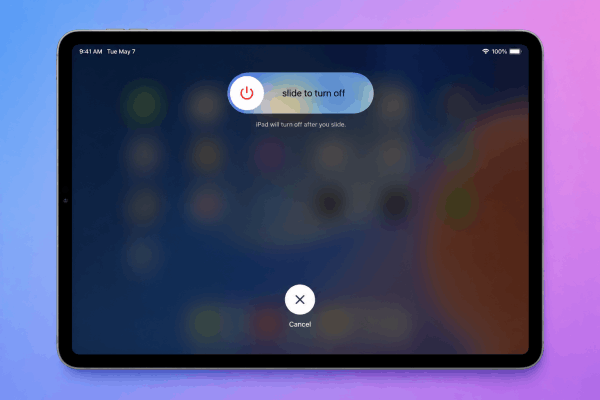
When temporary system memory cache errors build up in iPadOS, touch input can behave erratically. A simple restart clears these temporary glitches.
-
Press and hold the Top button and either Volume button until the power-off slider appears. (On iPads with a Home button, press and hold the Top button).
-
Drag the slider that says “Slide to power off”.
-
Wait about 30 seconds for the screen to turn completely black.
-
Press and hold the Top button again until you see the Apple logo appear on the screen.
Advanced tips for a smoother note-taking experience
If basic settings do not solve the problem completely, these extra practical tips can make your digital writing much smoother:
-
Wear a two-finger artist glove: Drawing gloves isolate your skin from the glass surface entirely. They are inexpensive and eliminate 100% of physical palm friction and touch recognition errors.
-
Keep Goodnotes updated: App updates frequently include bug fixes for input lag and stylus tracking. Check the App Store regularly to make sure you are running the latest version.
-
Avoid third-party non-Bluetooth styluses: Cheap digital pens without active Bluetooth integration lack real palm rejection technology. They register on your screen as a regular finger, making true palm rejection impossible. Stick with the official Apple Pencil or certified alternatives like the Logitech Crayon.
Frequently asked questions about Goodnotes palm rejection not working on iPad
Does Goodnotes 6 have better palm rejection than Goodnotes 5?
Both versions use similar underlying iPadOS touch frameworks, but Goodnotes 6 includes frequent updates to stylus sensitivity and gesture handling. Updating to the latest app build ensures you have the most stable input recognition.
Why does palm rejection fail only when my iPad is plugged in?
This is caused by ground loop noise or poor isolation from third-party chargers and cables. The extra electrical interference disrupts the screen’s capacitive sensors. Switching to an official Apple power adapter or writing while on battery power usually solves this.
Can a worn-out Apple Pencil tip cause palm rejection issues?
Yes. When the tip wears down, the iPad receives an uneven signal. This causes the screen to prioritize your palm over the pencil tip. Replacing the tip restores normal pressure and signal flow.

Final thought
Dealing with Goodnotes palm rejection not working on iPad can throw off your workflow, but it is almost always fixable with a few quick tweaks.
Start by adjusting your writing posture in Goodnotes, tightening your Apple Pencil tip, and turning off multitasking gestures. In most cases, these minor adjustments will restore seamless writing so you can get back to taking great digital notes without interruption.
Where would you like to go next with your iPad workflow:






