


Apple Pencil converting handwriting to the wrong language? Fix Scribble language issues quickly with these practical iPad troubleshooting steps.
Having your iPad misinterpret quick handwritten notes is frustrating. If your Apple Pencil handwriting to text wrong language issue keeps cropping up, you are definitely working with a misconfigured input setting rather than a broken accessory.
The Scribble feature relies heavily on system-level language priorities. When these settings clash, iPadOS defaults to whatever secondary language it thinks matches your strokes. Here is a step-by-step guide to fixing language conversion errors and getting your handwritten notes back on track.
CONTENTS:
- Why Apple Pencil handwriting to text wrong language conversion happens
- Check and reorder your keyboard language settings
- Set up preferred handwriting languages in iPadOS
- Manage Scribble language toggles directly in your notes app
- Update iPadOS to refresh handwriting recognition models
- Turn your iPad off and on again
- Practical tips for cleaner handwriting recognition
- Frequently asked questions about Apple Pencil language conversion
- Final thought
Why Apple Pencil handwriting to text wrong language conversion happens
iPadOS uses machine learning to analyze stroke direction, spacing, and letter shapes. However, Scribble does not automatically detect what language you are thinking in, it strictly follows your active iPad keyboard layouts and system language order.
Several common scenarios trigger this mismatch:
-
Multiple international keyboards enabled in your settings.
-
An active primary language that differs from your preferred handwritten language.
-
Unintended layout switching while taking notes in Quick Note or Apple Notes.
-
Outdated system software that misses updated handwriting recognition models.
Resolving this comes down to aligning your language preferences so your iPad knows exactly which dictionary to apply to your handwriting.

Check and reorder your keyboard language settings
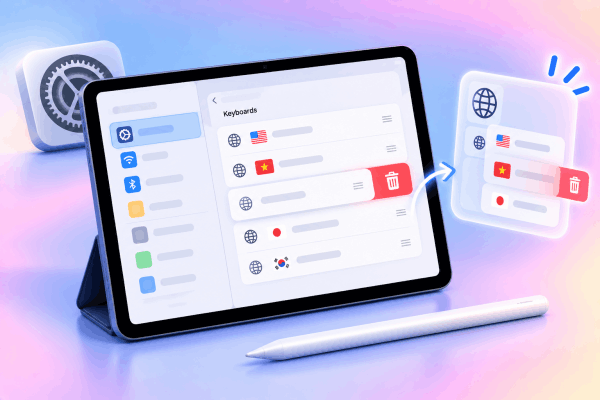
Scribble draws its language dictionary directly from the list of active keyboards installed on your iPad. If you have secondary keyboards enabled, Scribble might process your handwriting through the wrong language profile.
To adjust this layout:
-
Open Settings on your iPad.
-
Tap General, then select Keyboard.
-
Tap Keyboards at the top of the menu.
If you see languages listed that you rarely type in, swipe left on them and tap Delete. Keeping only the languages you regularly write in prevents iPadOS from switching recognition models in the background.
Set up preferred handwriting languages in iPadOS
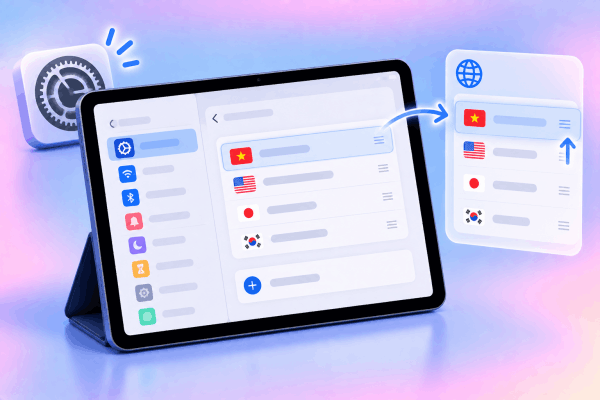
Even with correct keyboards installed, the system order matters. iPadOS processes input based on the hierarchy of your preferred languages.
Follow these steps to update your language hierarchy:
-
Go to Settings > General > Language & Region.
-
Under Preferred Languages, check the order of your listed languages.
-
Drag your primary writing language to the top position.
If your handwritten language is missing entirely, tap Add Language, select it from the list, and set it as your primary system language. This forces Scribble to default to your chosen vocabulary dictionary.
Manage Scribble language toggles directly in your notes app
When taking notes in Apple Notes or supported third-party apps, you can quickly toggle between language dictionaries without leaving your workflow.
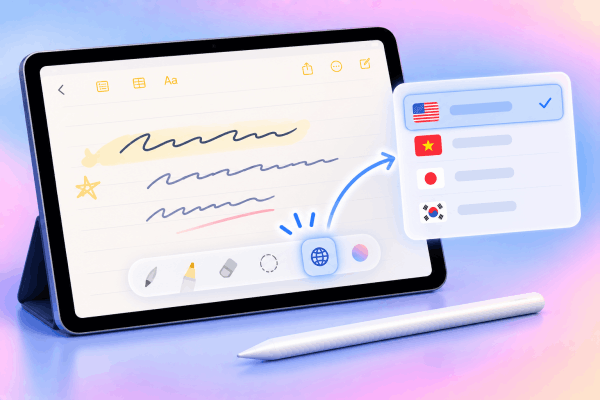
Look at the floating palette while your Apple Pencil is active:
-
Tap the language icon (or globe symbol) on the floating toolbar.
-
Select the correct language manually before you start writing.
-
Verify that the selected language matches the words you intend to write.
This manual toggle overwrites automatic detection, making it particularly useful if you regularly take bilingual notes or mix languages during brainstorm sessions.
Update iPadOS to refresh handwriting recognition models
Apple continuously refines its handwriting recognition algorithms through system updates. Language conversion bugs often stem from outdated system files or broken dictionary caches in earlier iPadOS releases.
To check for updates:
-
Connect your iPad to Wi-Fi and plug it into a charger.
-
Open Settings > General > Software Update.
-
If an update is available, tap Download and Install.
Keeping your software current ensures your device has the latest Scribble recognition patches for your target language.

Turn your iPad off and on again
Temporary system glitches can cause background services like Scribble to freeze up or default to fallback settings. Refreshing the operating system clears out temporary memory cache issues that might disrupt language processing.
-
Press and hold the Top button alongside either Volume button until the power-off slider appears.
-
Drag the slider to turn off your iPad.
-
Wait about 30 seconds for the screen to go completely dark.
-
Press and hold the Top button until the Apple logo displays on the screen.
Once the home screen reloads, open your notes app and test the Apple Pencil conversion again.

Practical tips for cleaner handwriting recognition
Beyond software settings, physical writing habits heavily influence how accurately your device translates stroke inputs into text.
Keep letter spacing consistent
Scribble relies on natural gaps between words to determine where one term ends and another begins. Keep your cursive or print letters relatively distinct, and leave clear spaces between words.
Adjust palm rejection habits
Resting your palm too heavily near the active text line can introduce stray inputs. Ensure your wrist rests naturally, or consider toggling palm rejection sensitivity in your note-taking app settings if available.
Clean your iPad screen and pencil tip
Dust, oils, or a worn Apple Pencil tip can break contact mid-stroke. Wiping down your display with a microfiber cloth and tightening your tip ensures fluid, uninterrupted line tracking.
See More:
- Apple Pencil Not Working with Magic Keyboard? Try These Fixes
- Apple Pencil Connected but Not Working? 10 Fixes When It Won’t Draw or Write
Frequently asked questions about Apple Pencil language conversion
Can Scribble recognize two languages at the same time?
Scribble works best when set to one primary language dictionary at a time. While it can process some common mixed terms, switching languages manually via the keyboard palette yields far higher accuracy.
Why is Scribble option missing in my iPad settings?
Scribble availability depends on your region and system language settings. Ensure your iPad region under Settings > General > Language & Region matches a supported Scribble locale.
Does Apple Pencil hardware cause wrong language detection?
No, the Apple Pencil only transmits physical touch, tilt, and pressure data. Language translation, dictionary matching, and text conversion are handled entirely by iPadOS.

Final thought
A language mismatch in Apple Pencil conversion is almost always a software preference issue rather than a hardware defect. Streamlining your active keyboards, organizing your preferred language order, and keeping iPadOS updated will keep your handwriting conversion completely stress-free.






