


Struggling with Notability erasing notes randomly on iPadOS? Discover why your handwritten notes disappear and how to stop data loss fast.
Few things in the digital note-taking world are more heart-stopping than opening your iPad, launching your favorite notebook app, and watching handwritten pages disappear into thin air. Whether you are a student sitting in a high-stakes lecture or a professional sketching out ideas during a client meeting, digital note-taking relies on total trust.
If you have been dealing with Notability erasing notes randomly on iPadOS, you know how frustrating it can be. Ink strokes flickering away, full pages resetting to blank canvas, or entire files vanishing from folders overnight can derail your productivity.
The good news? This behavior is rarely a permanent hardware failure. It usually stems from specific cloud sync conflicts, gesture misfires, or background storage management in iPadOS. Drawing from deep real-world testing and shared user experiences across the tech community, this practical guide breaks down why this happens and how to protect your digital handwritten notes for good.
CONTENTS:
Understanding why Notability is erasing notes randomly on iPadOS
To solve an issue, we first need to look under the hood. When handwritten ink or full documents vanish unexpectedly, one of a few common culprits is usually behind it:
-
iCloud sync interruptions: If a note is syncing to cloud storage and your connection drops or you swipe away from the app too quickly, iPadOS may fail to merge edits correctly. This creates cloud sync errors in Notability that revert files to earlier, blank states.
-
Apple Pencil gesture triggers: Modern Apple Pencils feature tap gestures that switch between the active pen and eraser. Accidental double-taps while gripping the pencil closely can silently toggle the eraser without you noticing.
-
Insufficient local or cloud storage: When your iPad or iCloud drive runs low on free space, iPadOS aggressively purges cached files to preserve memory, leaving note templates intact while stripping out vector strokes.
-
App indexing or update glitches: Major app updates sometimes temporarily misplace files into unfiled directories or break local folder indexing.

Practical fixes for disappearing notes on iPadOS
Here are the most reliable, hands-on troubleshooting steps to stabilize your notebook and prevent random stroke deletion.
1. Check Recently Deleted and Unfiled Notes
Before panicking, verify whether your notes were actually erased or simply moved.
-
Open Notability, tap the Settings (gear icon) in the bottom corner, and check the Recently Deleted tab. Vanished notes can often be restored from here within 30 days.
-
If you recently updated the app, check your Unfiled Notes section. Folder directory paths can break during cloud sync transitions, parking your notes safely in a general folder rather than their original subfolder.

2. Disable accidental Apple Pencil double-tap gestures
If individual lines, drawings, or handwriting vanish while you are actively writing, your hand grip might be triggering your stylus gestures.
-
Open your iPad Settings.
-
Scroll down and tap Apple Pencil.
-
Under the double-tap section, select Off or switch it to Show Color Palette instead of switching to the eraser.
This simple tweak stops accidental tool switching during fast note-taking sessions.
3. Force a refresh of your iCloud sync settings
Cloud sync errors are the leading cause of missing digital notebook files. Refreshing the connection helps re-establish proper file handshake between your iPad and the cloud.
-
In Notability, go to Settings > Sync & Backup > iCloud.
-
Make sure iCloud Syncing is turned on.
-
If syncing appears stuck or a persistent spinning cloud icon stays active, toggle the setting off briefly, wait 10 seconds, and turn it back on.
-
Important: Always leave the app open and active on screen while the cloud icon is spinning to allow complete synchronization.

4. Enable third-party Auto-Backup immediately
Never rely on a single cloud service for critical lecture or meeting notes. Notability allows you to create continuous background backups to secondary cloud providers like Google Drive, OneDrive, or Dropbox.
-
Go to Notability Settings > Auto-Backup.
-
Select your preferred cloud storage provider.
-
Set the destination format to PDF + Note (or PDF).
This ensures that even if a local note experiences a sync glitch, a complete PDF copy is instantly saved to your secondary cloud drive.
5. Perform a standard iPad restart
When iPadOS runs low on RAM or experiences background system cache conflicts, a routine reboot clears temporary memory bugs without affecting your saved data.
-
Disconnect any charging cables or accessories.
-
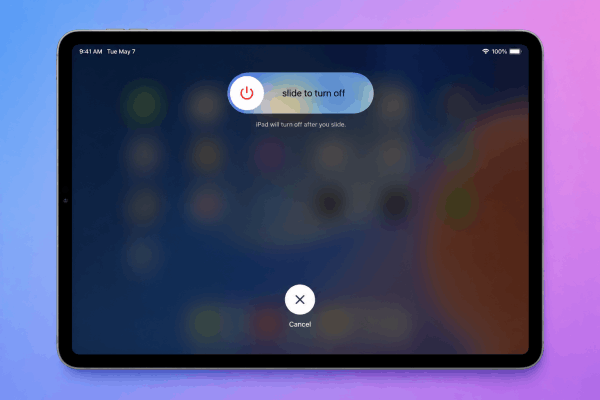
Press and hold the Top Power Button along with either Volume Button until the power-off slider appears.
-
Slide to power off your iPad completely.
-
Wait about 20-30 seconds until the device is entirely powered down.
-
Press and hold the Top Power Button again until the Apple logo appears to turn it back on.
Additional tips to safeguard your digital notebook
Beyond basic troubleshooting, building good iPadOS maintenance habits prevents iPad digital note-taking troubleshooting headaches down the line:
-
Keep 10-15% of your iPad storage free: Heavy note-taking apps use local scratch memory to render ink strokes smoothly. Freeing up local storage prevents system cache purges.
-
Turn off Low Power Mode while taking notes: Low Power Mode throttles background network syncs, which can cause incomplete cloud uploads if you lock your iPad immediately after writing.
-
Avoid quitting the app immediately: After completing a long note, return to the main library view and confirm that all cloud sync spinners have finished before closing the app or locking your iPad screen.
Read More:
- Notability vs Goodnotes 6: The Ultimate iPad Note-Taking Showdown
- Goodnotes Palm Rejection Not Working on iPad? Here Is How to Fix It
Frequently asked questions
How do I recover deleted Notability notes if iCloud sync failed?
If a note disappeared and is not in Recently Deleted, check your third-party Auto-Backup folder (e.g., Google Drive or Dropbox). If you also use a Mac synced to the same account, you can often locate past note versions stored locally in your system’s application support directory or Time Machine backups.
Why do my handwritten strokes flicker and then vanish while I write?
This usually happens due to palm rejection glitches or active low-power throttling. Ensure your screen is clean, turn off Low Power Mode, and try adjusting the palm detection sensitivity in app settings.
What is the best backup format to prevent permanent loss?
The PDF + Note option in Auto-Backup is ideal. The PDF portion ensures you can view your notes on any device even if the app fails, while the .note portion allows you to import editable vector strokes back into the app if needed.
Final thought
An iPad paired with a stylus is arguably one of the most powerful learning and productivity setups ever created, but software glitches can temporarily shake your confidence.
When dealing with vanishing notes, staying calm and addressing cloud sync pathways, backup routines, and gesture settings will almost always resolve the issue. Implement auto-backup today, give your iPad room to breathe, and keep your focus where it belongs – on your ideas.





