


Fix iPad split screen not working or frozen in minutes. Practical, step-by-step tips to restore smooth iPadOS multitasking without losing data.
Multitasking is where the iPad truly shines. Whether you are taking notes while researching in Safari, watching a tutorial while drafting an email, or managing your personal workflow across two apps, Split View turns your tablet into a real workstation. But when your iPad split screen not working bug pops up out of nowhere, it can instantly throw a wrench in your flow.
Maybe the three dots at the top of the screen refuse to respond, the app divider gets completely stuck, or you are facing an iPad split screen frozen situation where neither side accepts touch input. This isn’t usually a hardware failure. It is almost always a software glitch, a misconfigured setting, or an unoptimized app.
In this practical, real-world guide, we will break down why Split View breaks down and how to get your iPad multitasking smoothly again in just a few minutes.
CONTENTS:
Why is your iPad split screen not working properly?
Before jumping into the fixes, it helps to understand what is happening behind the scenes in iPadOS. When you run two apps side by side, iPadOS allocates RAM and display resources dynamically between both applications.

Here are the primary reasons Split View stops responding:
-
Multitasking settings disabled: A recent system update or accidental setting change turned off core multitasking features.
-
App compatibility limitations: Not every app supports Split View, some banking apps, games, or poorly optimized tools force full-screen rendering.
-
System memory pressure: When running resource-heavy apps in the background, iPadOS can experience temporary window server glitches, making the iPad split screen frozen and unresponsive.
-
Orientation and aspect ratio locks: Certain apps freeze when forced into split-screen mode while locked in portrait or landscape orientation.
How to fix iPad split screen not working step by step
Here are the most practical, real-world solutions that fix multitasking issues on iPadOS without needing complicated technical know-how.
1. Verify that Multitasking is enabled in Settings
It sounds simple, but iPadOS updates sometimes reset your window preferences. If the three multitasking dots at the top of your screen have disappeared, double-check your system settings.
-
Open Settings on your iPad.
-
Scroll down and tap Multitasking & Gestures.
-
Ensure Split View & Slide Over (or Stage Manager, if you prefer that workflow) is selected rather than Off.
-
Toggle off Allow Multiple Apps or Swipe Finger from Corner, wait 5 seconds, and toggle them back on to refresh the feature.

2. Test app compatibility with built-in Apple apps
Not all third-party apps support side-by-side execution. If one app doesn’t support Split View, attempting to drag it beside another will cause the second app to float or dismiss entirely.
-
Open two native Apple apps, such as Notes and Safari.
-
Tap the three dots (…) at the top of Safari, select Split View, and pick Notes.
-
If native apps work fine, the original issue lies with a third-party app that hasn’t enabled Split View support.
3. Force restart the unresponsive apps
When an iPad split screen frozen state happens, the window rendering engine of one app has likely crashed while the other remains active.
-
Swipe up from the bottom of your screen and hold to open the App Switcher.
-
Swipe UP on both apps involved in the split-screen session to close them completely.
-
Wait a couple of seconds, re-open the primary app from your Home Screen, and attempt to enter Split View again.

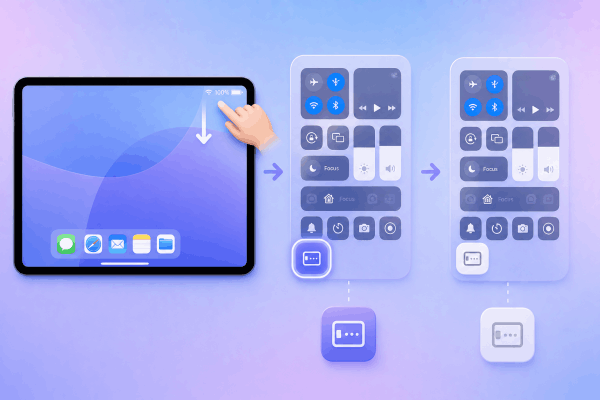
4. Turn off Stage Manager if it conflicts with classic Split View
If you are using an iPad Pro or iPad Air with M-series chips (or iPadOS 16.1+), Stage Manager changes how windows behave. Having Stage Manager active disables traditional Split View drag-and-drop gestures.
-
Swipe down from the top-right corner to open Control Center.
-
Look for the Stage Manager tile (a rectangle with three small dots on the side).
-
Tap it to toggle it Off if you prefer classic 50/50 Split View multitasking.
5. Restart your iPad the standard way
If a temporary system cache conflict is causing system-wide multitasking freezes, a clean reboot clears system memory without touching any of your personal files or notes.
-
Disconnect any power cables or accessories from your iPad.
-
Press and hold the Top Power Button along with either Volume Button until the power-off slider appears on the screen.
-
Slide to power off your iPad completely.
-
Wait about 20 to 30 seconds until the screen is fully black.
-
Press and hold the Top Power Button again until the Apple logo appears to turn your iPad back on.
Read More:
- How to Split Screen on iPad: My Simple Guide
- Split Screen Study Method for College Students: Boost Productivity
Pro tips for a smoother iPad multitasking experience
Once you have restored your split screen, keep these hands-on productivity tips in mind to avoid future freezes and speed up your workflow:
-
Use the Dock for faster snapping: Dragging an app directly from your Dock onto the edge of an open app is much faster and less prone to gesture misfires than navigating through the app launcher.
-
Keep 10-15% free storage space: iPadOS needs swap memory to manage two active app spaces seamlessly. Keeping your storage from topping out prevents lag and app crashes.
-
Disable Orientation Lock when splitting apps: Some apps get stuck when trying to resize while landscape orientation lock is active. Unlocking rotation lets windows auto-adjust smoothly.
Frequently asked questions
Why can’t I split screen on two specific apps?
If an app refuses to shrink into a split window, its developer has likely disabled dynamic resizing in their software code. Video editing apps, specialized cameras, and certain financial apps often enforce full-screen mode for stability or security reasons.
What should I do if my screen gets completely stuck and won’t tap?
If your iPad split screen frozen bug prevents you from interacting with either app or accessing the Home bar, swipe down from the top right to open Control Center, or rotate your device physically to force iPadOS to redraw the screen interface.
Is Split View available on all iPad models?
Split View is supported on most modern iPad models running recent iPadOS versions. However, older entry-level iPads with lower RAM configurations may struggle with heavy apps running side-by-side or may only support Slide Over mode instead of full Split View.

Final thought
The iPad is an incredible tool for modern learning, creating, and getting things done, but software hiccups like a frozen split screen can quickly interrupt your productivity momentum. In almost every case, checking your multitasking settings, verifying app compatibility, and giving your iPad a simple restart will get your dual-window workflow back on track.
Give these tips a try, simplify your digital workspace, and get back to doing what you do best!





