


Apple Pencil not working with Magic Keyboard? Find out why it only writes when your iPad is detached and what to check first.
Your Apple Pencil writes normally when you lift the iPad off its Magic Keyboard. Attach the iPad again, and the Pencil stops making marks. That difference is useful, it gives you a way to test the problem instead of replacing the Pencil or keyboard straight away.
First, check what “not working” means in your case. If the Pencil touches the screen but produces no ink, work through the tests below. If it does write but the screen angle makes writing uncomfortable, you may be dealing with the Magic Keyboard’s position rather than an input failure.
CONTENTS:
Why does Apple Pencil work when the iPad is removed from Magic Keyboard?
The two accessories can be used together. Attaching a compatible Magic Keyboard does not normally disable Apple Pencil. If your Apple Pencil works when the iPad is removed from Magic Keyboard, the change may involve how the iPad sits on the keyboard, another case or accessory in the setup, or a connection issue that happens when you reattach it.

There is also a physical limitation worth checking. The Magic Keyboard holds the iPad upright, which can make long handwritten notes awkward. In one discussion about using both accessories, the problem turned out to be the writing angle rather than a Pencil that could not register input.
To tell the difference, open Apple Notes, select a drawing tool, and make a short line while the iPad is attached. If the line appears, the Pencil is responding. If nothing appears, continue with the checks below.
How to fix Apple Pencil not working with Magic Keyboard
Start with a quick test to confirm that the problem happens only when your iPad is attached to the Magic Keyboard. Then work through the checks below, testing the Pencil after each step.
1. Repeat the test in the same app
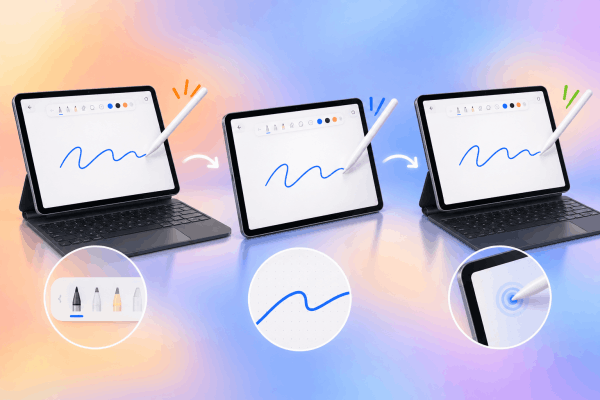
Open a new note in Apple Notes and select a pen tool. Draw a line with the iPad on the Magic Keyboard, then detach it and try again without closing the note or changing tools. Reattach the iPad and test once more.
This quick attached-detached-attached test matters. It shows whether the failure reliably follows the keyboard connection. If the Pencil fails in only one drawing app but works in Notes, check that app’s selected tool and settings before troubleshooting the keyboard.
Also try a few areas of the screen. A small unresponsive area is a different clue from a Pencil that produces no marks anywhere.
2. Remove anything between the iPad and keyboard
If you use a thin protective case, magnetic cover, or adhesive accessory with the Magic Keyboard, remove it for a test. Reattach the bare iPad and try writing in Notes again.
This is especially useful if the problem began after you added a new accessory. You do not need to assume that the accessory is faulty; the goal is simply to see whether removing it changes the result. Apple advises removing other cases or covers when checking a Magic Keyboard connection.
3. Check how the iPad sits on the Magic Keyboard
Detach the iPad and look for anything that prevents it from sitting flat against the keyboard’s back panel. Then reattach it carefully and confirm that the keyboard and trackpad respond as expected.
If the keyboard also behaves inconsistently, the connection between the iPad and Magic Keyboard deserves attention. If typing and the trackpad work perfectly while only the Pencil fails, keep testing the Pencil separately. Neither result proves which accessory is damaged, but it helps narrow down the next step.

4. Clean the Smart Connector contacts
Dust or debris on the contact points can affect the keyboard’s connection. With the iPad detached, gently wipe the Smart Connector contacts on both the iPad and keyboard using a soft, lint-free cloth. Then reattach the iPad and test the keyboard and Pencil.
Apple recommends this cleaning step for an unresponsive Magic Keyboard. It is most relevant here if the keyboard or trackpad also cuts out. Cleaning the contacts is a reasonable check, but it is not a confirmed cure for every case of Apple Pencil not writing with Magic Keyboard attached.
5. Check the Pencil’s connection and tip
Open Settings > Bluetooth and check whether your Apple Pencil appears connected. If it does not, charge and reconnect it using the method for your Pencil model.
Apple Pencil Pro and Apple Pencil (2nd generation), for example, attach to the iPad’s magnetic connector for pairing. Apple lists the pairing steps for each model.
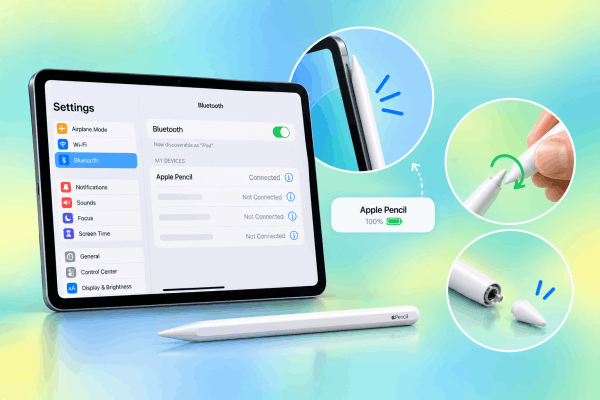
A loose or damaged tip is also worth checking if the Pencil has recently stopped writing. Gently tighten the tip by hand, then test in Notes.
If the Pencil writes reliably every time the iPad is detached, though, that pattern makes the attached setup a more useful place to focus than the tip alone.
6. Restart the iPad and check for updates
If the problem keeps recurring after you reattach the keyboard, restart the iPad normally. Press and hold the top button and either volume button until the power-off slider appears. Drag the slider, wait for the iPad to turn off, then press and hold the top button to turn it back on.
Afterward, go to Settings > General > Software Update and check for an available iPadOS update. Apple includes updating iPadOS in its Magic Keyboard troubleshooting guidance. Test the Pencil before and after any update so you know whether it changed the behavior.
A practical way to narrow down the cause
If you can borrow a compatible Pencil or Magic Keyboard, a short comparison can save a lot of guesswork. Test your Pencil with the iPad attached to another compatible keyboard, or test another Pencil with your usual setup.
Keep the test simple: use the same iPad, the same note in Apple Notes, and the same attached–detached–attached sequence. A repeatable result is more helpful than trying several changes at once.
If the Pencil continues to fail only while your iPad is attached, note your iPad model, Pencil model, keyboard model, and iPadOS version before contacting Apple Support. Mention whether the keyboard and trackpad still work. Those details describe the fault more clearly than “my Pencil stopped working.”
Don’t miss this:
- Apple Pencil Connected but Not Working? 10 Fixes When It Won’t Draw or Write
- How to Fix Apple Pencil Not Connecting After iPadOS Update
FAQs about Apple Pencil not working with Magic Keyboard
Should Apple Pencil work while the iPad is attached to Magic Keyboard?
Yes. You should be able to use Apple Pencil on the iPad screen while a compatible Magic Keyboard is attached. The upright screen position may feel uncomfortable for extended drawing, but attachment alone should not stop the Pencil from registering.
Does Magic Keyboard use Bluetooth to connect to the iPad?
The Magic Keyboard that magnetically attaches to a compatible iPad uses the Smart Connector. Apple Pencil pairing is separate. That is why it helps to check whether the keyboard and Pencil each work before trying to identify a cause.
Should I forget and pair my Apple Pencil again?
Try that if the Pencil is failing to connect or is not working reliably even after you detach the iPad. Apple provides steps to forget and pair a Pencil again. If the Pencil works consistently when detached, start with the attached–detached test and the keyboard setup first.

Final thought
When Apple Pencil is not working with Magic Keyboard, the most useful first step is to confirm that no ink appears in the same note only when the iPad is attached.
Then remove any extra case, check how the iPad sits on the keyboard, and see whether the keyboard itself responds. That sequence gives you a clearer account of the problem and helps you decide what to troubleshoot next.






