


Running out of iPad space? Here is how to clear system data storage on iPad with practical steps that actually free up gigabytes.
That dreaded “Storage Almost Full” banner always seems to pop up at the worst possible time—usually right when you are about to download a large game, render a video project, or update iPadOS. When you check your iPad storage breakdown, you might notice a grey bar labeled “System Data” eating up anywhere from 10 GB to well over 40 GB of precious space.
Unlike apps or photos, System Data feels like a mystery. Apple doesn’t offer a single “Clear System Data” button, leaving many users frustrated. However, after combing through real-world solutions that iPad owners rely on daily, clearing this bloated storage is entirely manageable. Here is a practical guide to reclaiming your iPad storage.
CONTENTS:
Understanding what iPad system data actually is
Before diving into the fixes, it helps to understand what you are actually cleaning up. System Data (formerly known as “Other” storage in older iPadOS versions) is a catch-all category for non-removable system resources.
It primarily includes:
-
Cache files: Temporary files generated by Safari, streaming apps (Netflix, Spotify, YouTube), and social media.
-
System logs and diagnostics: Technical data recorded by iPadOS.
-
Siri voices and offline translation files: High-quality voice assets stored locally.
-
Pending updates: Downloaded iOS/iPadOS installation files that haven’t been installed yet.
-
App leftovers: Temporary workspace files created while editing photos, videos, or notes.
A small amount of System Data (5 GB to 10 GB) is completely normal. However, if it balloons past 20 GB, your iPad is holding onto temporary files it no longer needs.

Simple ways to reduce system data without losing photos
You don’t always need radical measures like a complete device wipe to free up space. Starting with light housekeeping often clears away several gigabytes of accumulated cache.
Clear Safari cache and web data
Safari is often the biggest contributor to hidden System Data. Every website you visit saves images, scripts, and cookies locally to speed up future loading times. Over months of browsing, these files compound significantly.
To clear Safari cache:
-
Open Settings on your iPad.
-
Scroll down and tap Safari.
-
Tap Clear History and Website Data.
-
Select All history and confirm by tapping Clear History.
If you use third-party browsers like Chrome or Brave, open their internal settings menus to clear browsing history and cached images as well.

Delete and reinstall heavy streaming apps
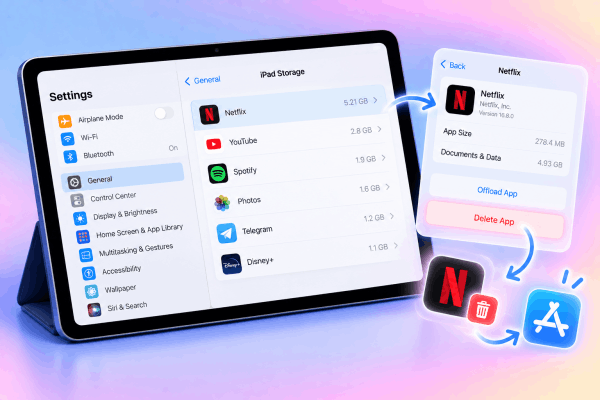
Apps like Netflix, Disney+, Spotify, and Telegram are notorious for caching massive amounts of data under System Data rather than their own app size. Streaming high-definition media stores chunked cache files in the background to prevent buffering.
Checking which apps hoard data is straightforward:
-
Go to Settings > General > iPad Storage.
-
Tap on high-usage apps like Netflix or social platforms.
-
Check the Documents & Data size.
If the “Documents & Data” size far exceeds the actual app size, tap Delete App (not Offload App, which keeps the cached documents intact), then reinstall it fresh from the App Store.
Remove uninstalled software update files
Sometimes iPadOS downloads an software update in the background over Wi-Fi, but fails to install it due to low battery or insufficient power connection. That multi-gigabyte installer sits inside your storage indefinitely.
Here is how to remove it:
-
Open Settings > General > iPad Storage.
-
Look through the app list for an item named iPadOS [version number].
-
Tap it and select Delete Update.
Once deleted, you can manually update your iPad later when you have enough free space and time.
Advanced steps for stubborn system data bloat
If basic cache clearing only freed up a few hundred megabytes, the issue likely stems from corrupt cache logs or index database errors deep within iPadOS.
Force restart your iPad
A standard power-off sequence writes temporary logs to disk before shutting down. A forced restart interrupts background processes and forces iPadOS to run basic disk cleanup routines upon booting back up.
-
For iPads without a Home Button: Press and quickly release the volume up button, press and quickly release the volume down button, then press and hold the top power button until the Apple logo appears.
-
For iPads with a Home Button: Press and hold both the top power button and the Home button simultaneously until the Apple logo displays.

Set messages to auto-delete attachments
Audio messages, GIFs, videos, and photos shared through iMessage build up over time. Unless instructed otherwise, iPadOS keeps these attachments forever, categorizing much of the cached attachments under System Data.
Adjusting this setting takes just a minute:
-
Navigate to Settings > Messages.
-
Scroll to Message History and tap Keep Messages.
-
Change the duration from Forever to 30 Days or 1 Year.
-
Confirm when prompted to delete older attachments.
The ultimate fix: Backup and restore via computer
When System Data remains locked at 30 GB+ despite trying every setting adjustment, it usually indicates a corrupted cache database. The only guaranteed method to flush this out completely is a full backup and restore cycle.
While it sounds time-consuming, this process acts as a deep clean for your iPad file system, reorganizing your storage while preserving all your personal data.
-
Connect your iPad to a Mac (using Finder) or Windows PC (using iTunes or the Apple Devices app).
-
Select your iPad when it appears on screen.
-
Under the Backups section, select Back up all of the data on your iPad to this Mac/PC.
-
Check the box for Encrypt local backup (this ensures passwords, Health data, and Wi-Fi credentials are saved).
-
Click Back Up Now and wait for completion.
-
Once completed, click Restore iPad… to erase the device and install a fresh copy of iPadOS.
-
During the initial setup on your iPad, choose Restore from Mac or PC when prompted, connect to your computer, and restore your recent backup.
After the restore finishes, check iPad Storage again. System Data will typically shrink back to a lean 4 GB to 8 GB.

Helpful tips to keep iPad storage optimized
Preventing System Data bloat is much easier than fixing it after storage runs out. Incorporating a few simple habits into your routine keeps your iPad running smoothly.
-
Stream instead of downloading: Avoid keeping dozens of offline movies or high-res audio playlists on your device if you usually have internet access.
-
Use iCloud Photos with optimization: Enable Optimize iPad Storage in Settings > Photos. This stores full-resolution photos in iCloud while keeping smaller, lightweight previews on your device.
-
Offload unused apps: Go to Settings > App Store and enable Offload Unused Apps. This automatically removes the app binary when space is low, but keeps your documents and settings safe.
Keep Reading:
- Beyond the limit: The smart way to clear iCloud storage on iPad
- iPad backup larger than storage fix: Some easy ways to solve it
Frequently asked questions
How much System Data is normal on an iPad?
Typically, between 5 GB and 12 GB is considered normal. This space accommodates the core operational needs of iPadOS, active app caches, and temporary system databases. Anything consistently above 20 GB indicates accumulated bloat that can be cleared.
Will clearing System Data delete my photos or notes?
No. Clearing browser caches, deleting software update files, or offloading apps will not touch your personal photos, files, or notes. Even performing a full computer backup and restore preserves all your data while stripping away useless background cache.
Why is System Data still large after deleting photos and apps?
Deleting photos or apps frees up space under those specific categories, but it doesn’t clear the index logs or cached temporary files associated with them. System Data requires specific cache-clearing actions or a full device restore to reset its indexing logs.

Final thoughts
Managing iPad storage doesn’t require technical expertise or constant tinkering. By regularly clearing browser data, managing message attachments, and restarting your device, you can easily keep System Data bloat under control.
If storage ever gets dangerously low, a quick local backup and restore remains the absolute best reset button to get gigabytes of space back instantly.






