
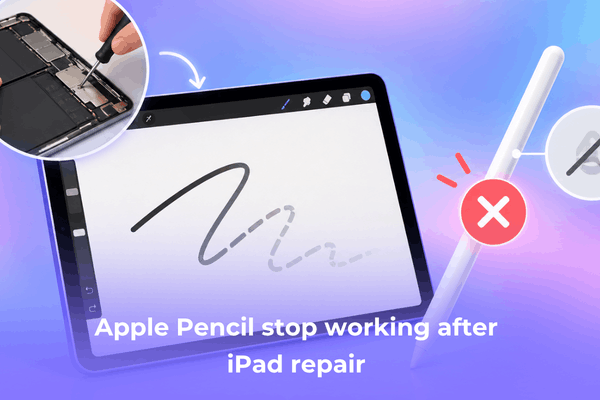

Apple Pencil stopped working after iPad repair? Learn why screen replacements break stylus functionality and practical steps to fix it.
Getting your iPad back from the repair shop should feel like a fresh start, but discovering your Apple Pencil suddenly won’t write, pair, or charge turns relief into immediate frustration. This issue is surprisingly common, especially following screen replacements or internal component repairs.
When an Apple Pencil fails post-repair, the culprit usually ranges from hardware installation issues during the repair process to simple battery or software glitches. This guide breaks down why this happens and provides actionable steps to restore your Apple Pencil to full functionality.
CONTENTS:
Why an Apple Pencil stops working after an iPad repair
Understanding what went wrong helps narrow down whether you can fix the issue at home or need to take the device back to the technician.
Repairs involve delicate internal connections, and even minor oversights during assembly can disrupt how the iPad interacts with external accessories.
Third-party screen replacements and digitizer issues
Replacing an iPad screen requires transferring or installing a digitizer layer – the part of the display that senses touch and stylus input. High-quality original screens integrate custom sensor grids calibrated for Apple Pencil pressure and tilt sensitivity.
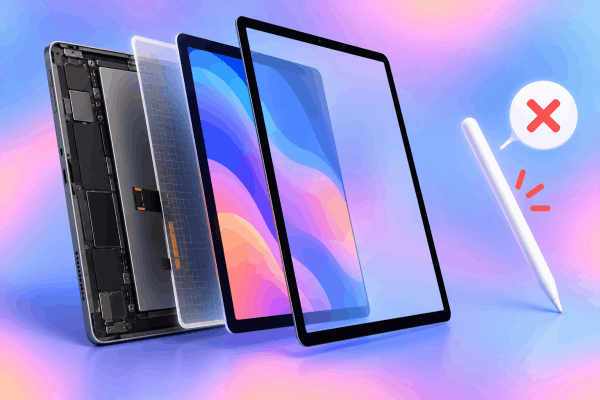
If a repair shop uses a low-grade third-party screen, the replacement display may lack the internal layer required to detect the Pencil. Even if touch controls work fine with your fingers, the screen might simply be incapable of registering stylus signals.
Disconnected or damaged internal Bluetooth antenna
During repairs involving screen removals or battery replacements, technicians must disconnect several flex cables. The iPad’s Bluetooth and Wi-Fi antenna components sit close to the outer edges and display assembly.
If the technician accidentally pinches, tears, or forgets to re-seat the antenna connector properly, the iPad loses its ability to establish a stable local connection with accessories. This leads directly to the Apple Pencil not connecting after iPad repair.
Deep battery discharge during extended repair times
An overlooked cause of Apple Pencil failure relates directly to battery maintenance while the iPad is away for service. Apple Pencils use tiny lithium-ion batteries with minimal capacity. If the Pencil remains disconnected from a power source for more than a few days during a repair, its battery voltage can drop below a critical threshold.
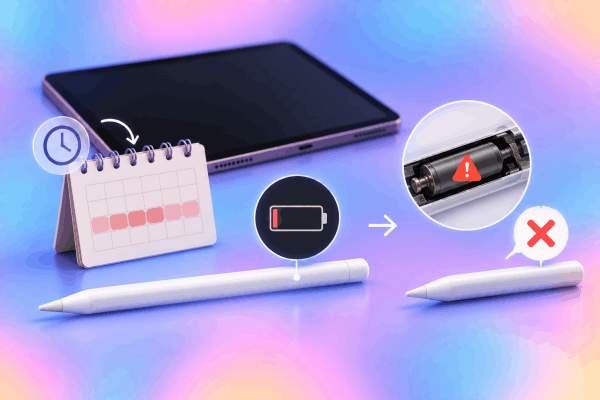
When a lithium battery sits completely drained for an extended period, it enters a deep discharge state. Once this happens, the internal protection circuit permanently disables the battery to prevent safety hazards, rendering the Pencil incapable of holding a charge or turning back on.
Software pairing conflicts and iPadOS glitches
Repairing hardware often involves disconnecting power entirely or putting the iPad through test cycles. This process can cause temporary sync errors between iPadOS and previously paired Bluetooth devices. The tablet may still register the Pencil in its memory without maintaining an active signal channel.
See More:
- iPad Scribble Not Working with Apple Pencil? 8 Easy Fixes That Work
- Apple Pencil battery draining fast when not in use? 7 quick fixes
Step-by-step troubleshooting guide for Apple Pencil post-repair issues
Before returning to the repair shop, try these non-invasive troubleshooting procedures to eliminate basic software or power-related failures.
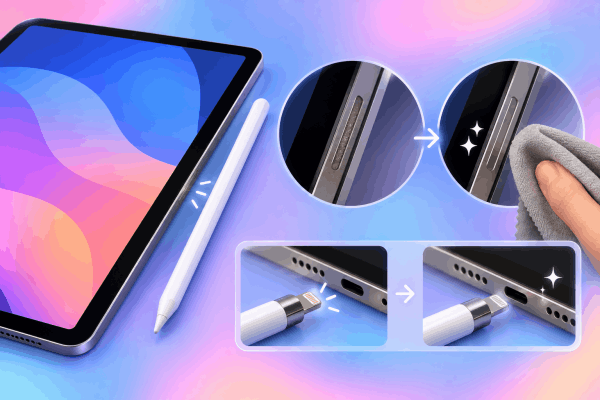
2. Verify battery health and force a charge session
3. Forget device and re-pair
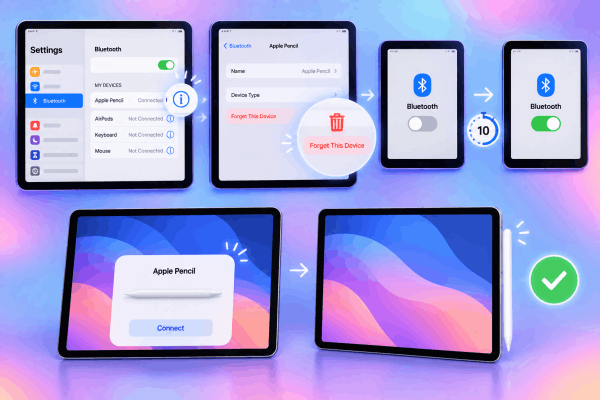
4. Perform a standard system restart
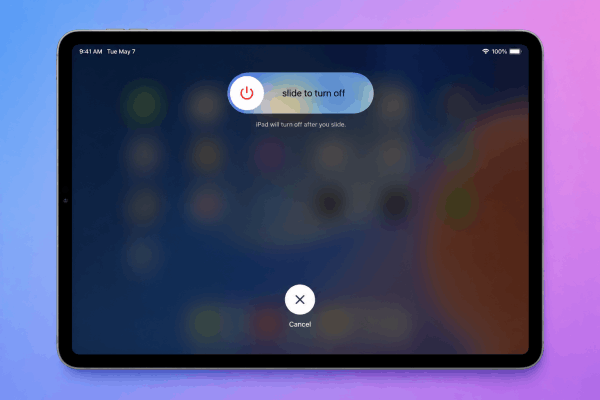
If the connection prompt fails to appear, clear temporary system cache files with a standard reboot.
Press and hold the Top button along with either Volume button (or just the Top button on iPads with a Home button) until the power-off slider appears. Drag the slider to power down, wait for the screen to go black, then press and hold the Top button to turn the iPad back on.
Verifying the repair quality: When to return to the shop
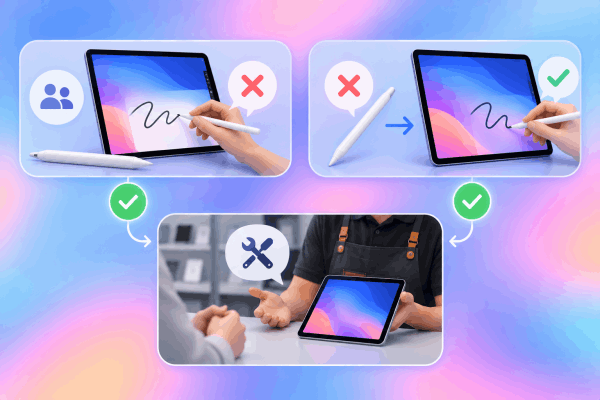
If basic software resets and charging attempts fail to resolve the Apple Pencil not working after screen change, the issue stems from hardware installed during repair.
-
Test with another Apple Pencil: If possible, try pairing a friend’s or store’s Apple Pencil with your repaired iPad. If their Pencil also fails to connect or write, the issue lies within your iPad’s internal repair or screen hardware.
-
Test your Pencil on another iPad: Connecting your Apple Pencil to a different, working iPad confirms whether the Pencil’s internal battery died during the downtime.
-
Contact the repair technician: If the iPad screen fails to register any stylus, inform the repair center. Reputable shops offer warranties on repairs and will re-examine internal antenna connections or replace incompatible aftermarket displays with higher-quality units.
FaQs about Apple Pencil stopped working after iPad repair
Can a third-party iPad screen support the Apple Pencil?
Yes, but only if the replacement panel includes the necessary digitizer layer. High-grade OEM or high-quality aftermarket screens support full pencil functionality, whereas low-cost budget screens often omit stylus compatibility.
How do I know if my Apple Pencil battery is dead permanently?
If the Pencil shows 0% battery continuously even after hours of charging, or if it disappears from the Bluetooth menu the moment you detach it from the charging port, the battery has likely entered a permanent deep-discharge state.
Will resetting iPad settings delete my personal data?
A standard system restart (sliding to power off and turning back on) does not erase any data, photos, or settings. It simply clears working memory and reloads system software cleanly.
Final thought
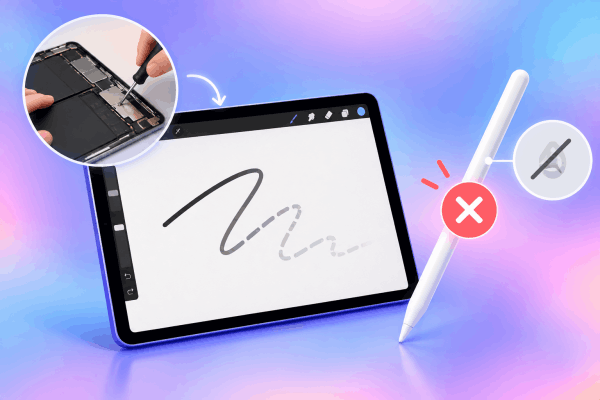
Dealing with an Apple Pencil that stopped working after an iPad repair comes down to process of elimination. Start by ruling out software glitches through a simple re-pairing process and standard restart. If the stylus remained uncharged for an extended period, give the battery adequate time to revive.
When home fixes fall short, reach out directly to your repair provider – a missing antenna connection or sub-par screen panel is a technical defect that the repair shop should inspect and correct under warranty.







