


Fix an Apple Pencil not connecting after iPadOS update with these tested solutions. Resolve pairing failures and screen issues easily.
Upgrading your iPad should bring smoother multitasking and fresh features, but software updates often break existing hardware connections. If you find your Apple Pencil not connecting after iPadOS update, you are far from the only owner dealing with this frustration.
A fresh operating system build can trigger Bluetooth pairing handshakes to freeze or expose underlying hardware sensitivities. Before booking a repair appointment, you can test several practical troubleshooting steps at home to restore your stylus.
CONTENTS:
Why your Apple Pencil won’t pair after iPadOS update
Major system updates rewrite network configurations. During this transition, stored Bluetooth profiles can become corrupted or unresponsive.
Common underlying causes include:
-
Stale cache data: The iPad retains old pairing tokens that clash with newly updated system drivers.
-
Bluetooth daemon freezes: The wireless service responsible for detecting accessories hangs silently in the background.
-
Incomplete hardware handshake: MagSafe connectors or USB-C ports fail to pass initial pairing data immediately following a reboot.
-
Extreme battery drain: System updates running heavy background tasks can drain a docked stylus if left unattended during installation.

Initial checks before troubleshooting
Covering baseline hardware requirements saves time before altering any settings.
-
Verify model compatibility: Ensure your iPadOS version officially supports your specific stylus model (Apple Pencil 1st gen, 2nd gen, USB-C, or Apple Pencil Pro).
-
Check physical contact: Cases with thick edge protection can block the magnetic connector from sitting flush on the iPad frame. Remove protective sleeves temporarily.
-
Inspect the tip: A loose nib breaks the internal circuit that registers screen contact. Gently twist the tip clockwise until snug.
Reading More:
- Apple Pencil stopped working after iPad repair? Fix it fast
- iPad Scribble Not Working with Apple Pencil? 8 Easy Fixes That Work
5 practical fixes for Apple Pencil not working after update
If your stylus stopped responding right after installing the latest iPadOS, try these proven fixes in order to restore your connection.
1. Force a clean Bluetooth reconnect
When an Apple Pencil not working after update condition persists, clearing out the old connection profile forces the iPad to rebuild its wireless handshake from scratch.
-
Open Settings on your iPad.
-
Tap Bluetooth and locate your Apple Pencil under My Devices.
-
Tap the Info icon (i) next to the device name.
-
Select Forget This Device and confirm.
-
Turn Bluetooth off using the toggle inside Settings (avoid using Control Center, as it only disconnects devices temporarily rather than restarting the wireless chip).
-
Wait 10 seconds, toggle Bluetooth back on, and dock or plug in your Apple Pencil to trigger a fresh pair request.

2. Perform a standard iPad power cycle
Temporary background bugs often clear up once system memory flushes completely. If a simple software glitch prevents the pairing prompt from rendering on screen, a normal restart resets system processes safely.
-
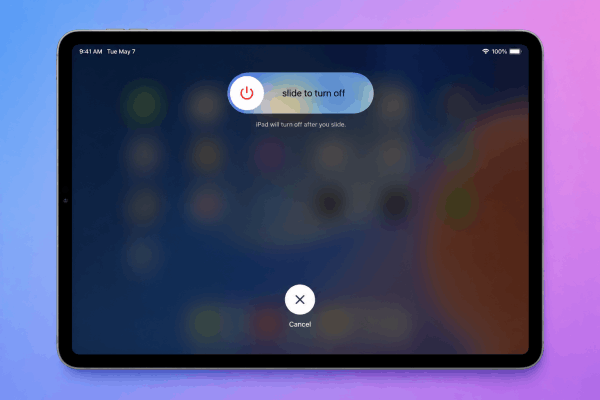
Press and hold the Top button alongside either Volume button until the power slider appears (for iPads with Home buttons, press and hold the Top button only).
-
Drag the Slide to power off control to the right.
-
Wait roughly 30 seconds for the screen to turn entirely dark and the device to shut down fully.
-
Press and hold the Top button again until the Apple logo appears to turn your iPad back on.
-
Attach or plug in your Pencil to verify if the pairing card pops up.
3. Clean physical charging and pairing contacts
Invisible oil build-up, dust particles, or micro-debris on magnetic strips and charging ports interfere with data transfer during initial setup.
-
For magnetic pairing (Apple Pencil 2nd Gen / Pro): Wipe the flat magnetic edge of the Pencil and the right side of the iPad frame with a dry, lint-free microfiber cloth. A tiny droplet of isopropyl alcohol on the cloth can help cut through persistent finger oils.
-
For wired pairing (Apple Pencil 1st Gen / USB-C): Use a wooden toothpick or small soft brush to gently clear lint out of the iPad’s Lightning or USB-C port. Inspect the connector pins on the adapter or cable for corrosion or discoloration.
4. Charge the stylus directly for at least 30 minutes
System updates occasionally cause an Apple Pencil battery that was already low to drop into a deep discharge state. When voltage drops below a certain threshold, the stylus cannot power its Bluetooth transmitter, even though the magnetic attachment registers physically.
Leave your Apple Pencil connected to its charging spot uninterrupted for 30 to 45 minutes. Avoid removing it repeatedly to check status, as giving the lithium-ion battery time to recover baseline voltage is essential before it can re-establish communication.

5. Reset all settings (Without erasing personal data)
If underlying network files remain corrupt after an update, resetting system preferences clears out stubborn software conflicts without deleting apps, photos, or documents.
-
Go to Settings > General > Transfer or Reset iPad.
-
Tap Reset.
-
Choose Reset All Settings.
-
Enter your passcode to confirm.
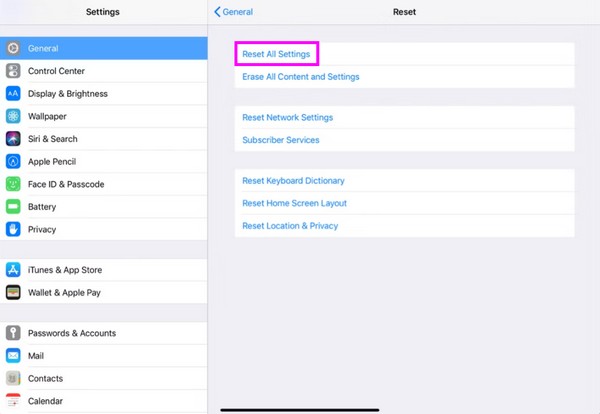
This process restores default Wi-Fi passwords, Bluetooth profiles, and system preferences. Once your iPad reboots, attach your Pencil again.
Troubleshooting chart for persistent pairing issues
| Symptom | Probable Cause | Recommended Action |
| Pencil charges but won’t show pair prompt | Stale Bluetooth token or frozen daemon | Forget device, toggle Bluetooth off in Settings, and re-dock |
| Pencil pairs briefly then drops connection | Loose tip or dirty magnetic contact | Tighten nib clockwise; clean flat edge with microfiber cloth |
| Battery percentage reads 0% continuously | Deep battery discharge post-update | Dock for 45 minutes continuously without interruption |
| No response from any screen interaction | Worn nib sensor or internal hardware fault | Replace stylus tip; test stylus on another display model |
Frequently asked questions about Apple Pencil not connecting after iPadOS update
Will updating iPadOS ruin my Apple Pencil battery?
No, software updates do not physically damage the battery inside your stylus. However, if an Apple Pencil sits uncharged for a long period while an update runs, its small battery can drain completely, making it unresponsive until left on a charger for an extended period.
Why does my iPad show the Apple Pencil graphic but fails to pair?
This usually indicates that the iPad detects the physical magnet or wired attachment, but the wireless Bluetooth connection fails to complete the verification handshake. Clearing Bluetooth cache or turning Bluetooth off and back on via Settings resolves this issue.
How do I know if my Apple Pencil hardware is dead?
If your stylus refuses to charge, connect, or show battery metrics on a different compatible iPad after trying a clean Bluetooth reset, the internal battery or Bluetooth module may have failed.
Final thought
Dealing with an Apple Pencil not connecting after iPadOS update is a frustrating bump in an otherwise smooth operating system experience.
In almost all non-hardware cases, some easy tips can gets your workflow back on track without needing a trip to the service counter.






