


Apple Pencil pressure sensitivity stopped working? Fix pen pressure issues with quick steps and it will work again.
When your Apple Pencil pressure sensitivity stopped working, your $120+ premium stylus suddenly transforms into a glorified finger.
Regardless of which iPad model you use, pressure detection failures are a surprisingly common headache. But in most cases, the hardware sensor inside your pencil isn’t permanently broken.
Before diving into complex troubleshooting, let’s look at the warning signs that indicate your pressure sensitivity is failing, what causes it, and how you can fix it step-by-step.
CONTENTS:
Signs your Apple Pencil pressure sensitivity is failing
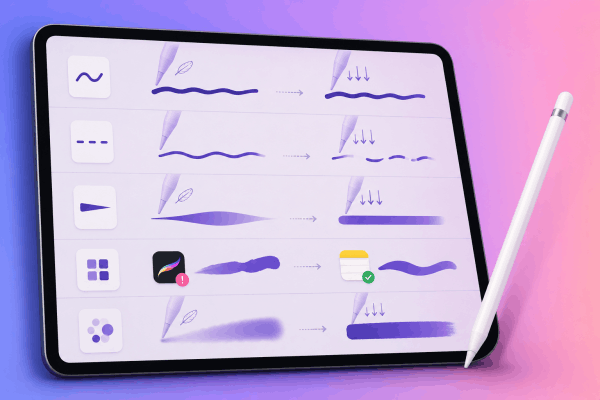
Pressure sensitivity issues don’t always mean a total shutdown. Often, the stylus shows subtle warning signs before going completely flat:
-
Uniform line thickness: Lines stay the exact same width regardless of how hard or light you press down on the screen.
-
Intermittent stroke skipping: The pencil draws smoothly with light pressure but stops registering entirely when you apply firm pressure.
-
Inability to taper lines: Brushes that rely on dynamic start/end pressure taper (like calligraphy or line art brushes) look blocky and abrupt.
-
App-specific failures: Pressure sensitivity works fine in basic note-taking apps or Apple Notes, but fails completely in professional art software like Procreate, Adobe Fresco, or Clip Studio Paint.
-
Opacity stuck at 100%: Brushes linked to pressure opacity won’t build up tone or fade; they immediately lay down full pigment.
Why did Apple Pencil pressure sensitivity stop working?
Understanding the underlying issue makes finding the right solution much faster. Here are the most common culprits:
-
A loose or worn-out nib: The physical tip controls how pressure transfers to the internal transducer. A slightly unscrewed nib breaks contact.
-
Software glitches and iOS updates: Minor bugs in iPadOS or specific drawing apps can disable gesture and pressure mapping.
-
Accessibility settings interference: Features like Zoom, AssistiveTouch, or Reduce Motion can interfere with digital stylus inputs.
-
Third-party screen protectors or thick magnetic cases: Heavy tempered glass or strong magnetic cases can disrupt signal precision and magnetic sensors.
-
Internal transducer failure: Dropping the pencil tip-first onto a hard floor can permanently damage the tiny internal pressure sensors.
Step-by-step fixes for Apple Pencil pressure issues
Follow these practical, real-world solutions ranked from easiest to most advanced.
1. Tighten (or replace) the Apple Pencil nib
This resolves nearly 60% of pressure issues. The tip of the pencil acts as a bridge to the internal sensor. Over time, natural tapping and rotating motion can unscrew the nib just enough to break proper contact.
-
Firmly twist the nib clockwise to ensure it is snugly attached. Do not force it too tight, but ensure there is no noticeable wobble.
-
Unscrew the tip completely and inspect the tiny metal pin inside. Clean out any dust or lint with a dry microfiber cloth.
-
If you have been using the same tip for over a year, swap it out for a fresh original replacement nib.

2. Turn off problematic Accessibility settings
iPadOS includes several accessibility tools that alter input handling. Disabling these often restores full stylus dynamics immediately:
-
Open Settings on your iPad.
-
Go to Accessibility.
-
Turn off Zoom, AssistiveTouch, and Reduce Motion.
-
Test drawing again in your preferred app.
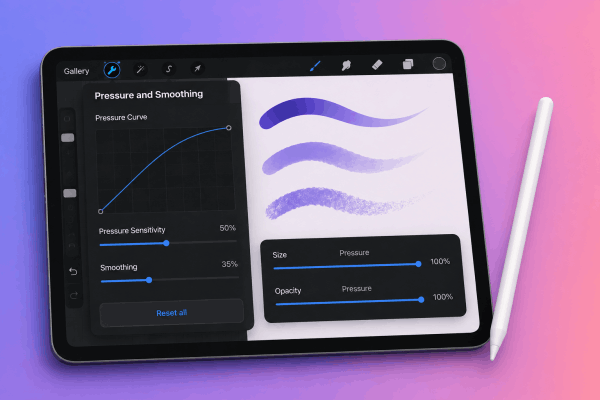
3. Reset app-level pressure curves
If pressure works in Apple Notes but fails in your main creative app, the issue lies within the software’s brush engine.
-
For Procreate: Open the app, go to Actions (Wrench icon) > Prefs > Pressure and Smoothing, and tap Reset all.
-
Check individual brush settings to ensure Pressure Size or Pressure Opacity hasn’t been set to zero by mistake.
4. Unpair and force re-pair your Apple Pencil
Re-establishing a fresh Bluetooth handshake clears stuck sensor states.
-
Go to Settings > Bluetooth.
-
Find your Apple Pencil, tap the (i) icon, and select Forget This Device.
-
Restart your iPad.
-
Reattach your Apple Pencil (snap it magnetically for 2nd Gen/Pro or plug it in for 1st Gen/USB-C) and confirm the pairing prompt.

5. Remove thick screen protectors or magnetic cases
Thick tempered glass screen protectors reduce touch sampling rates. Furthermore, third-party protective cases equipped with heavy magnetic closures can distort the magnetic field between the iPad screen and the stylus, causing stroke glitches or pressure drops. Try removing your case temporarily to see if sensitivity returns.
Keep Reading:
- iPad Scribble Not Working with Apple Pencil? 8 Easy Fixes That Work
- Apple Pencil battery draining fast when not in use? 7 quick fixes
Comparison: Hardware vs software pressure failure
| Feature | Software Issue | Hardware Sensor Failure |
| Scope | Fails in one specific app; works in Apple Notes | Fails across all apps consistently |
| Physical Condition | Nib is intact, pencil was never dropped | Pencil was recently dropped tip-down |
| Finger vs Pencil | Finger touches work fine | Pencil registers lines, but without variable weight |
| Quick Fix | App reset, iPadOS update, re-pairing | Requires repair or hardware replacement |
Pro tips to prevent Apple Pencil sensor damage
Preventative care keeps your stylus functioning smoothly for years:
-
Avoid over-tightening the tip: Tighten until snug, but don’t force it, or you may snap the internal gold transducer pin.
-
Use a protective cap when traveling: Hard drops onto tiled floors or asphalt directly on the tip are the #1 cause of dead pressure sensors.
-
Keep your iPad updated: Always run the latest official version of iPadOS rather than beta builds, which frequently introduce stylus bugs.

Frequently asked questions
Can a dead battery cause pressure sensitivity issues?
Yes. When your Apple Pencil battery drops below 5-10%, Bluetooth connection stability drops, leading to erratic pressure feedback and line skipping before the device turns off completely.
Does Apple cover pressure sensitivity under warranty?
If your Apple Pencil is under its 1-year standard warranty (or covered by AppleCare+) and shows no visible drop damage, Apple will typically replace a defective stylus for free if the internal sensor fails.
Why does my Apple Pencil draw lines but ignores pressure?
This usually indicates either a loose nib, a software-level pressure curve glitch, or a broken internal pressure transducer. Work through the nib-tightening and app-reset steps above first.

Final thought
When your Apple Pencil pressure sensitivity stops working, it can feel like a major roadblock to your workflow.
Work through the steps above systematically before spending money on a replacement. If you have tried every software reset and nib swap without success, visit an Apple Store to test your stylus against a display model, it might be time to claim a warranty replacement






