

Is your Goodnotes typing text box jumping around? Discover fast fixes to stop shifting text and keep your notes smooth and readable.
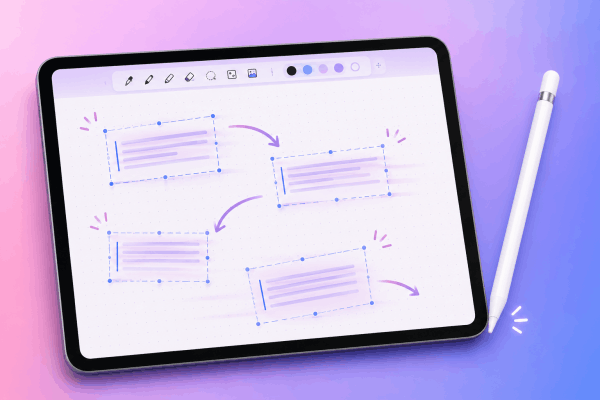
Typing on an iPad should feel seamless, but a sudden glitch can instantly disrupt your workflow. If your Goodnotes typing text box keeps jumping around the page, you understand how frustrating it is when a simple note-taking session turns into a struggle with misplaced text.
This issue affects both casual note-takers and heavy digital planners. Fortunately, you can fix it using practical, real-world troubleshooting steps.
CONTENTS:
Symptoms of the Goodnotes text box glitch
Before diving into the solutions, it helps to identify how this issue usually manifests during daily use. You might notice one or more of the following behaviors:
-
Cursor displacement: The cursor suddenly teleports several lines up or down while you type.
-
Auto-scrolling pages: The entire page shifts vertically or horizontally as soon as you open a new text box.
-
Text overlapping: Newly entered text snaps on top of existing handwriting, images, or stickers.
-
Laggy drag handles: Text box boundary handles stutter or jump to the screen edges when you try to resize them.

Why your Goodnotes text box keeps shifting
Understanding why this erratic movement happens makes it easier to prevent in the future. The most common causes include:
-
Palm rejection interference: The iPad touch sensor misinterprets your palm or wrist resting on the screen as active input.
-
Scribble feature conflicts: iPadOS Scribble attempts to convert handwriting into text simultaneously, causing layout conflicts inside the text box.
-
Zoom Window misconfiguration: Using the built-in zoom window while typing creates misaligned coordinate calculations on the canvas.
-
Corrupted document cache: Accumulated temporary data inside a specific notebook causes visual rendering glitches.
-
Outdated app or system software: Unpatched bugs in older versions of Goodnotes or iPadOS cause input instability.
See More:
- How to fix Goodnotes brush stroke glitching and jagged lines easily
- Fix Goodnotes High Battery Drain and Overheating on iPad
Step-by-step solutions for jumping text boxes
Here are tested, real-world fixes to bring stability back to your digital notebook.
1. Adjust palm rejection settings
Aggressive touch recognition often triggers unwanted text box shifts. Restraining how the app responds to physical touch stabilizes the canvas layout.
-
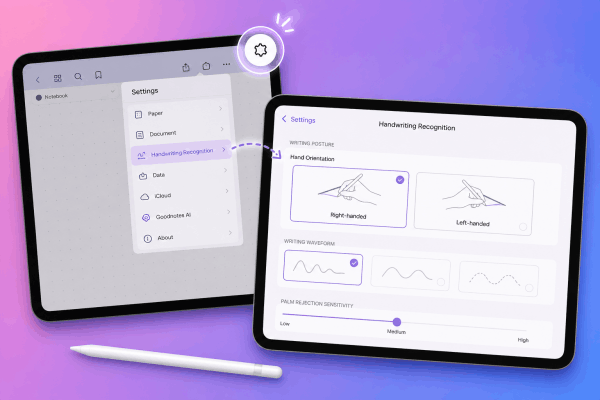
Open Goodnotes and tap the Settings gear icon in the top-right corner.
-
Select Handwriting Recognition (or Stylus & Palm Rejection).
-
Set your Writing Waveform or hand orientation to match your natural handwriting posture.
-
Lower the palm rejection sensitivity to Medium or Low if your screen protector is unusually thick.
2. Disable iPadOS Scribble
While Scribble is convenient for quick jotting, it frequently conflicts with dedicated text boxes in Goodnotes, forcing text fields to jump around as the system attempts handwriting conversion.
-
Open the Settings app on your iPad.
-
Scroll down and select Apple Pencil.
-
Toggle off Scribble.
-
Return to Goodnotes and check if the text field remains steady.
3. Change text box alignment and disable auto-fit
When auto-fit settings remain active, text boxes expand or shrink dynamically as you type. This rapid resizing creates the illusion that the box is jumping around the page.
-
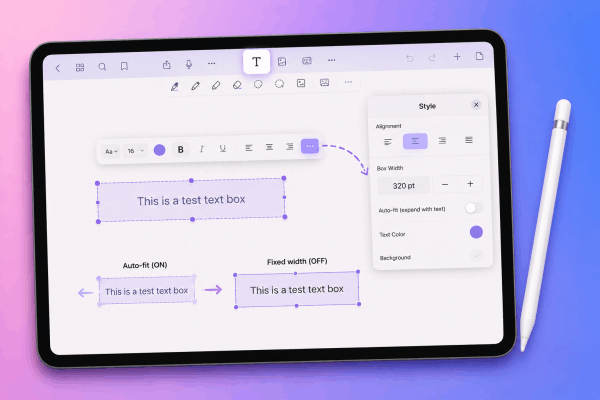
Tap the Text tool icon in the Goodnotes toolbar.
-
Create a test text box on your page.
-
Tap the style menu on the contextual toolbar.
-
Set a fixed width for your text box manually rather than letting it autosize to fit the line length.
4. Restart your iPad normally
A simple system restart clears temporary memory bottlenecks and solves minor input mapping errors.
-
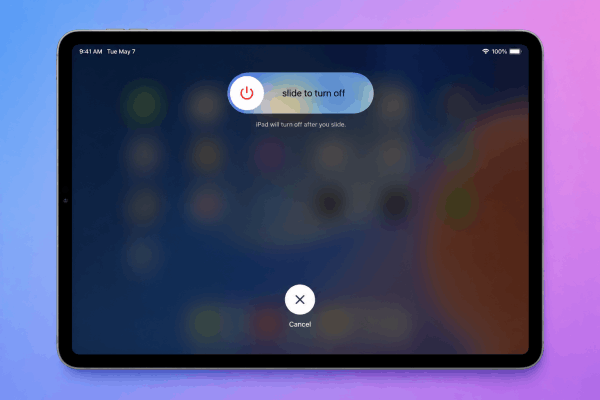
Press and hold the Top button and either Volume button until the power-off slider appears.
-
Drag the slider to turn off your iPad completely.
-
Wait approximately 30 seconds.
-
Press and hold the Top button again until the Apple logo appears to power it back on.
5. Clear page cache by duplicating the notebook
If the jumping text issue only occurs within one specific notebook, page data corruption might be the root cause.
-
Go to the main Goodnotes library document view.
-
Tap the arrow next to the affected notebook title.
-
Select Duplicate.
-
Open the duplicated version to verify if text entry works smoothly without jumping.
Pro tips for a smoother Goodnotes experience
Prevent future typing and layout glitches by incorporating these practical habits into your note-taking routine:
-
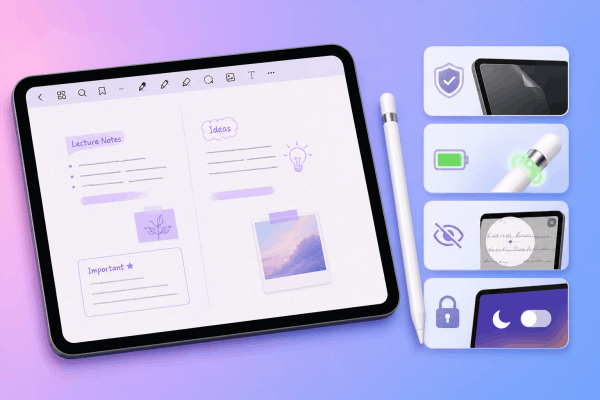
Use a specialized screen protector: Matte screen protectors reduce electrostatic interference that can confuse touch sensors during typing.
-
Keep your Apple Pencil charged: A low Apple Pencil battery often sends inconsistent Bluetooth signals, triggering layout flickering.
-
Disable Zoom Window while typing: Reserve the Zoom Window strictly for handwriting; close it entirely before switching to the Text tool.
-
Turn off auto-lock during study sessions: Frequent display sleeping and waking cycles can disrupt active text box rendering.
Frequently asked questions
Why does my text box jump only when using a Bluetooth keyboard?
Physical keyboards trigger auto-correct and predictive text bars that adjust the canvas layout dynamically. Disabling the predictive text bar under iPadOS Keyboard Settings eliminates this movement.
Will reinstalling Goodnotes delete my files?
Reinstalling deletes local data unless iCloud Sync is active. Always confirm that your documents are fully synced to iCloud or backed up manually before reinstalling the app.
Does page zoom level affect text box stability?
Yes. Typing while zoomed in beyond 200% forces Goodnotes to adjust screen focus automatically to keep the text box in view, which feels like jumping. Maintain a standard 100% zoom level when typing extensive text.
Final thought
A jumping text box in Goodnotes usually comes down to minor setting conflicts like active Scribble mode, aggressive palm rejection, or temporary memory lag. Adjusting your touch settings and restarting your device restores a smooth, predictable typing experience so you can focus entirely on your work.





